Connect the request to a task
A device app asking to use the camera while you scan its setup code has a clear reason for that request. The same app asking for access to every contact when you only want to switch on a lamp deserves a closer look. Pause long enough to ask which feature you are enabling and what information it needs.
Start with the app named in the manufacturer's instructions, downloaded through its official store listing. Similar names and familiar-looking icons are not enough to identify the right app. Permission controls can limit access, but they do not turn an unrelated or deceptive app into the correct companion for your device.
Distinguish nearby access from broad access
Setup can involve discovering equipment close to the phone, joining a local network or scanning a code. The names of the required permissions vary with the phone's operating system and version. A nearby-device or local-network request may therefore be part of a normal pairing process, even though you are not sharing a file.
Location requests need context too. Some device-discovery methods or location-based routines depend on them, while other features do not. Read the manufacturer's explanation for your phone rather than assuming that every location request is either essential or suspicious. If the explanation does not match the feature you want, leave it denied and investigate.
Grant only what you intend
When the system offers a choice, consider access while the app is in use rather than continuous access. For photos, selected-image access may be sufficient for choosing a profile picture. A microphone permission is relevant to a voice feature; it need not be granted just because other parts of the app use it.
Test the feature after making one permission change. If setup fails, note the exact message before changing another setting. Granting everything at once may get past the screen, but it leaves you without a clear understanding of what was required. Avoid repeatedly toggling unrelated permissions in the hope that one will help.
Review the result after setup
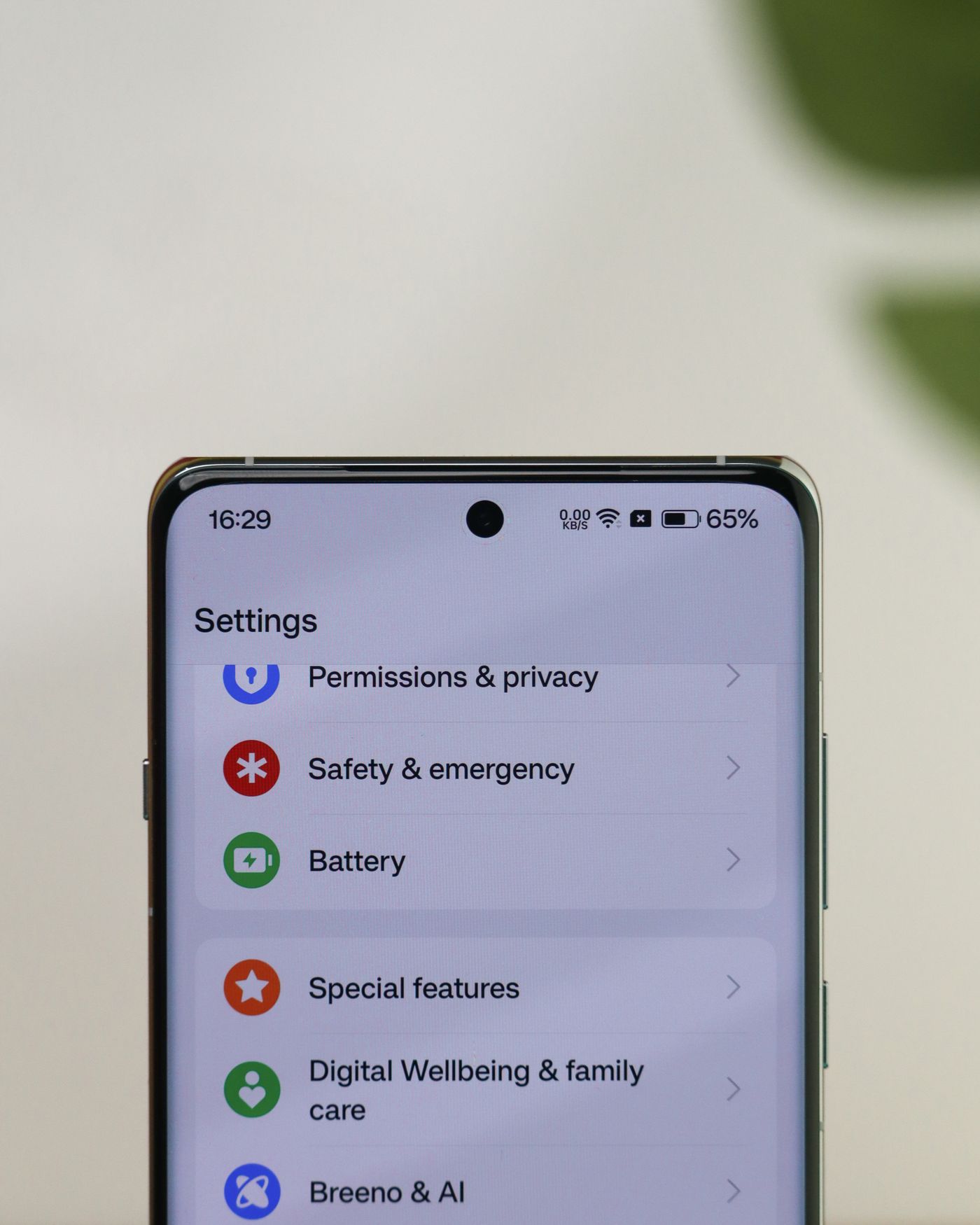
Open the phone's app settings to see what access remains. On Android, Google documents both per-app controls and permission-type views, so you can inspect one companion app or see which apps use a particular capability. Available controls and their labels differ between devices.
Revoke access that you no longer need, then check the functions you still use. Background routines, geofencing or notifications may behave differently when their necessary access is removed. If a feature stops, decide whether its benefit justifies restoring that permission rather than assuming the app must retain every earlier grant.
Finally, distinguish a permission from an account setting. Turning off access to the camera does not delete information already uploaded to a service, close its account or cancel a subscription. Those changes belong in the relevant app or service settings. Keeping the two separate makes your choices more deliberate and easier to verify.