Home Wi-Fi
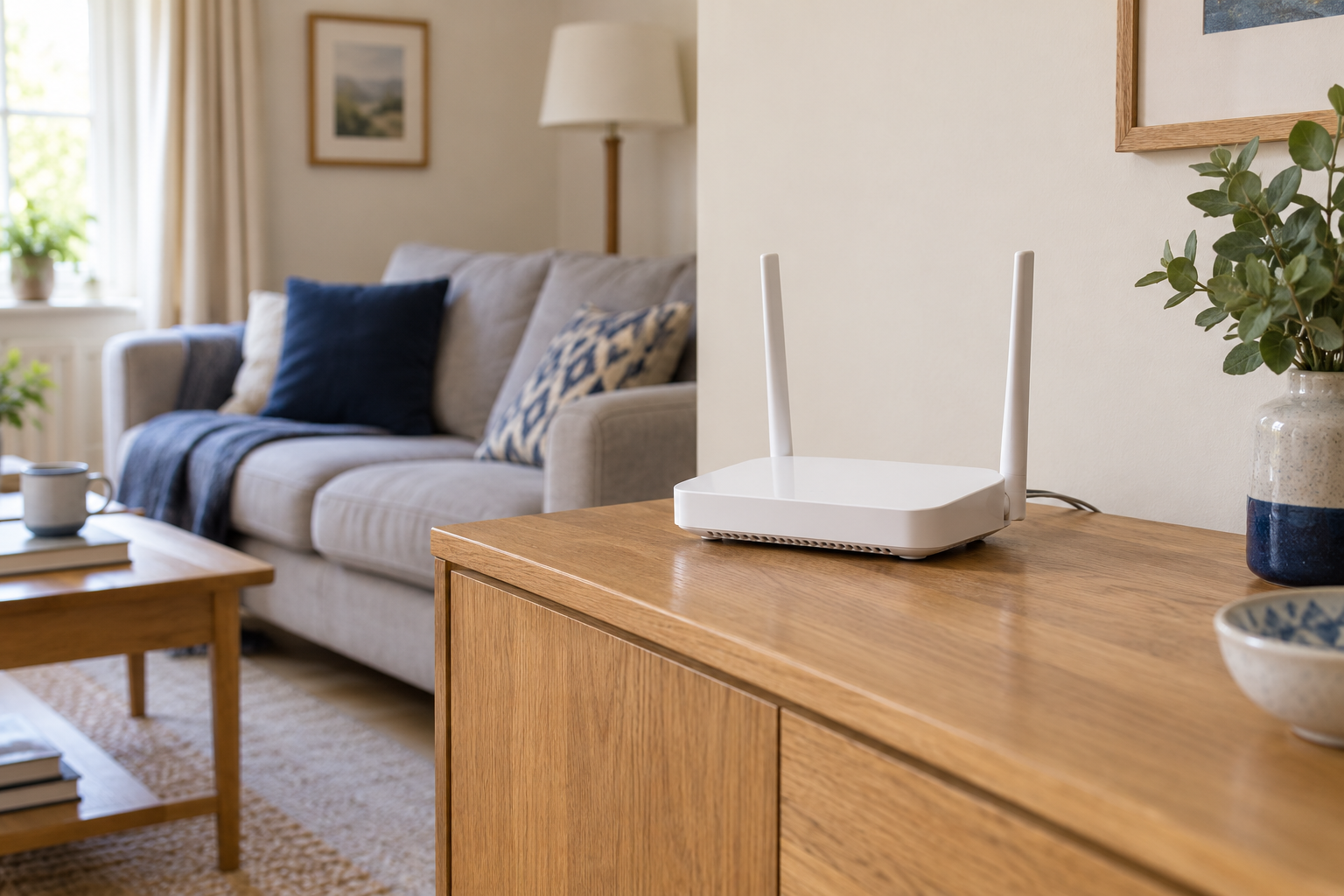
Where to put your router before buying anything else
A better position can help a router reach the places you use most. Before changing settings or ordering extra hardware, try a small, repeatable placement test.
The full collection
Search for a device, a connection or the problem you want to solve.
102 guides
No guides match those words. Try a device name or clear the filters.
Home Wi-Fi
A better position can help a router reach the places you use most. Before changing settings or ordering extra hardware, try a small, repeatable placement test.

Home Wi-Fi
Compare one device in a few carefully chosen places before deciding that a troublesome room needs more equipment.
Home Wi-Fi
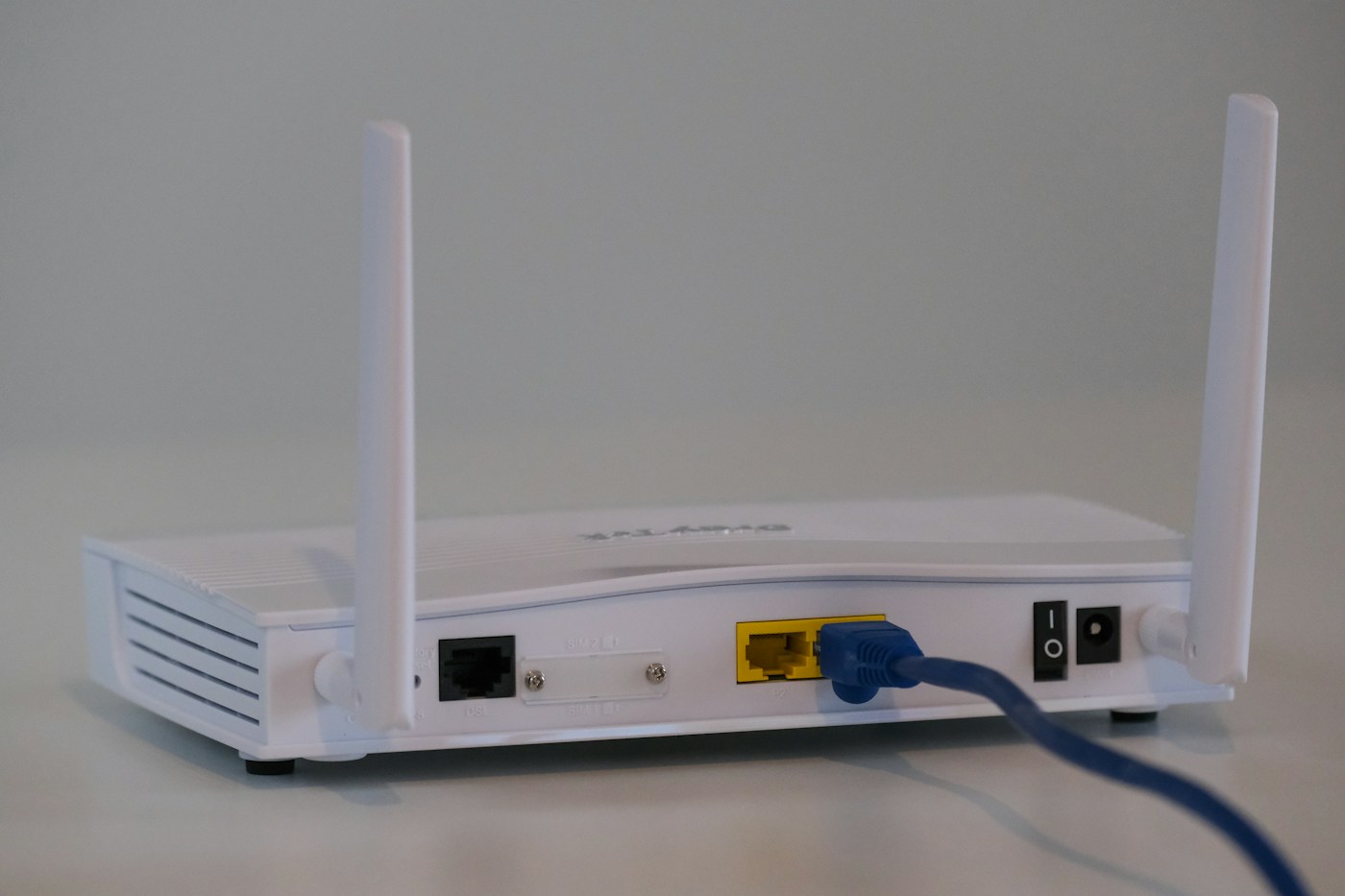
A connection has several stages. Testing them separately helps you avoid replacing the router for a problem elsewhere.
Home Wi-Fi
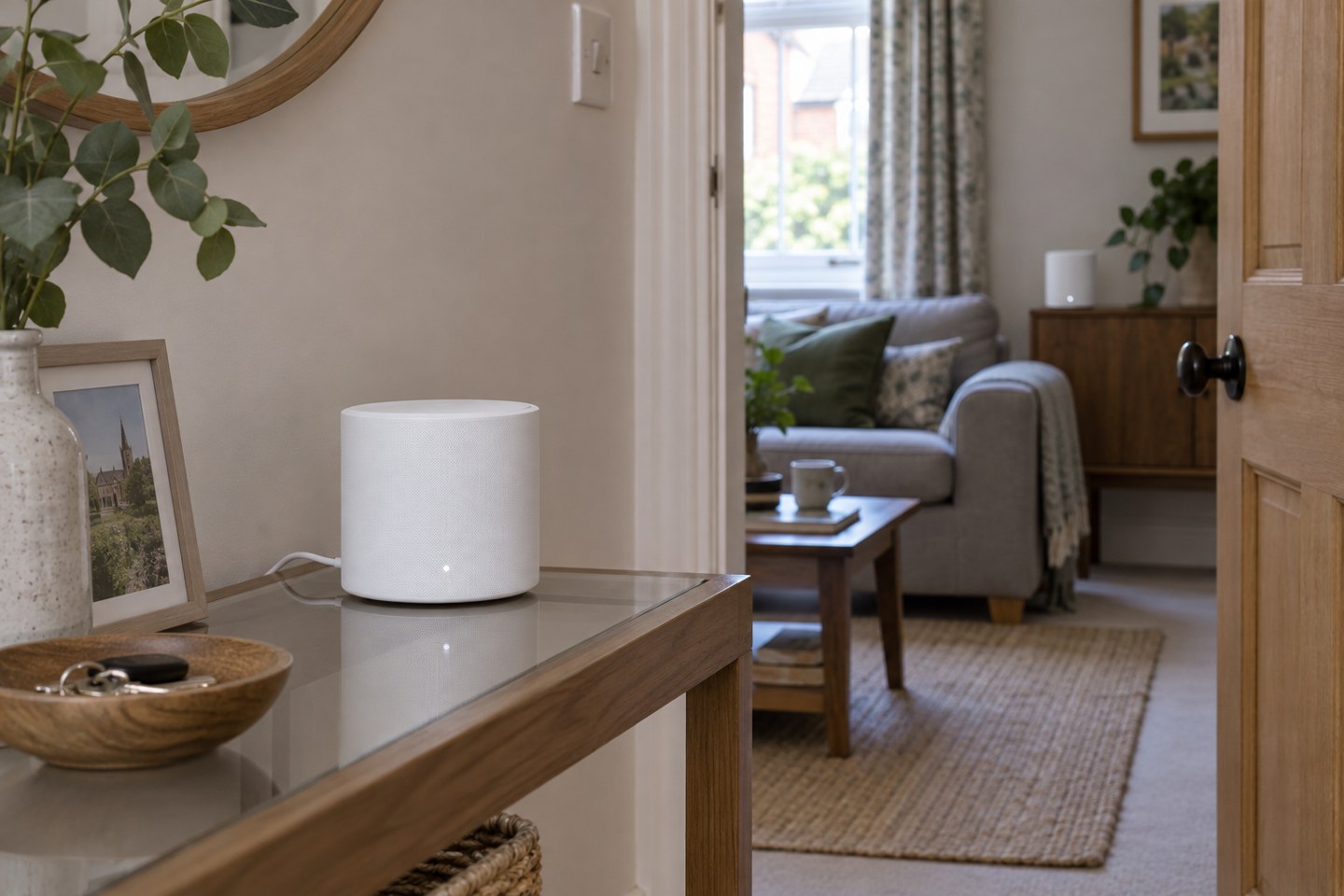
A mesh node needs a useful connection back to the network as well as a useful position near your devices.
Home Wi-Fi
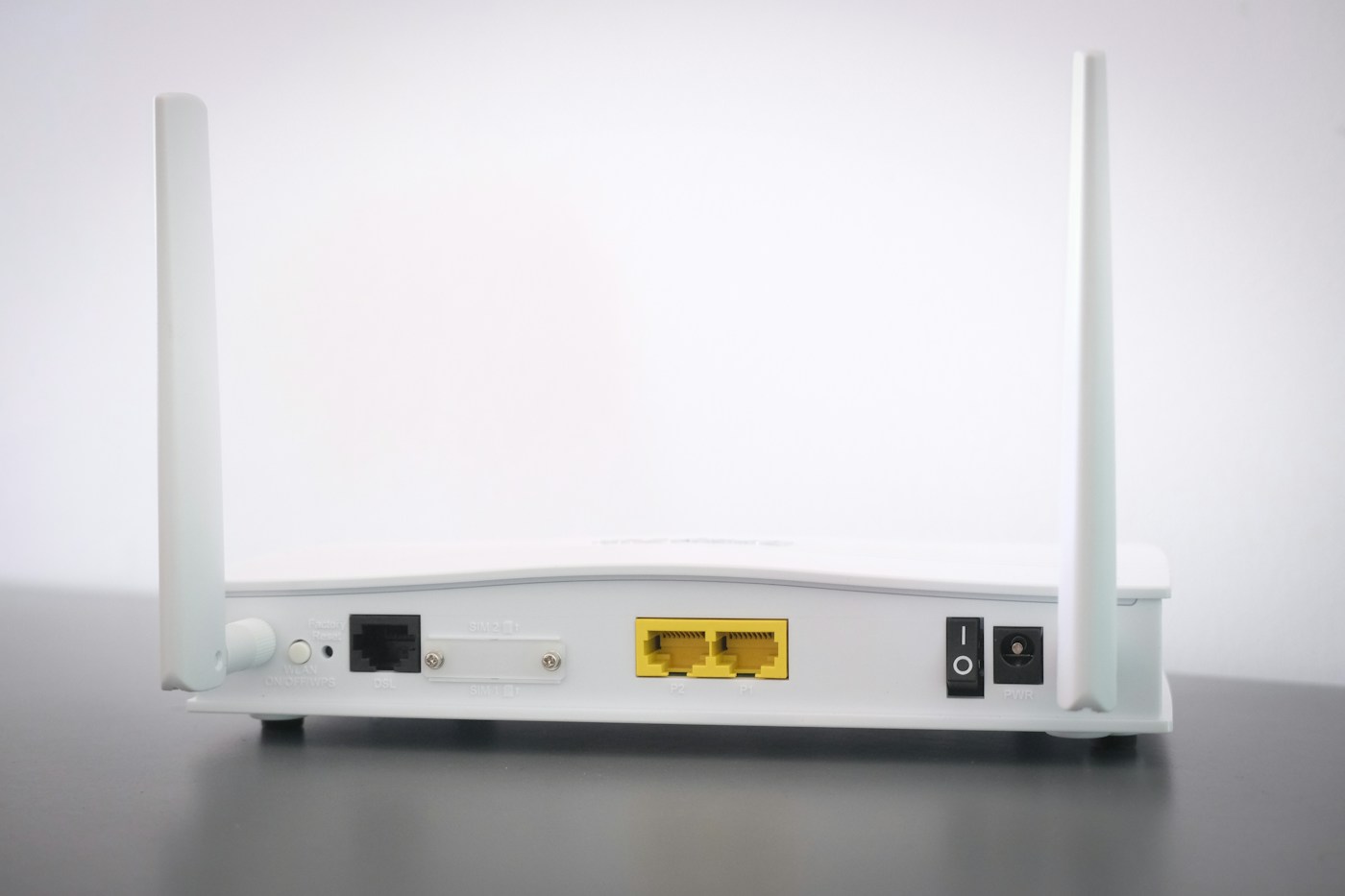
Ethernet backhaul can help a distant mesh unit, but the system, ports and cable route all need to support the plan.

Home Wi-Fi
The best band depends on the device, distance and task. A bigger number is not an automatic improvement.

Home Wi-Fi
A guest network can make visitor access simpler while keeping everyday household devices on their usual connection.
Home Wi-Fi
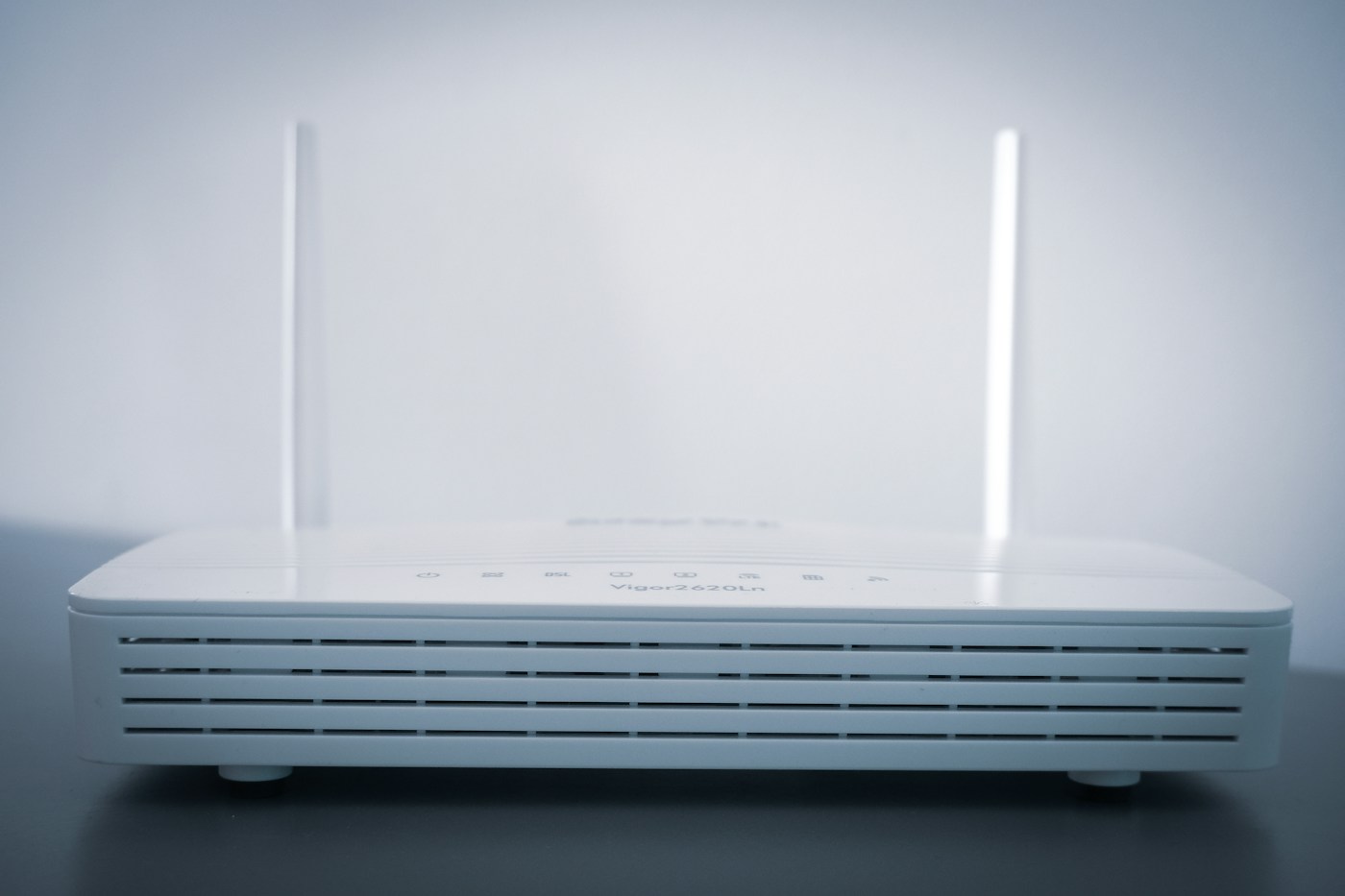
A clearer network name is easy to recognise, but changing it can leave saved devices looking for the old connection.
Home Wi-Fi
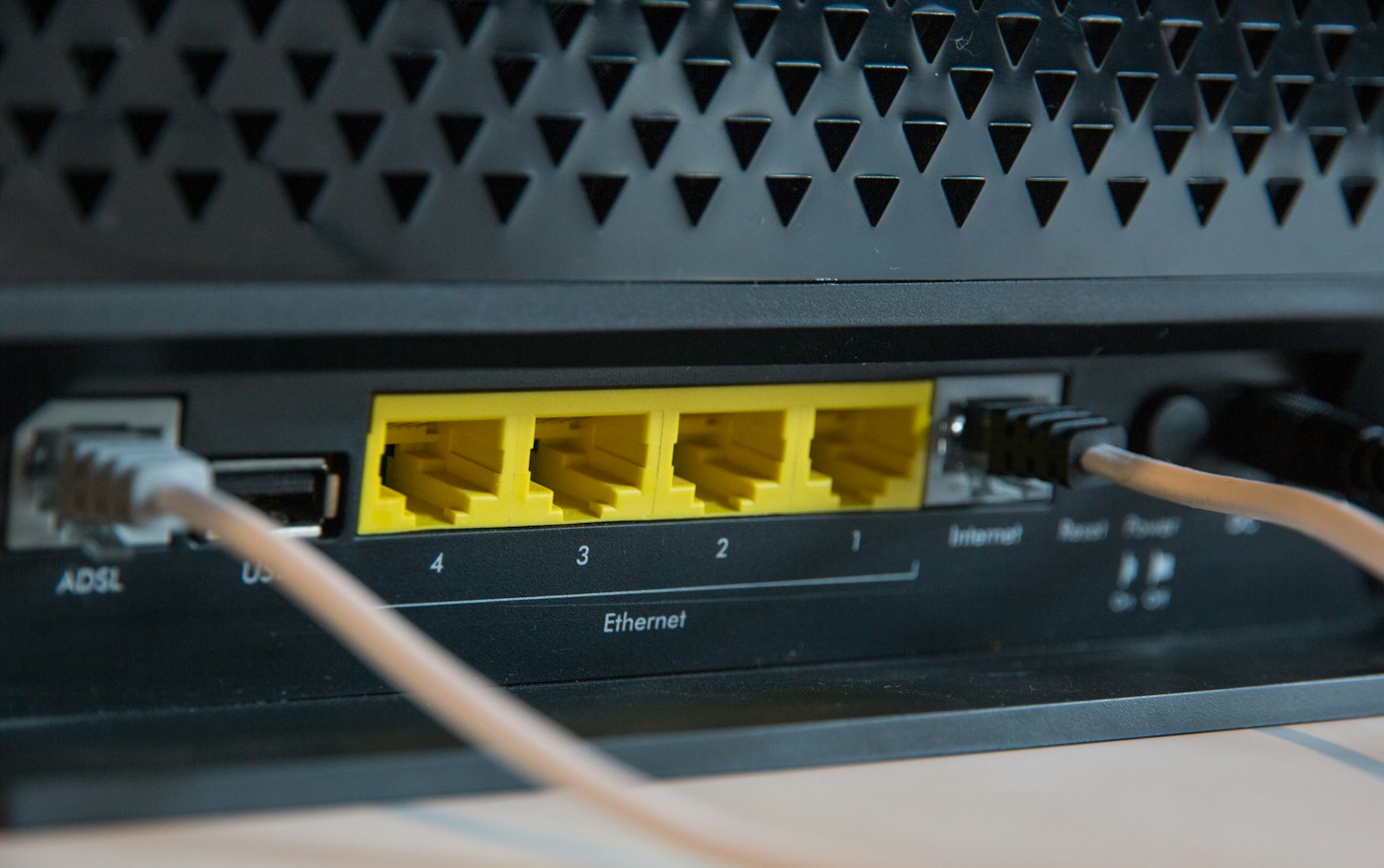
A normal restart and a factory reset have very different consequences. Identify the control before touching it.

Home Wi-Fi
Choose whether you are testing the incoming service, a particular room or one device, then keep the comparison consistent.

Home Wi-Fi
When calls, streams and downloads overlap, identify the busy activity before paying for a faster package.

Home Wi-Fi
Start with the place you will sit and the route back indoors. Outdoor coverage needs more than a strong-looking signal icon.
Home Wi-Fi
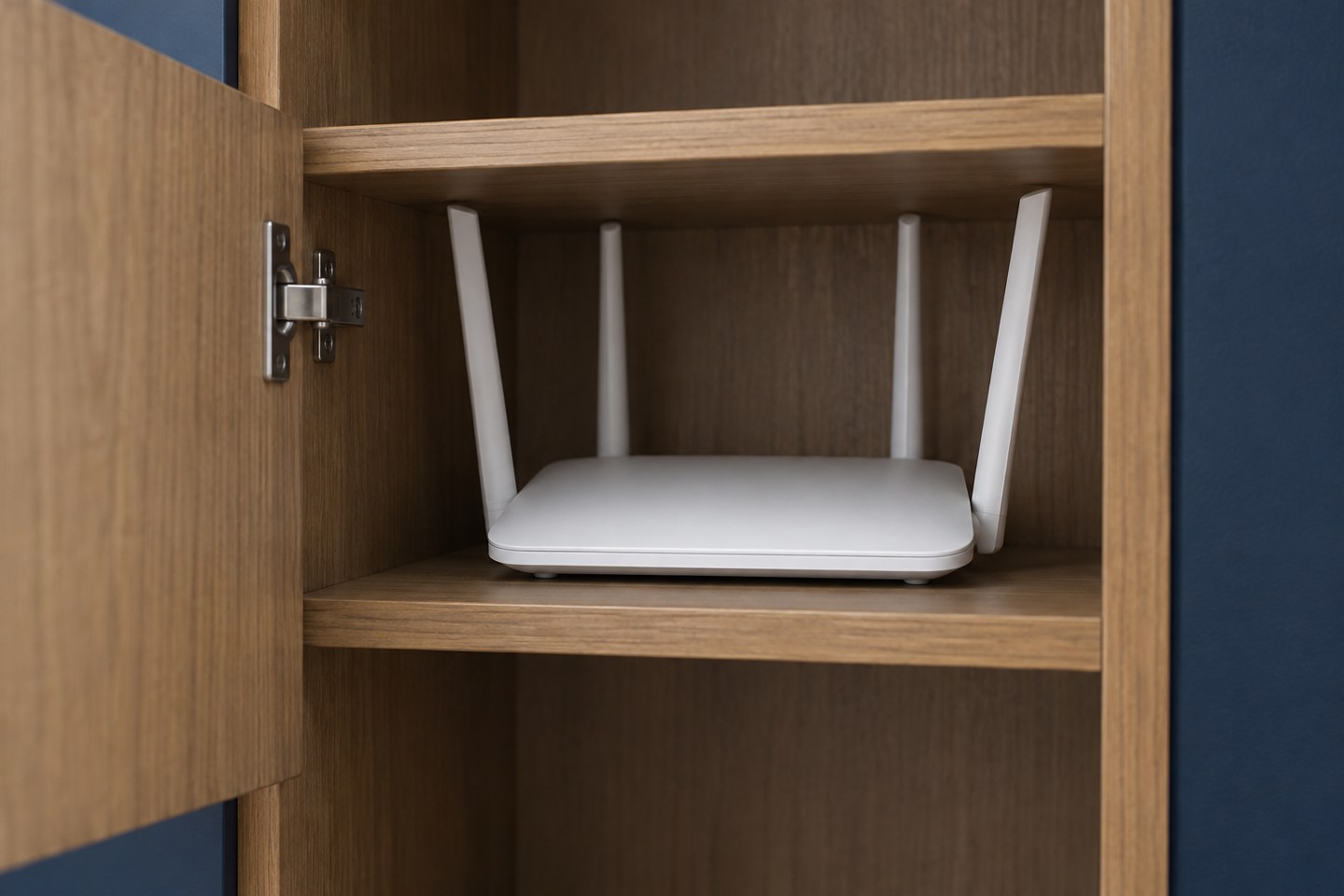
A cupboard can hide the router neatly while making its signal, ventilation and controls harder to manage.
Home Wi-Fi
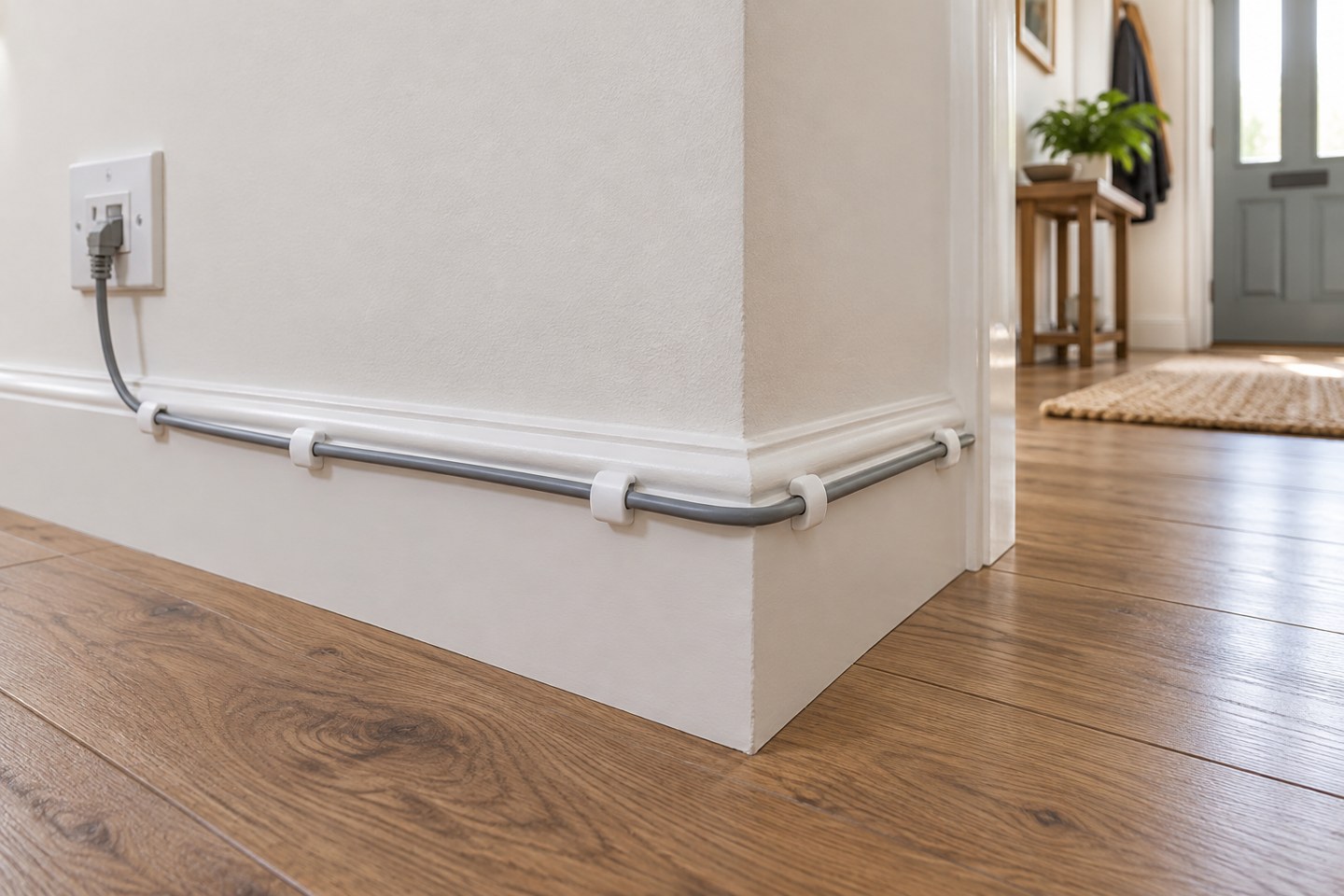
One well-planned cable can make a fixed desk easier to connect without turning the room into a wiring project.
Home Wi-Fi
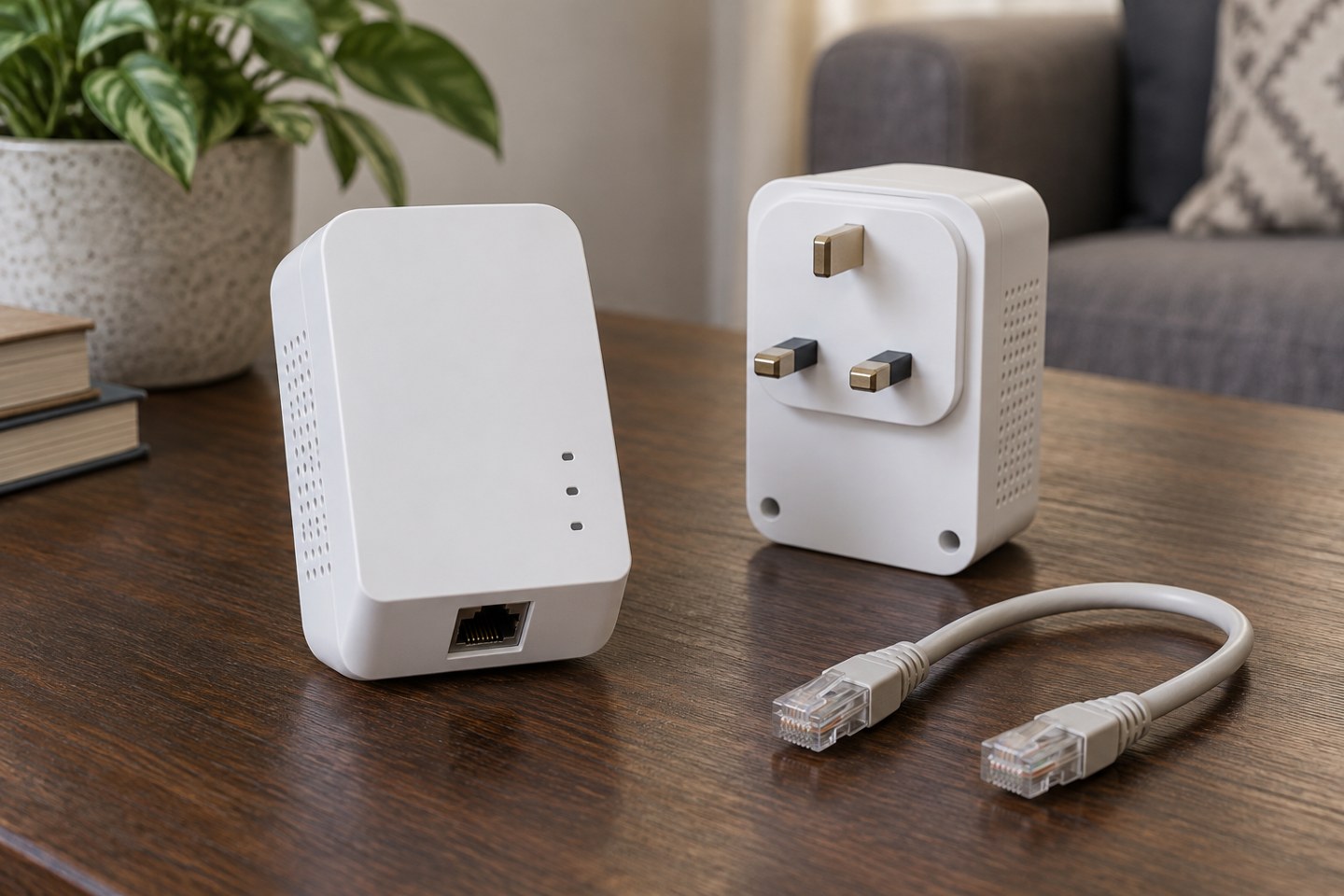
Powerline adapters use existing electrical wiring, so the building and socket arrangement matter as much as the box specification.
Home Wi-Fi
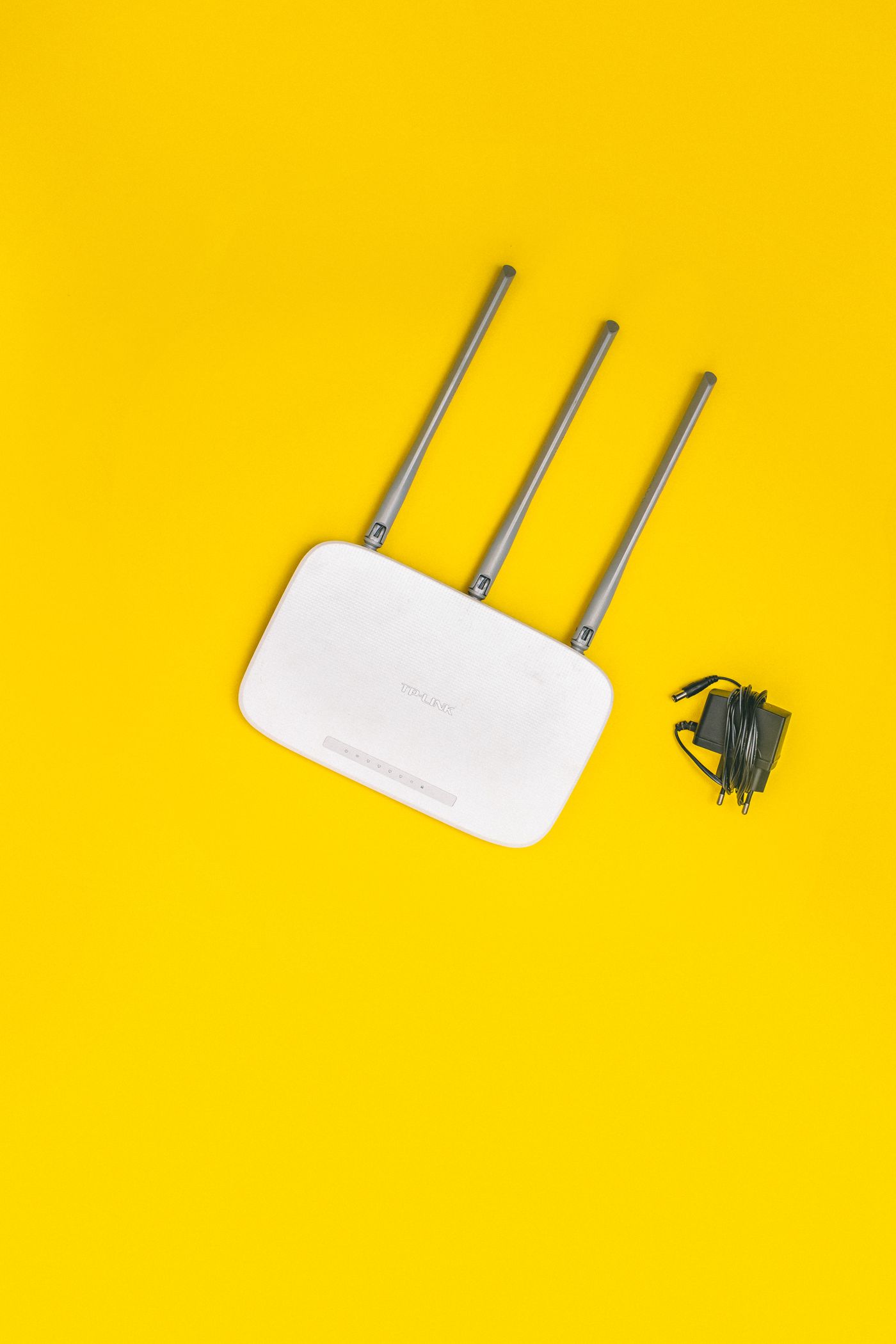
A replacement router is only useful if it fits the incoming service and fixes a limitation you can identify.

Home Wi-Fi
For an important call, reduce uncertainty in the connection and test the whole calling setup before the meeting starts.
Home Wi-Fi
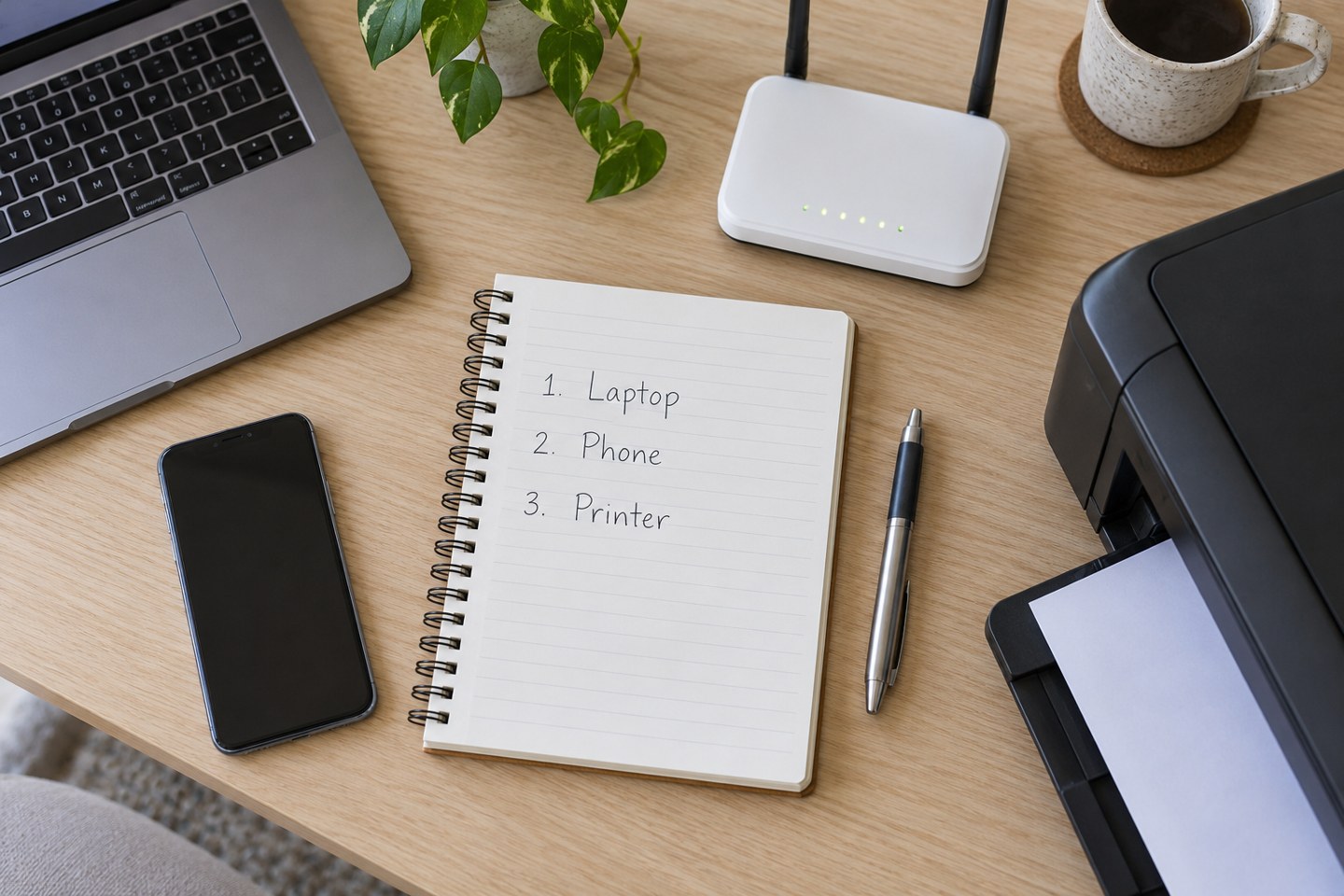
A modest device list can make a router replacement or an unexplained offline message much easier to handle.
Home Wi-Fi
Plan for the devices that will disconnect, and keep router administration details separate from the network password.
Home Wi-Fi
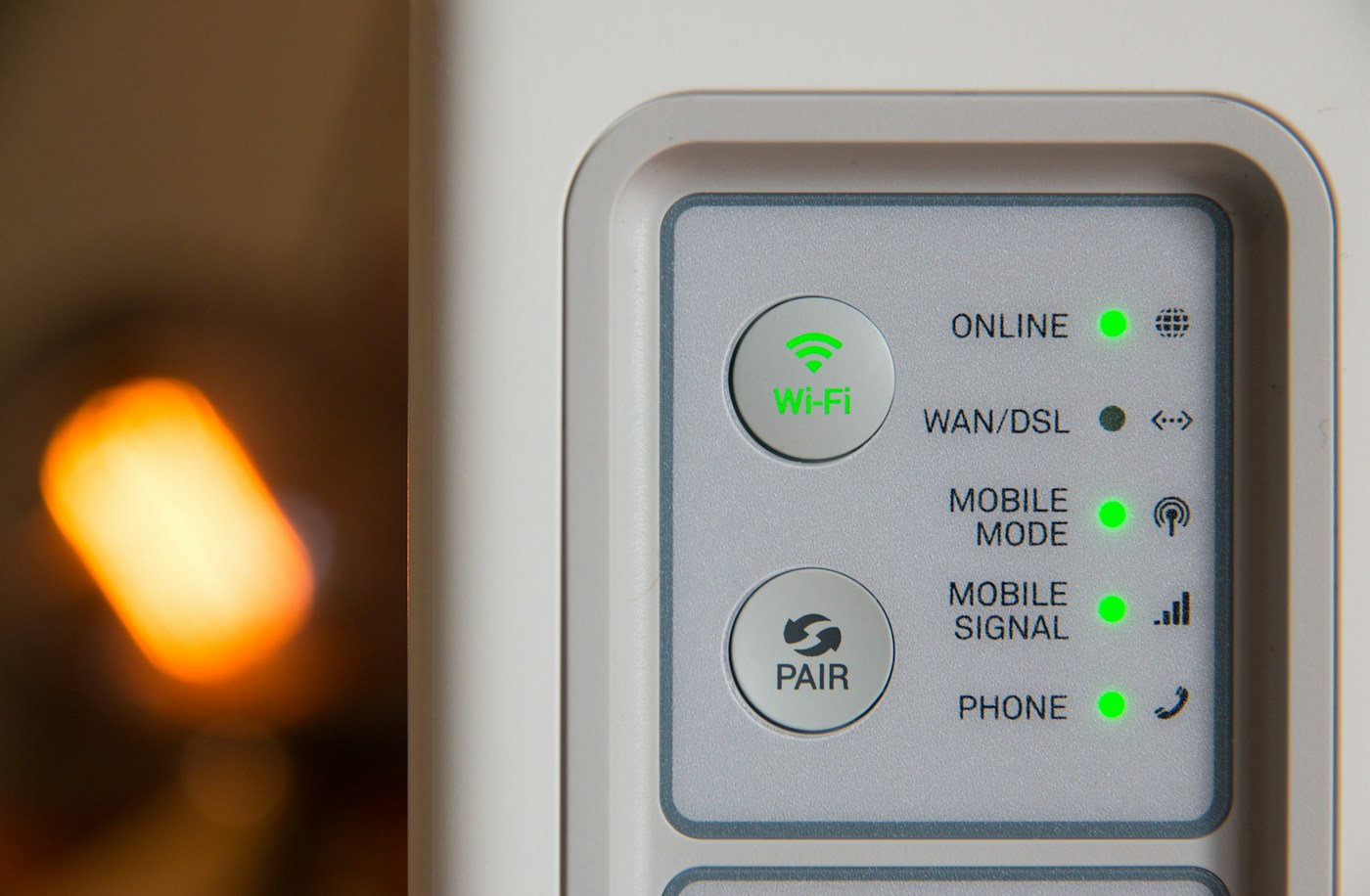
Router lights are model-specific clues. Record the pattern and look up its meaning before deciding what to restart.

Smart home
Start with one lamp, one useful function and a bulb that fits the way you already use the room.

Smart home
A plug can give an ordinary lamp scheduled on/off control, but the lamp must behave sensibly when its power returns.

Smart home
Matter describes how compatible devices work together. Thread describes one network they can use. Understanding the distinction makes shopping and setup less confusing.

Smart home
The word hub covers several jobs. Identify the connection and controller a product actually needs before adding another box.

Smart home
A light should be easy to operate without finding the right phone. Design the controls around everyone who uses the room.
Smart home
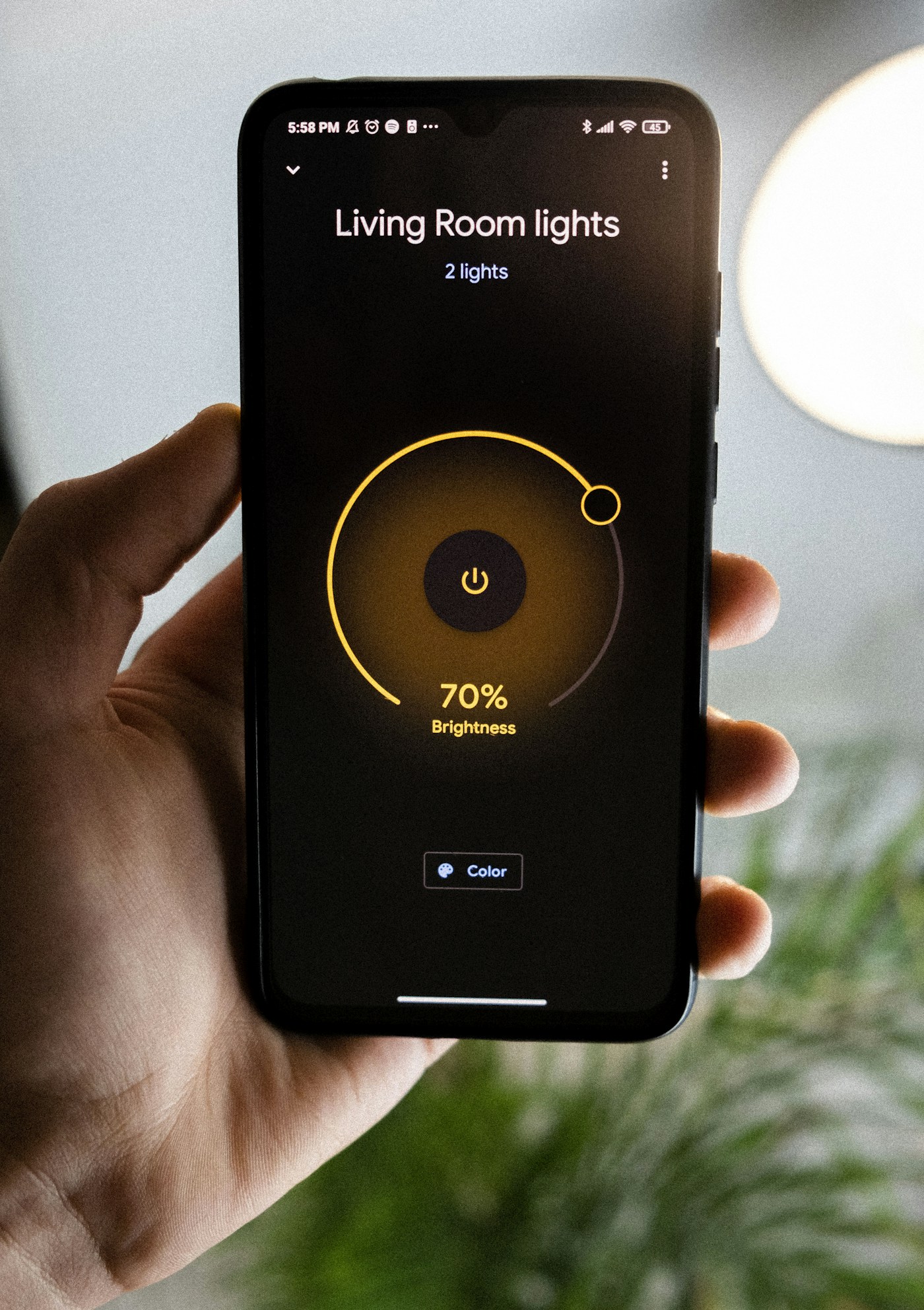
Begin with a predictable evening lamp rather than trying to automate the whole house in one sitting.
Smart home
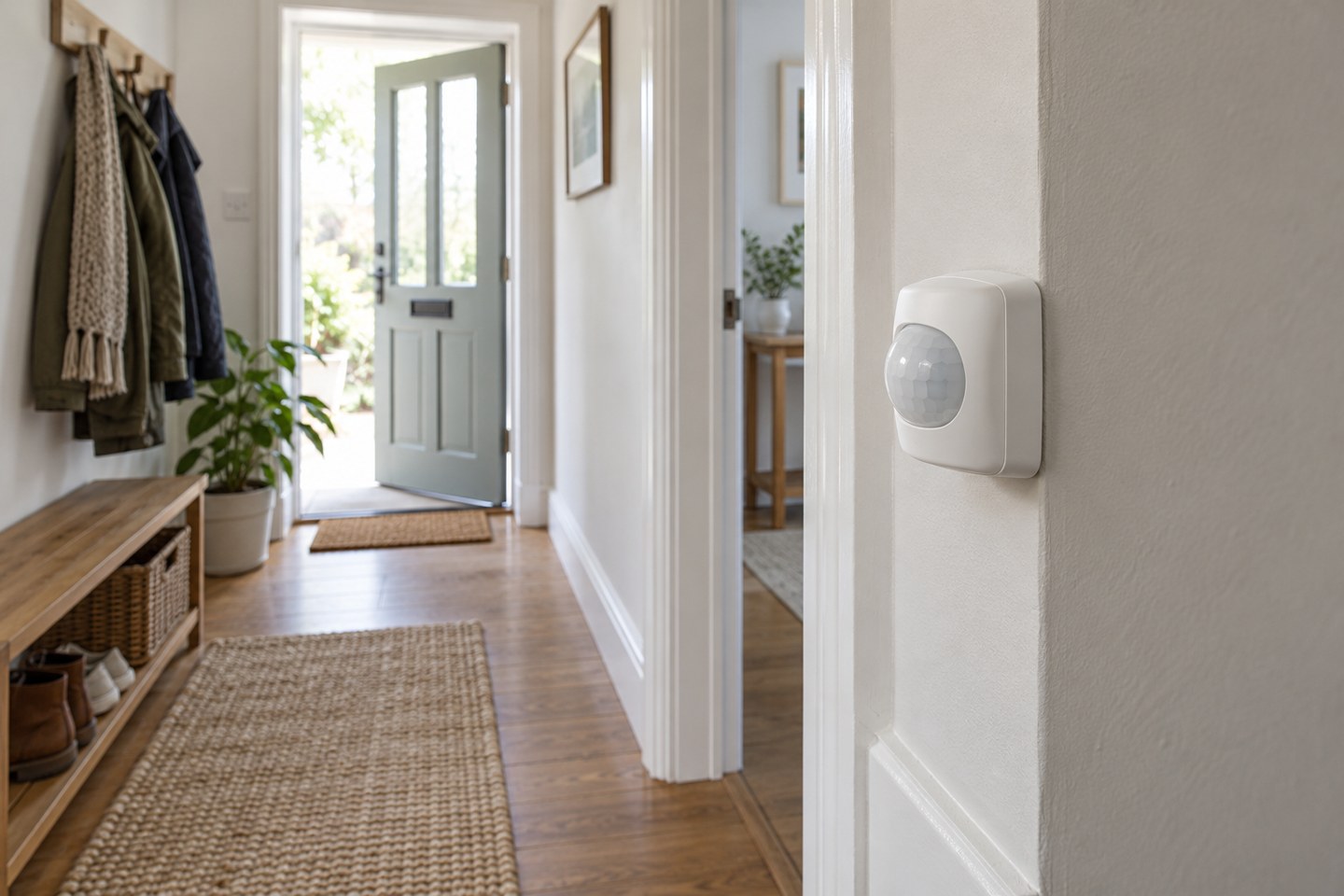
Place a sensor for the movement you want to detect, then test its view before committing to a permanent fixing.
Smart home
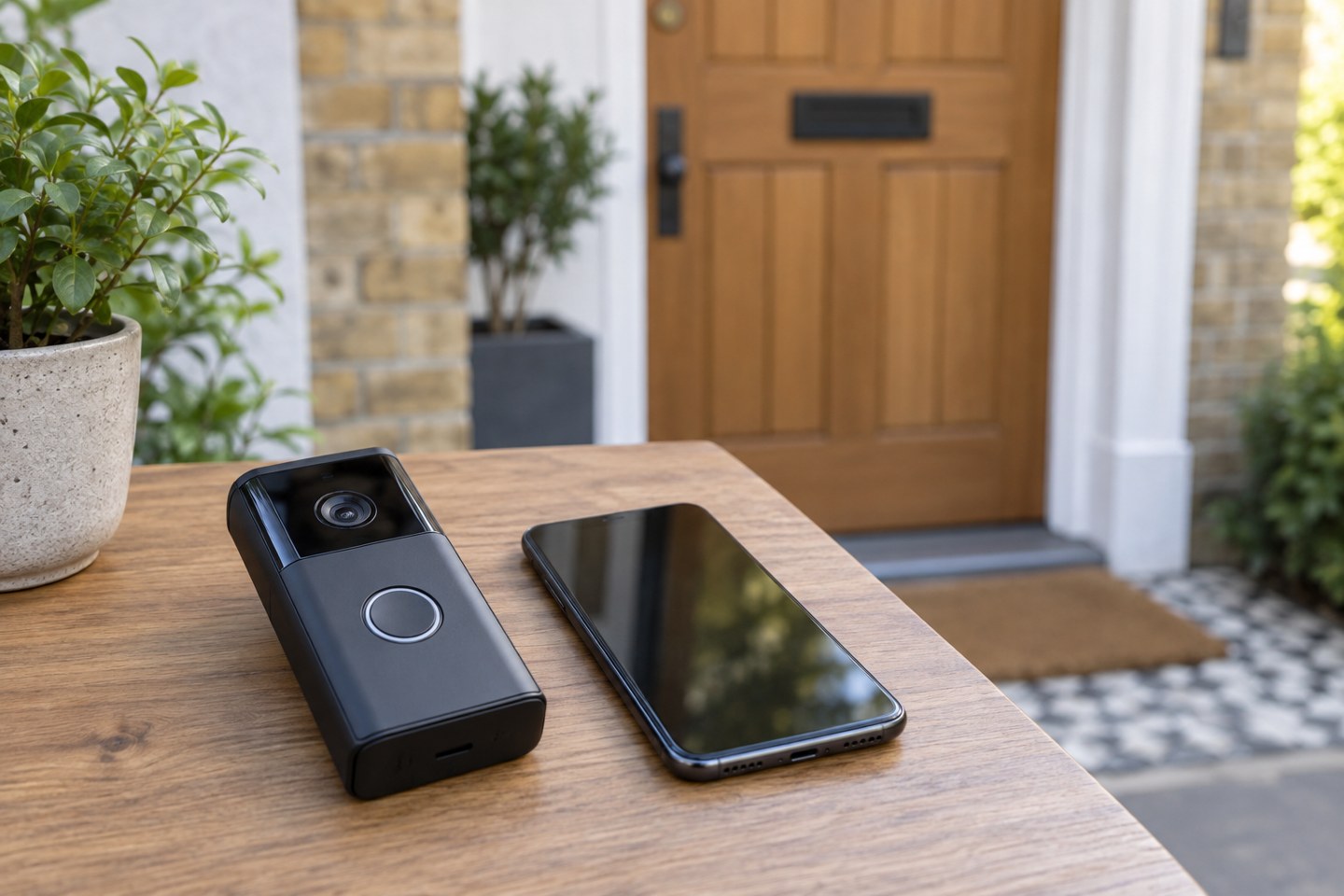
Check the actual door position, power arrangement and live connection before drilling or attaching a doorbell.

Smart home
Choose the smallest useful view, distinguish alert zones from privacy controls, and decide who should have access before recording.

Smart home
Start with a small set of commands that are easy to remember and easy to check.

Smart home
Internet, local-network and power failures have different effects. Check what each useful action depends on.

Smart home
Share the controls people need while checking what else an invitation makes visible.
Smart home
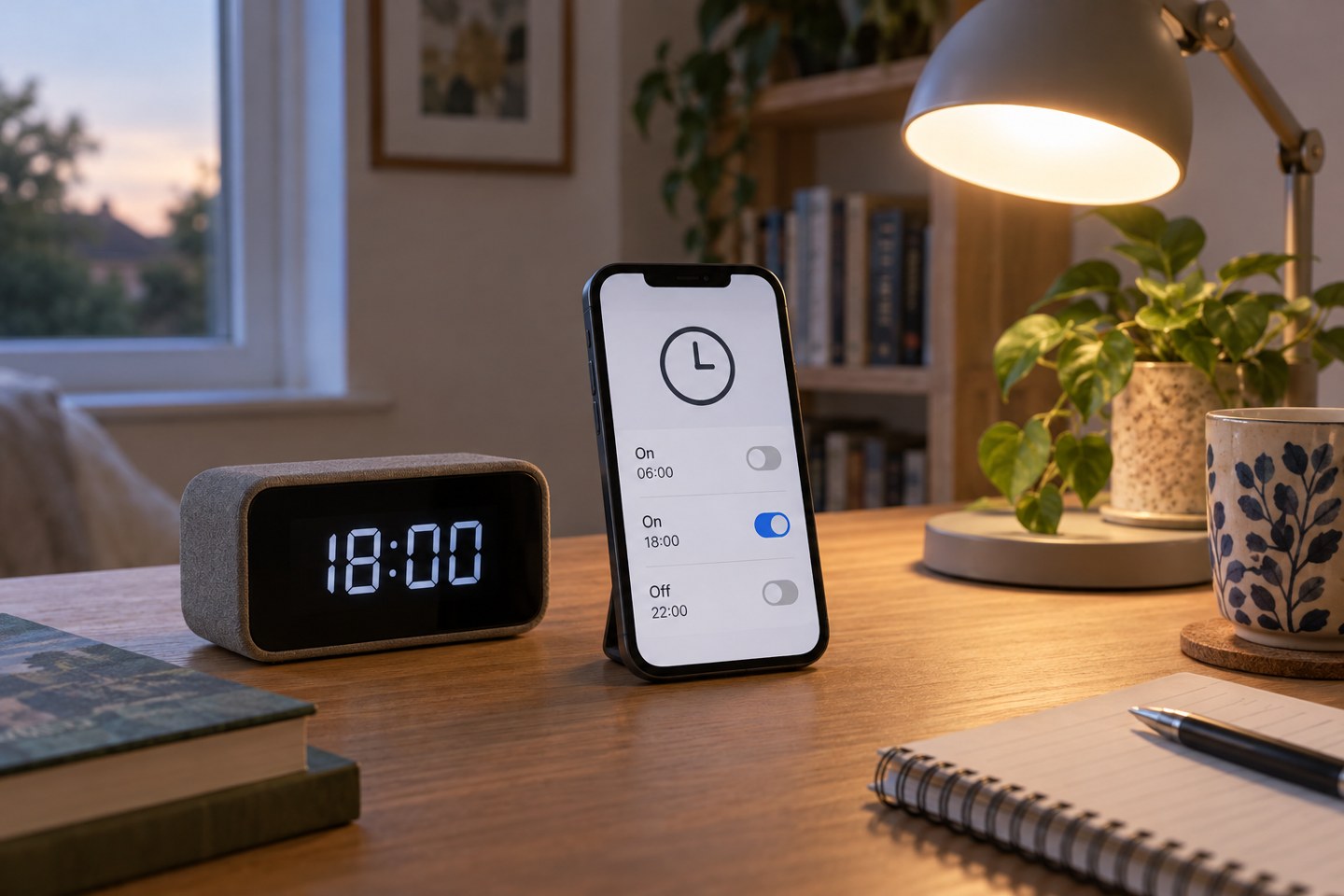
Find out whether the clock, the trigger or a second rule is responsible before rebuilding an automation.
Smart home
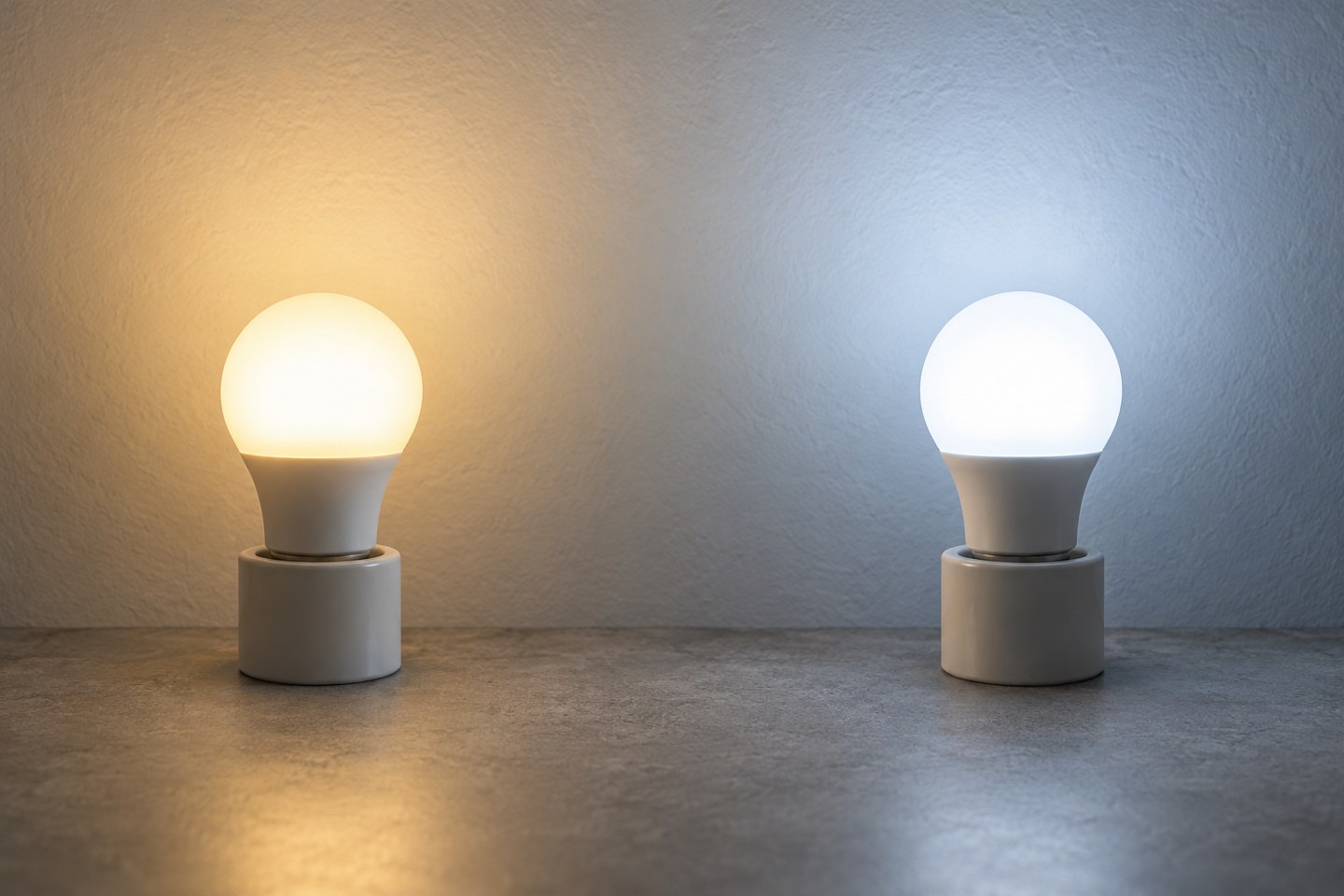
Brightness, white tone and colour are separate controls. Judge each one in the lamp and room where it will be used.

Smart home
Portable, reversible changes can improve a rented room without turning it into a permanent installation project.

Smart home
A small battery record makes a silent sensor easier to diagnose and saves buying the wrong replacement.
Smart home
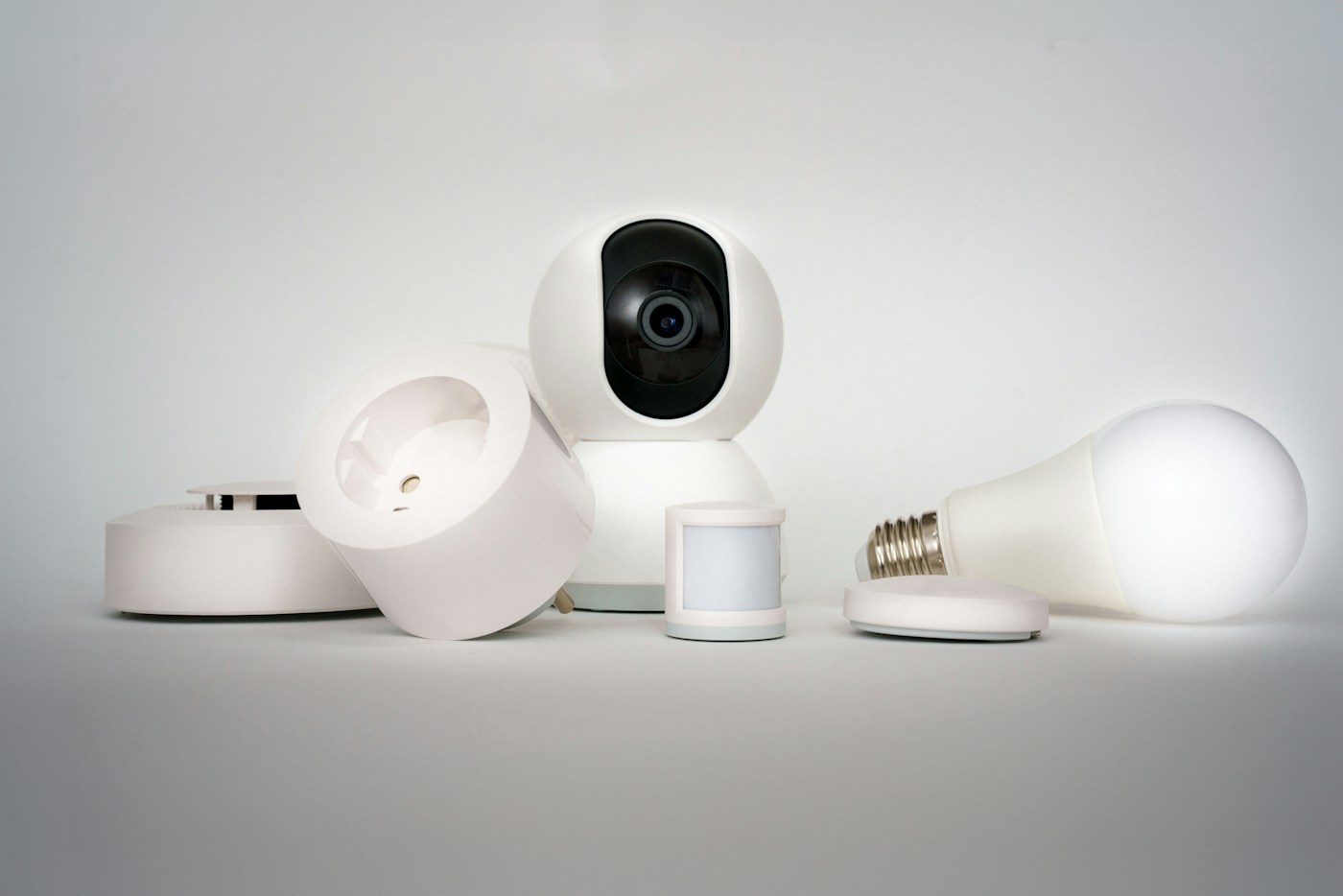
Unlinking an account, erasing local settings and ending a subscription can be separate tasks. Finish the relevant steps before a handover.

Smart home
Keep updates enabled where practical, but choose a time when a restart will not interrupt the household.
Desk & workspace
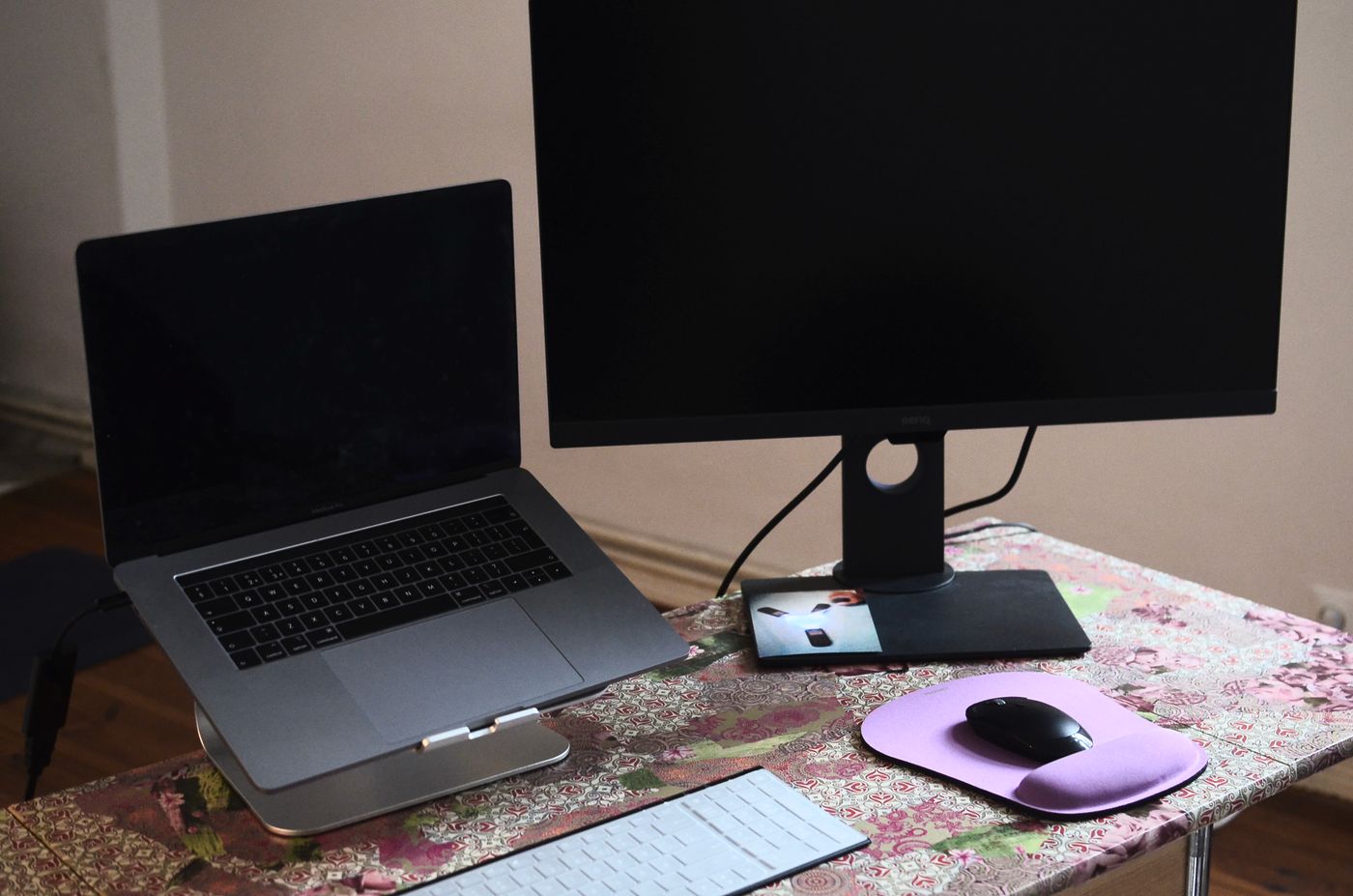
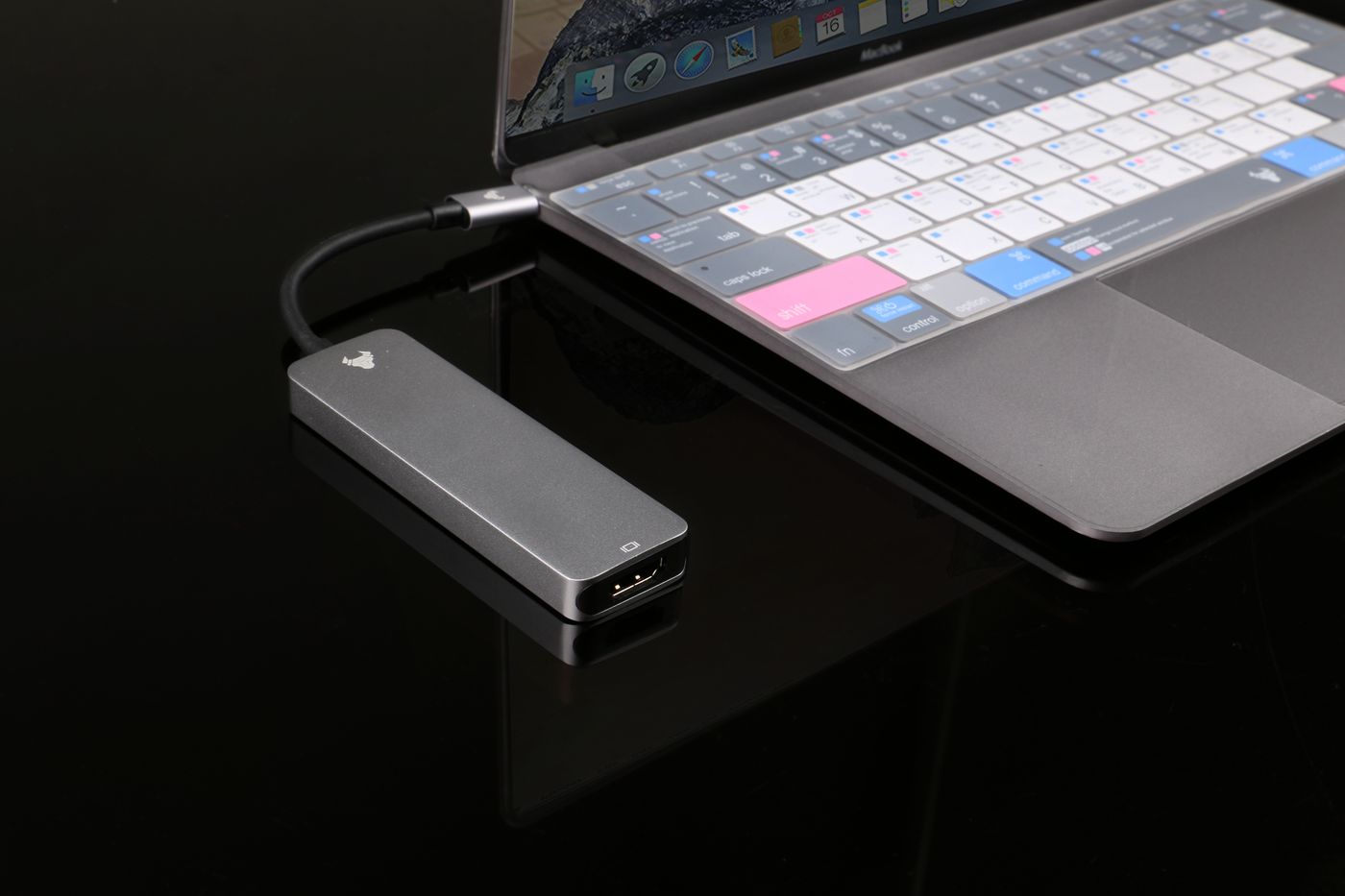
A USB-C socket does not promise video, charging and USB accessories through one cable. Check the laptop, monitor and cable as three separate parts of the connection.
Desk & workspace
Count the connections you will use together, then check whether the laptop and dock support that combination.
Desk & workspace
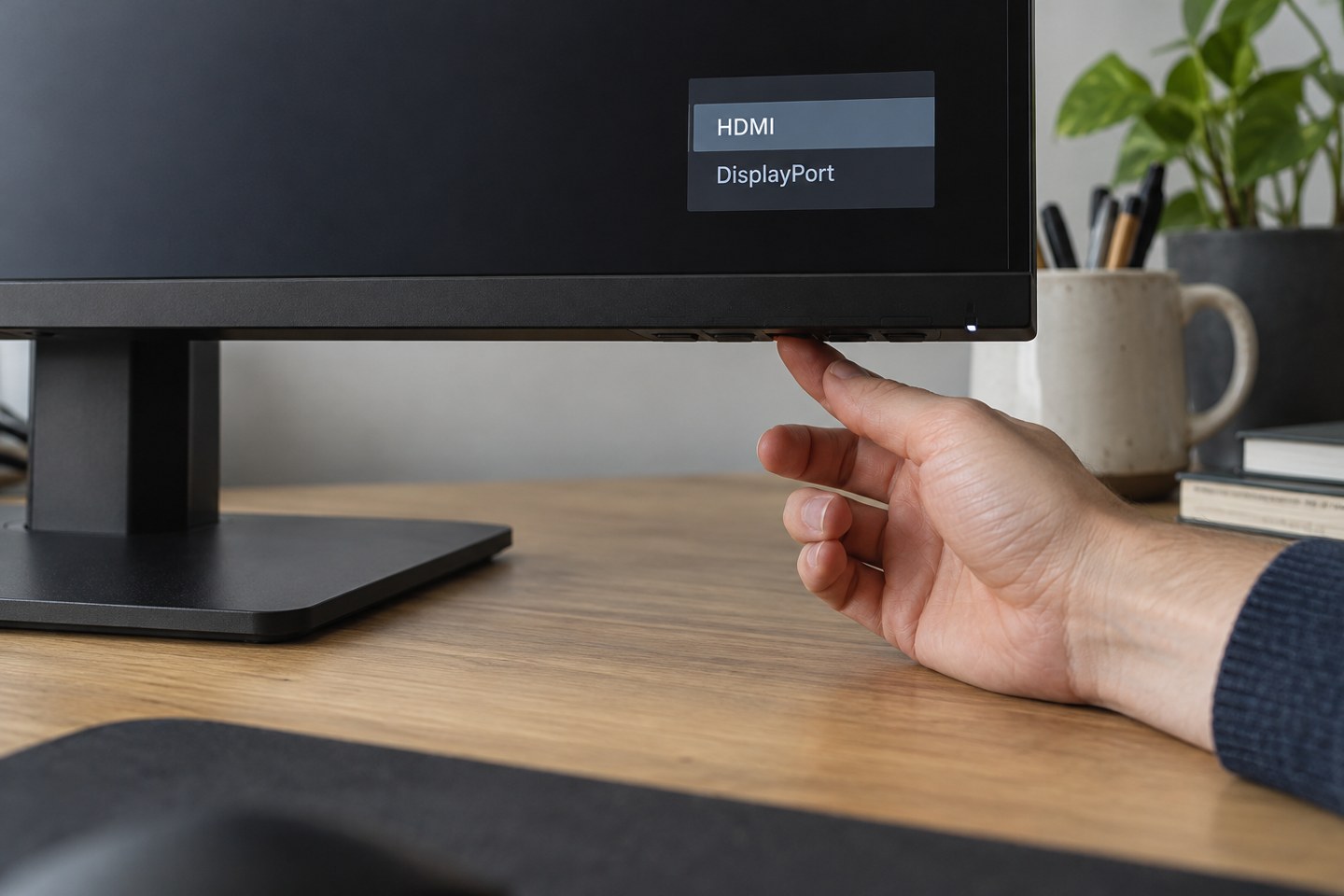
Match the monitor menu to the socket carrying the picture before changing computer settings.

Desk & workspace
Two spare sockets do not establish two-screen support. Check the laptop, connection route and display modes as a complete arrangement.

Desk & workspace
Move and soften the light before assuming the webcam needs replacing.

Desk & workspace
Choose the input and output separately, then test the pair in the application you will actually use.
Desk & workspace
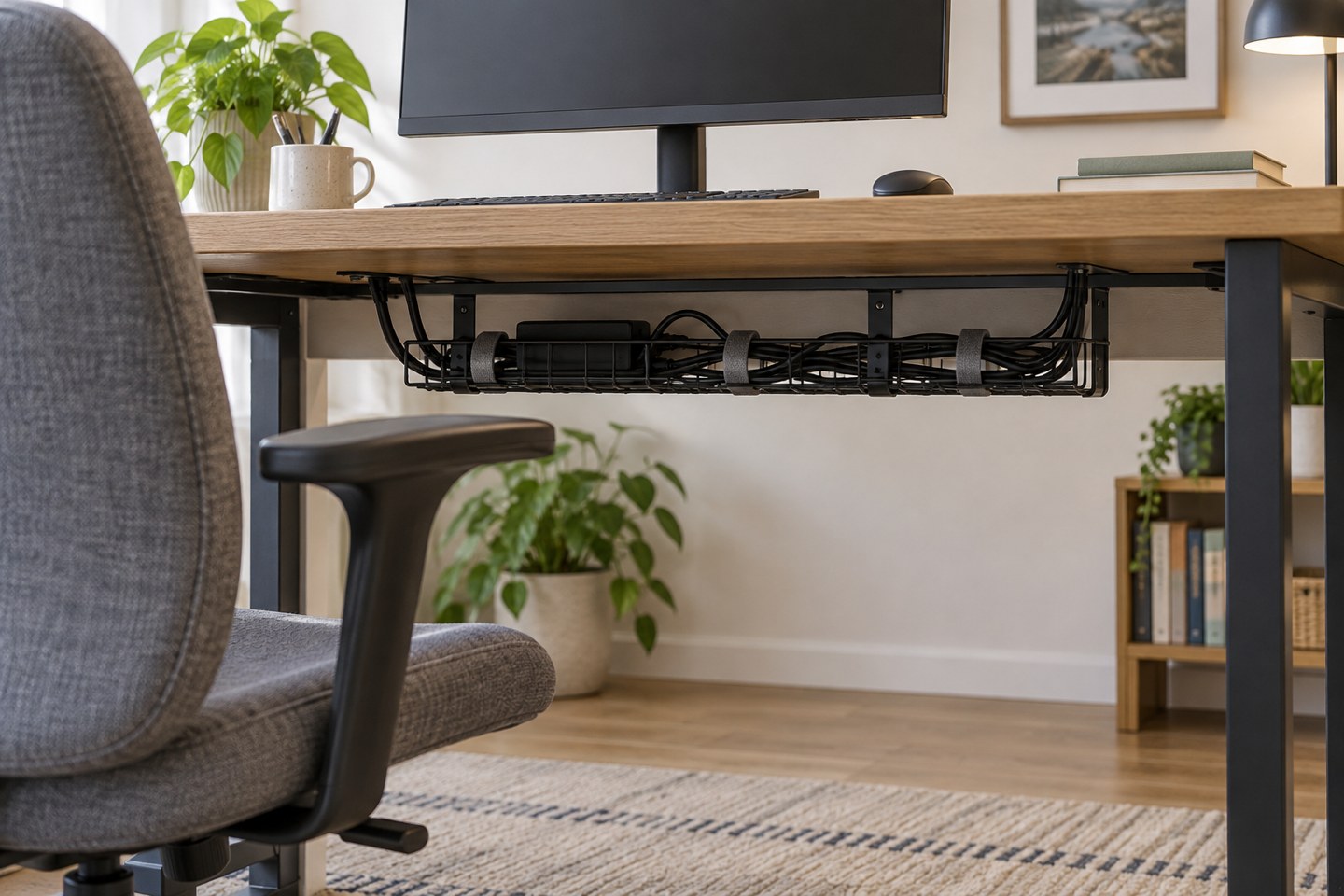
Organise cables so you can identify, disconnect and replace one without dismantling the entire desk.
Desk & workspace
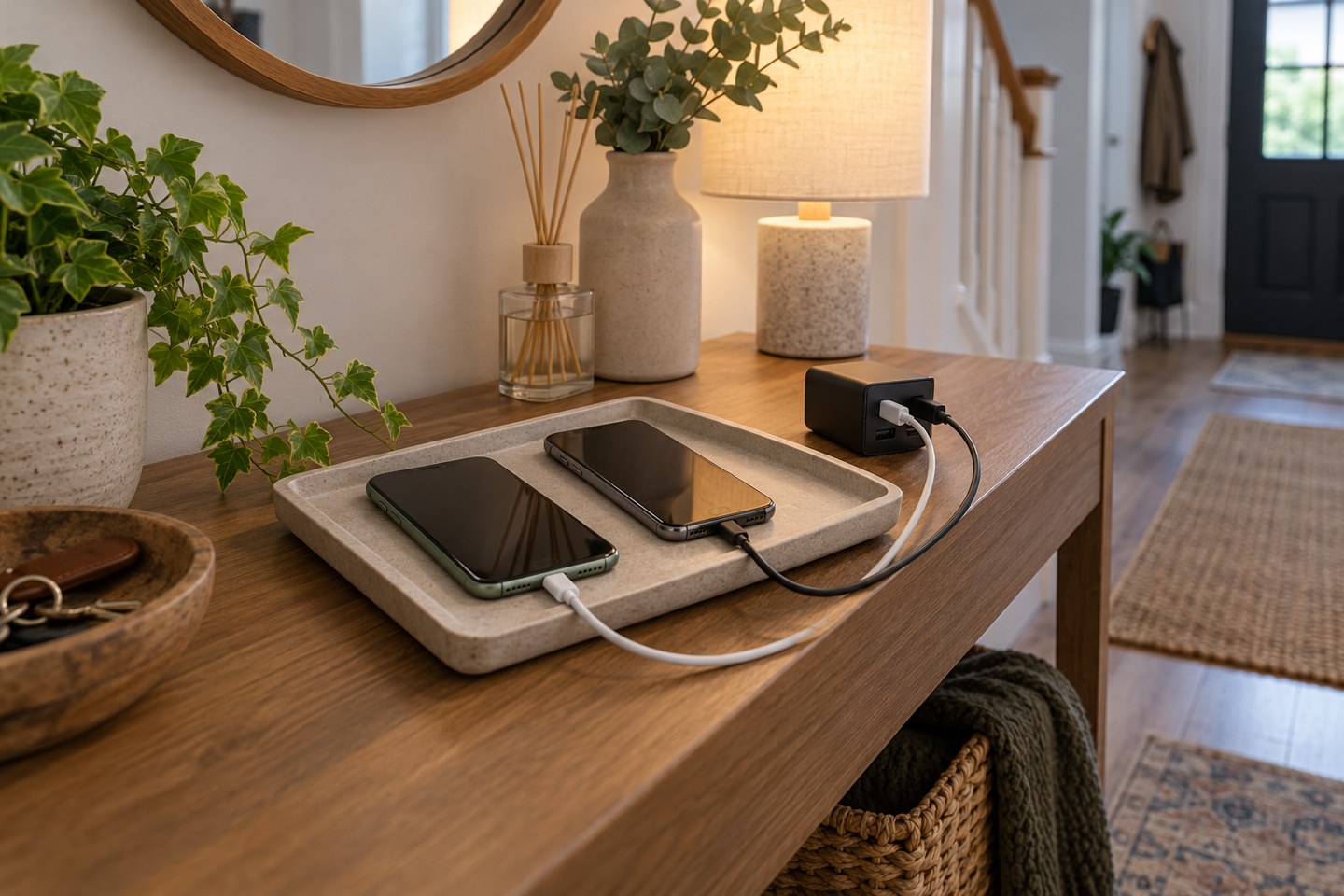
Give each regularly used device a clear place and a suitable cable, without enclosing chargers or creating a tangle of adapters.

Desk & workspace
Raising a laptop changes the screen position and the keyboard position together. Plan the rest of the desk around that change.

Desk & workspace
The screen diagonal is only one measurement. Include the stand, cables and space for your hands before ordering.

Desk & workspace
Give each device a known connection and check where typing will go before entering anything private.

Desk & workspace
Change one part of the connection at a time so you can distinguish a mouse problem from a desk-layout problem.
Desk & workspace
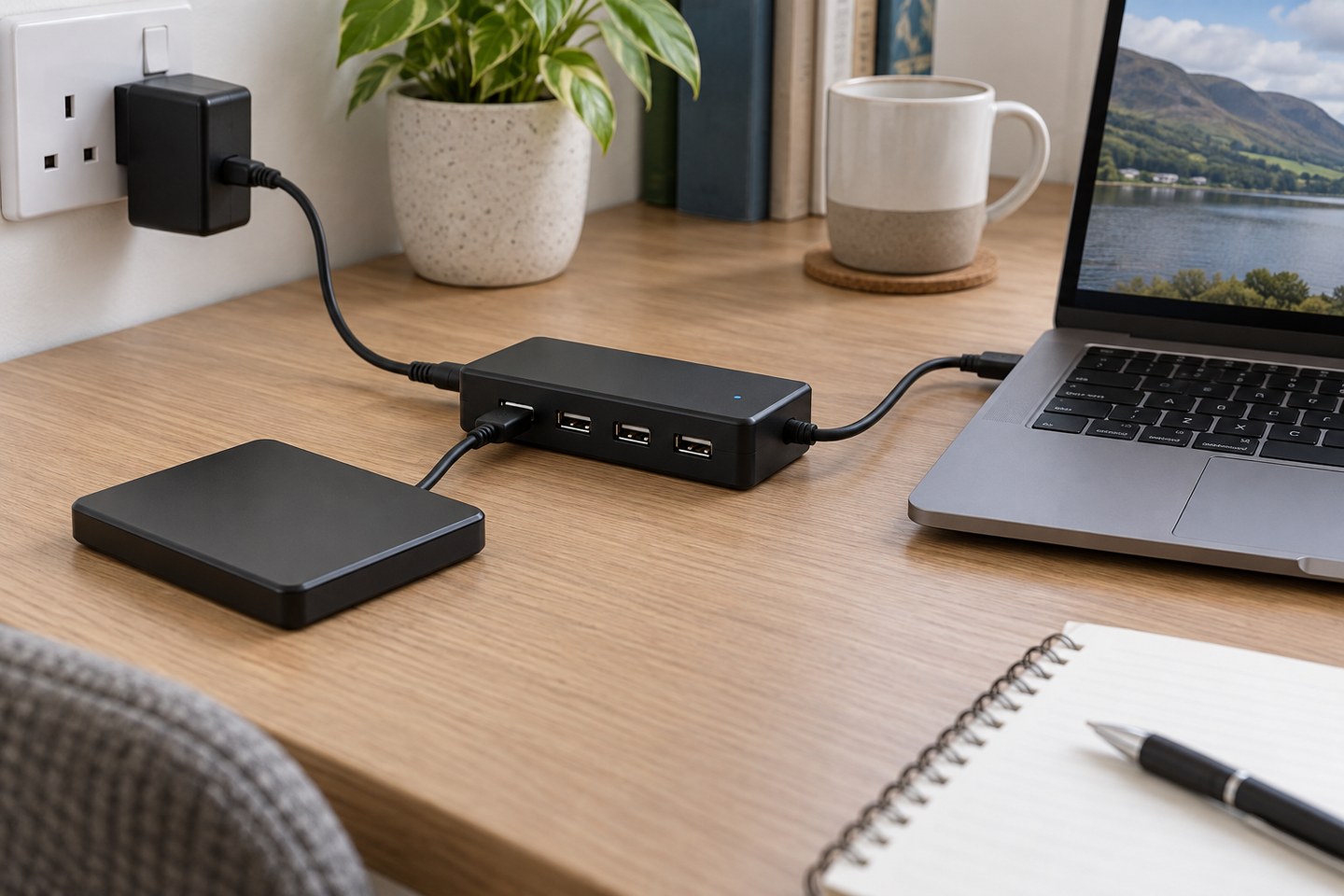
More sockets do not create more power. Check the hub supply, device requirements and connection before blaming an accessory.

Desk & workspace
Choose the smallest sharing area that does the job, then preview it before the meeting becomes busy.
Desk & workspace
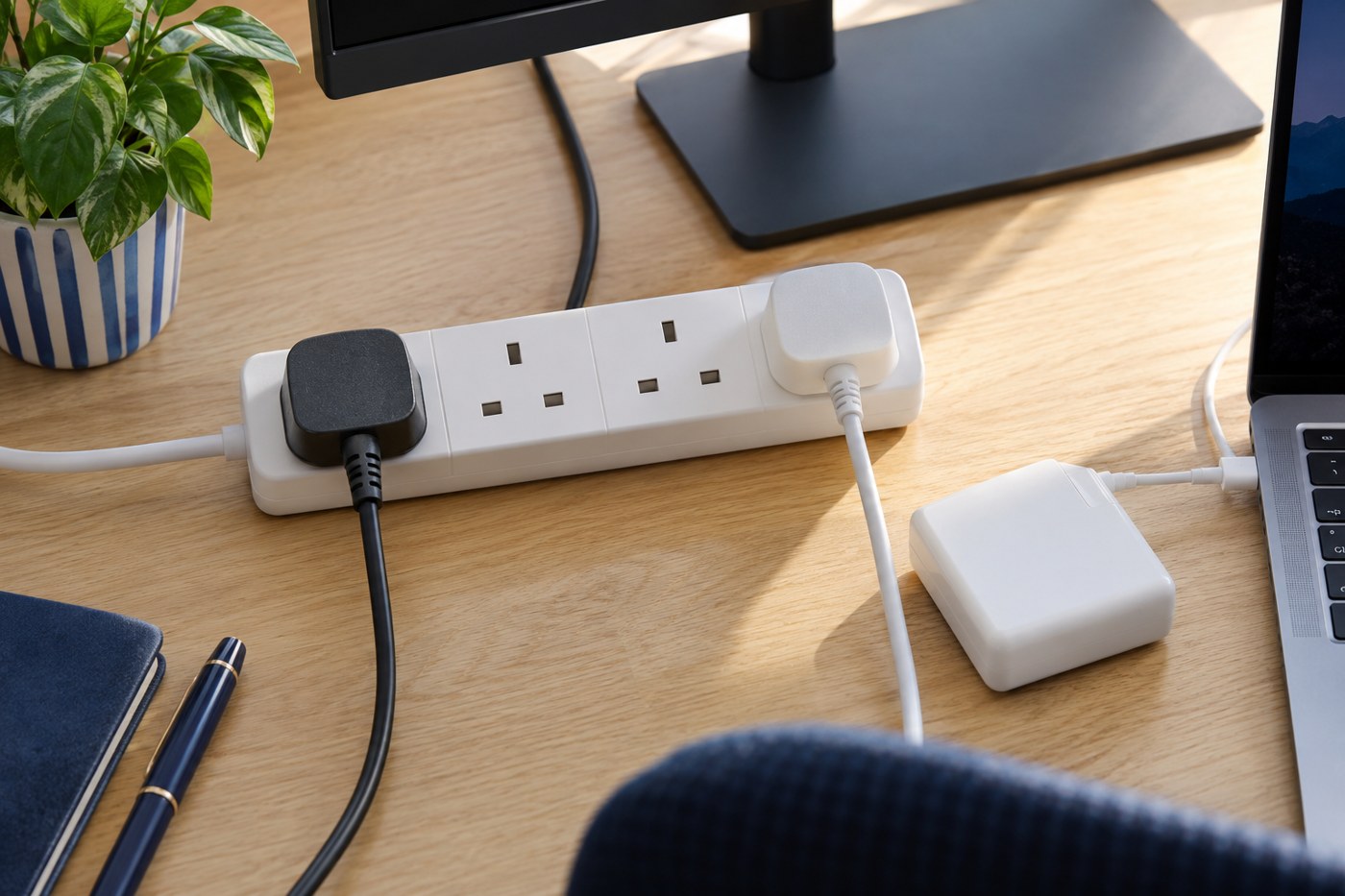
Plan the socket location, total load and cable route before hiding the desk wiring.

Desk & workspace
Identify the sound and the device before buying a cooling accessory or changing performance settings.
Desk & workspace
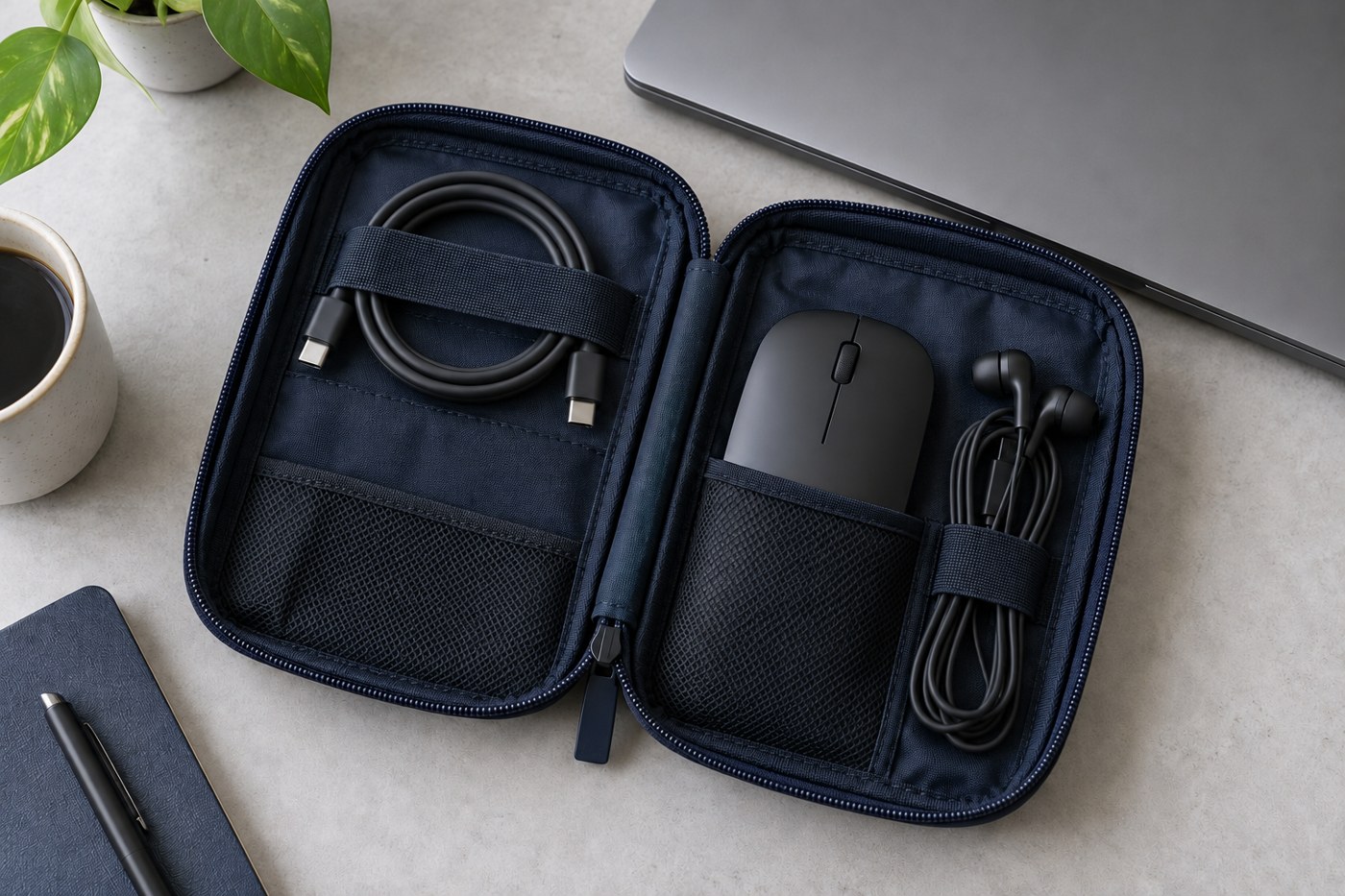
Pack for the connections you expect to use, then test the kit with the laptop before leaving.

Everyday devices
A printer can be switched on and still be invisible to the computer that needs it. Start by mapping the connection.

Everyday devices
Treat “offline” as a clue about communication, then check the printer, connection and queue in that order.

Everyday devices
Give the headphones one clear pairing target, then check where the sound is being sent.
Everyday devices
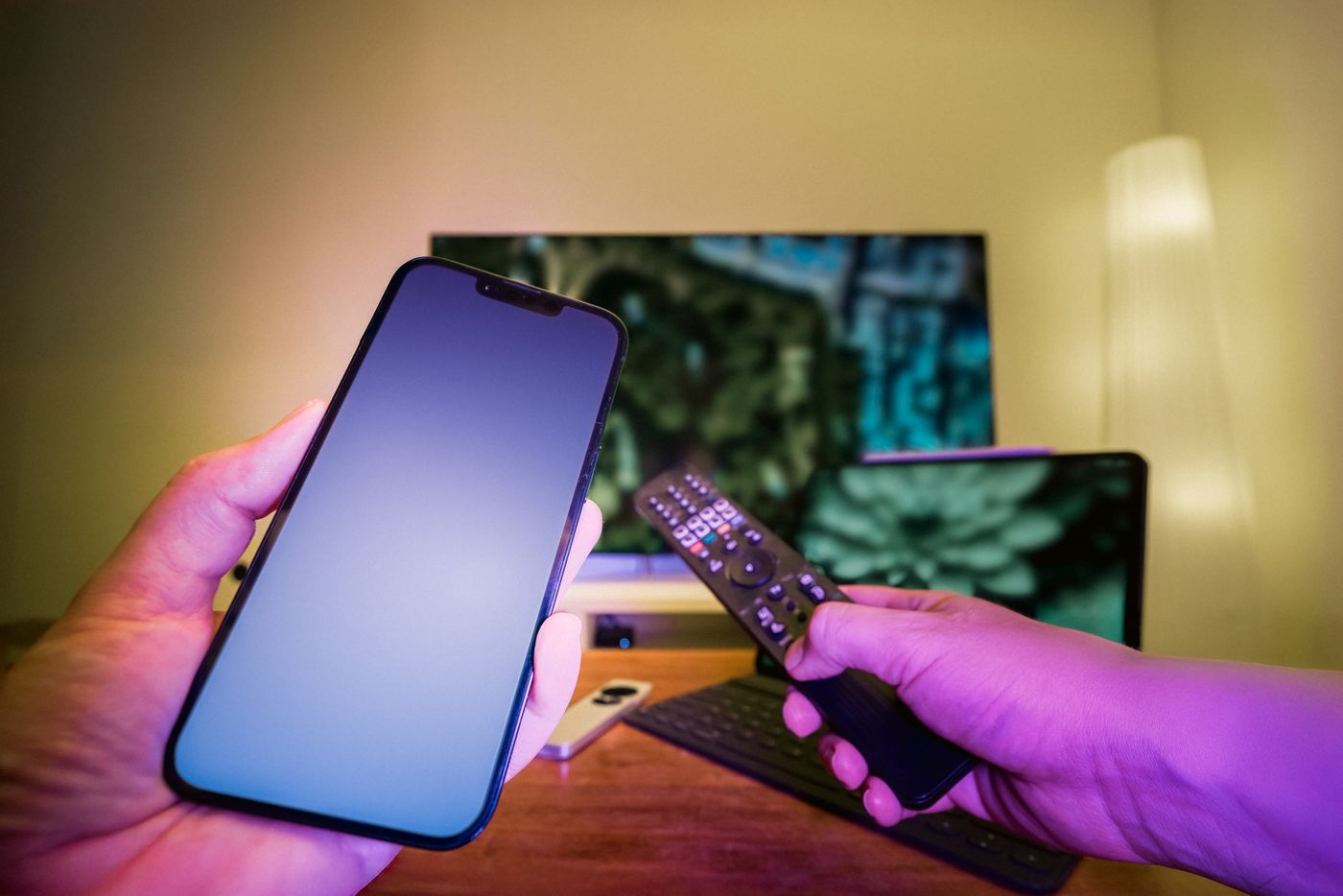
A Cast button, a mirrored screen and a cable can put similar pictures on a TV through quite different routes.
Everyday devices
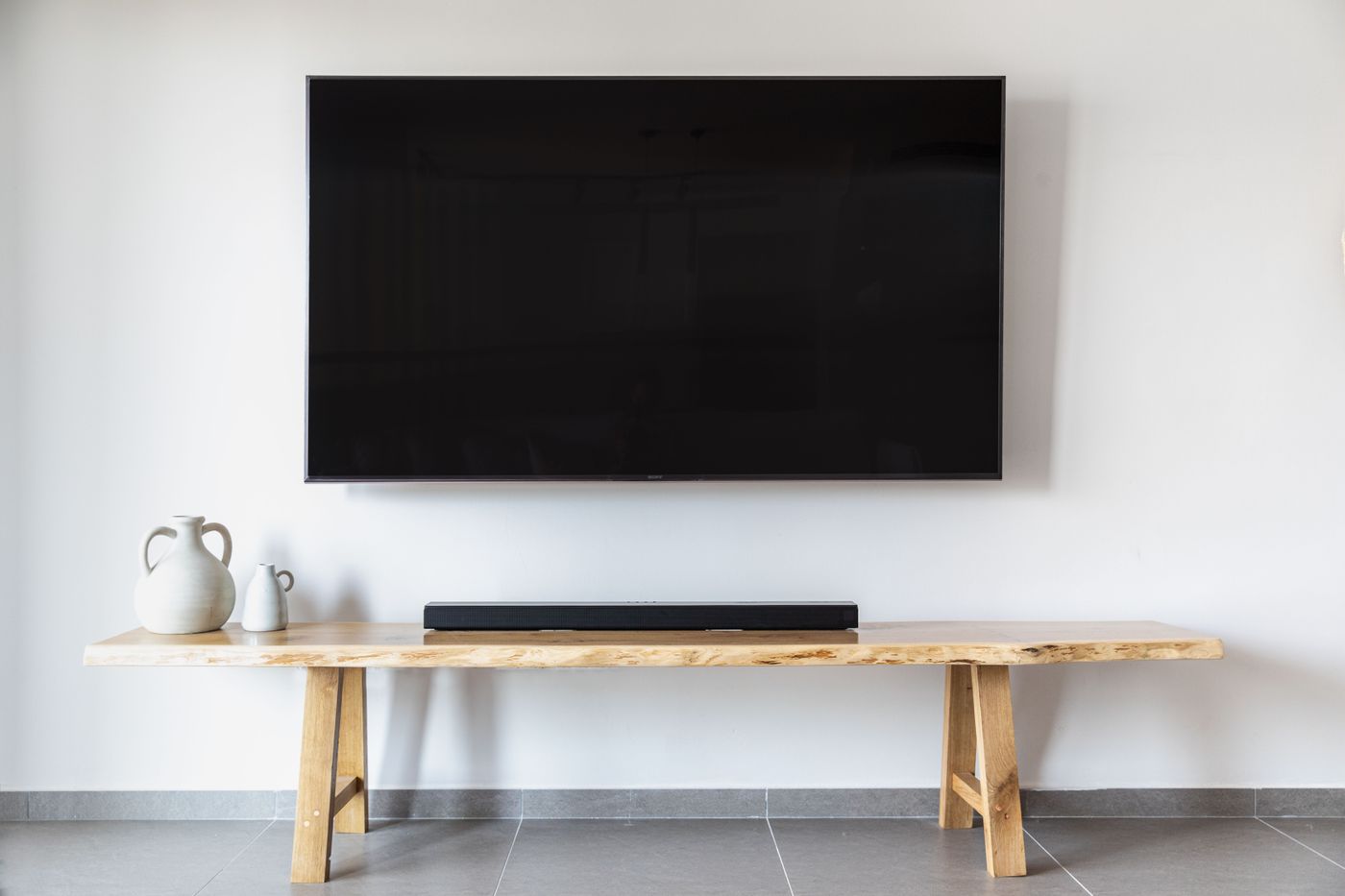
The right socket matters as much as the cable. Trace the television-to-soundbar route before changing audio settings.

Everyday devices
Replace mysterious input numbers with a small map of what is actually plugged into the television.

Everyday devices
A clear job for each remote is often more useful than trying to make one handset do absolutely everything.

Everyday devices
Make the tablet easy to read, easy to clean around and dependable before the cooking starts.

Everyday devices
Download and open the books you want before leaving home, then check the small practical details that matter on the journey.

Everyday devices
Start with a stable surface and the people who need to hear it, then make small changes before turning the volume up.

Everyday devices
A useful scan is complete, readable and easy to find again. Those qualities matter more than an impressive file size.

Everyday devices
An external drive is easier to choose and manage when you decide whether it is a working folder, a transfer tool or a backup.

Everyday devices
Copy first, verify the copies and understand cloud synchronisation before deleting photographs from a phone.

Everyday devices
A large game update is easier to live with when everyone knows when it will run and what else needs the connection.
Everyday devices
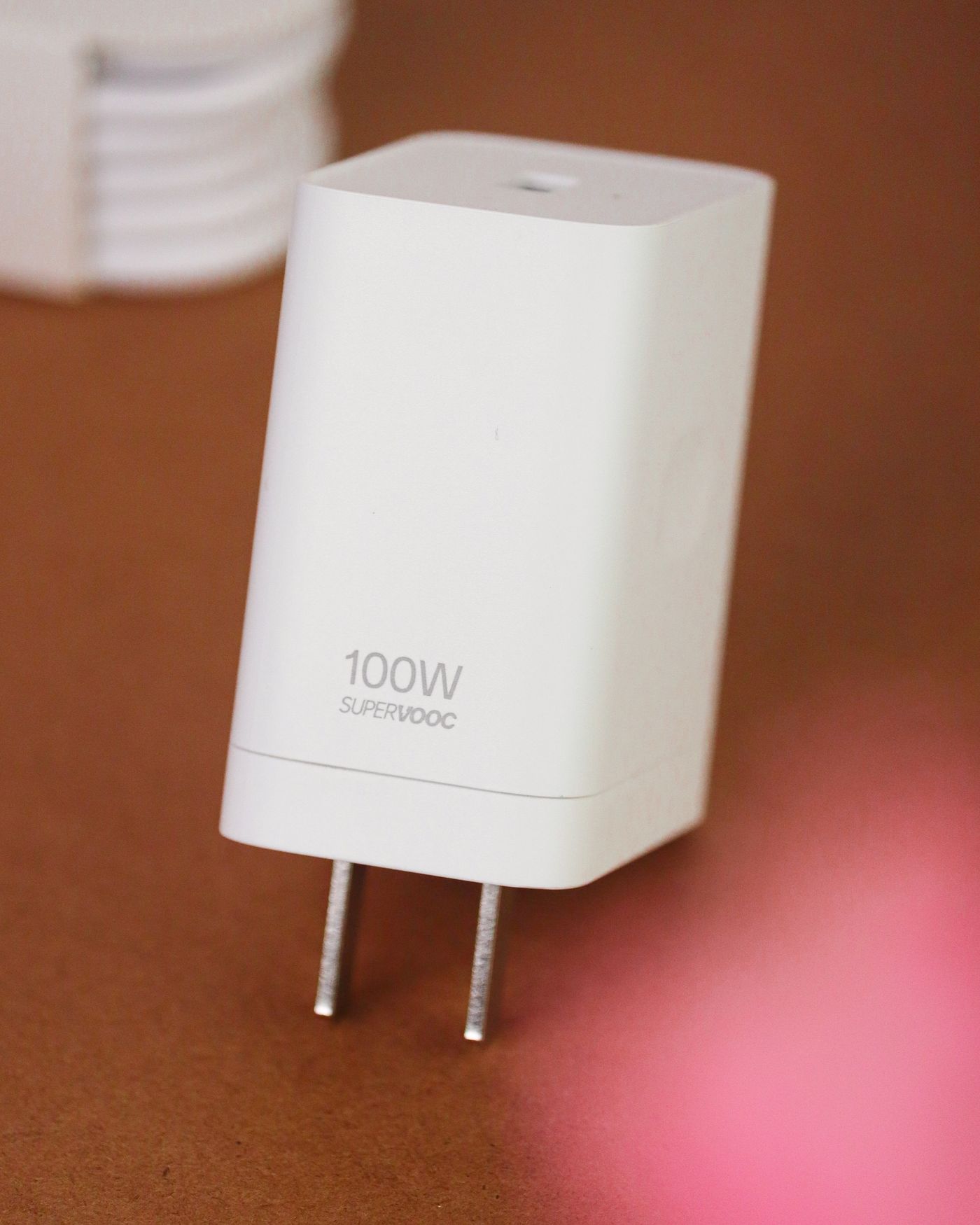
Match the device, charging standard and cable as a set. A connector that fits is only the beginning.

Everyday devices
Choose a modest task the tablet can still perform safely, then remove the distractions that make it feel slower than it needs to.

Setup & fixes
A reset is easier to recover from when your notes cover access, settings and the things a backup may leave out.

Setup & fixes
A small, repeatable test tells you more than a burst of settings changes that happens to make the problem disappear.
Setup & fixes
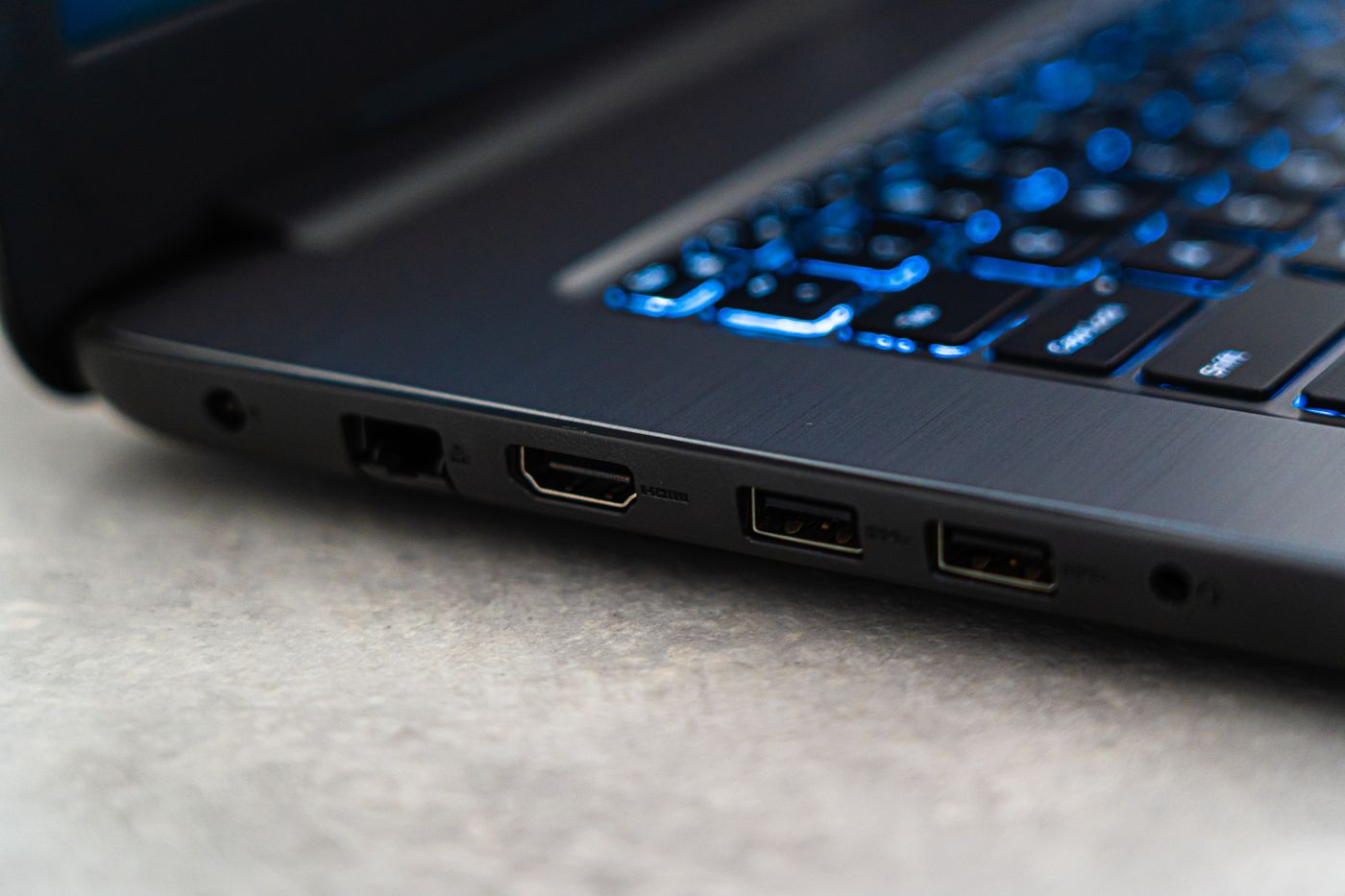
Use a known working comparison to separate a damaged connection from one that simply cannot perform the job you have asked of it.

Setup & fixes
Start by separating a weak Bluetooth link from a streaming problem, then change the distance and surroundings in a controlled way.

Setup & fixes
Read a permission request in the context of the action you are taking, and use the narrowest access that lets the feature work.

Setup & fixes
An incorrect date can make a healthy connection look broken. Check the clock before working around a security warning.
Setup & fixes
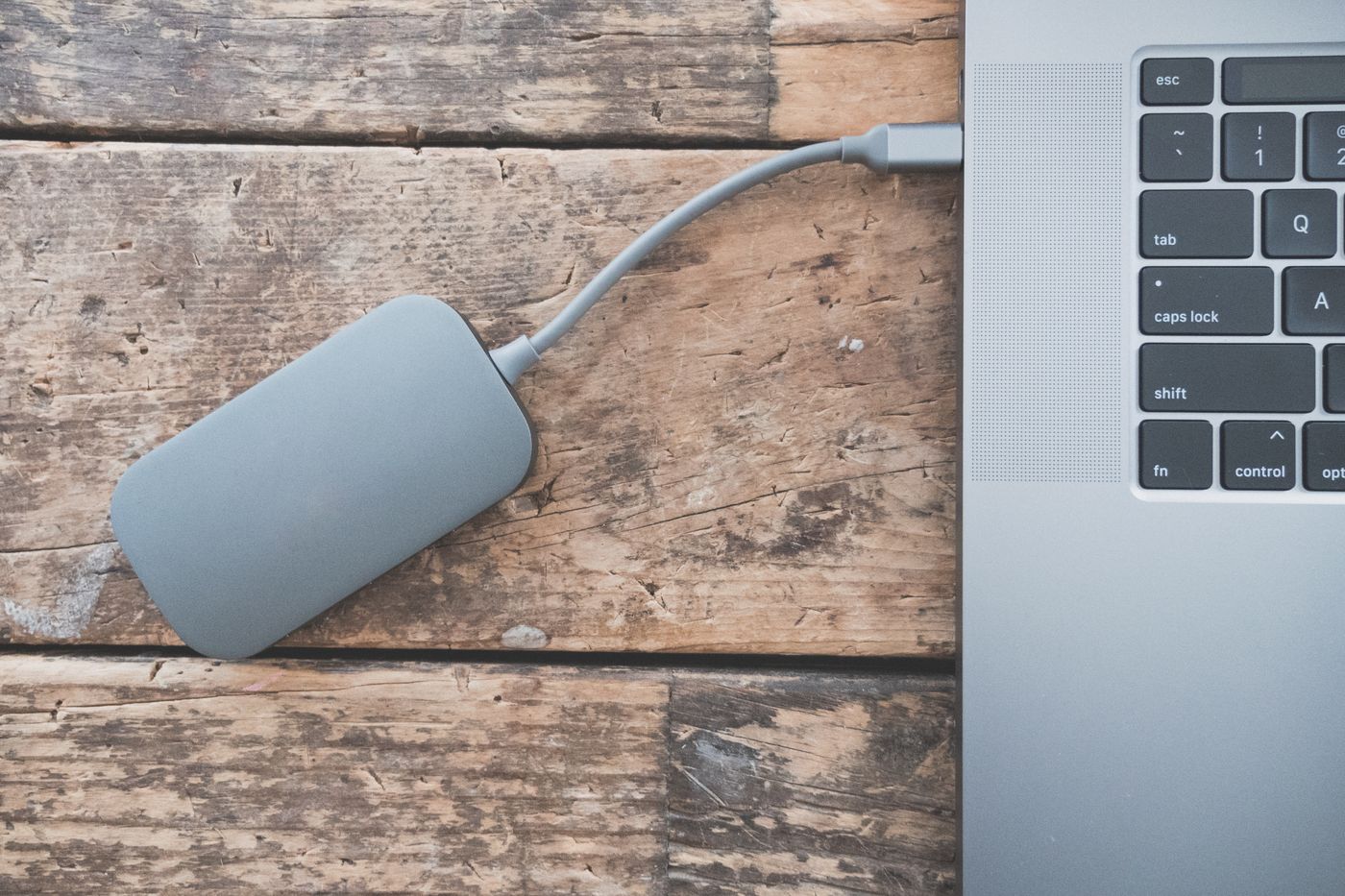
Find the large, replaceable items first, and keep a clear distinction between removing a local copy and deleting the only copy.
Setup & fixes
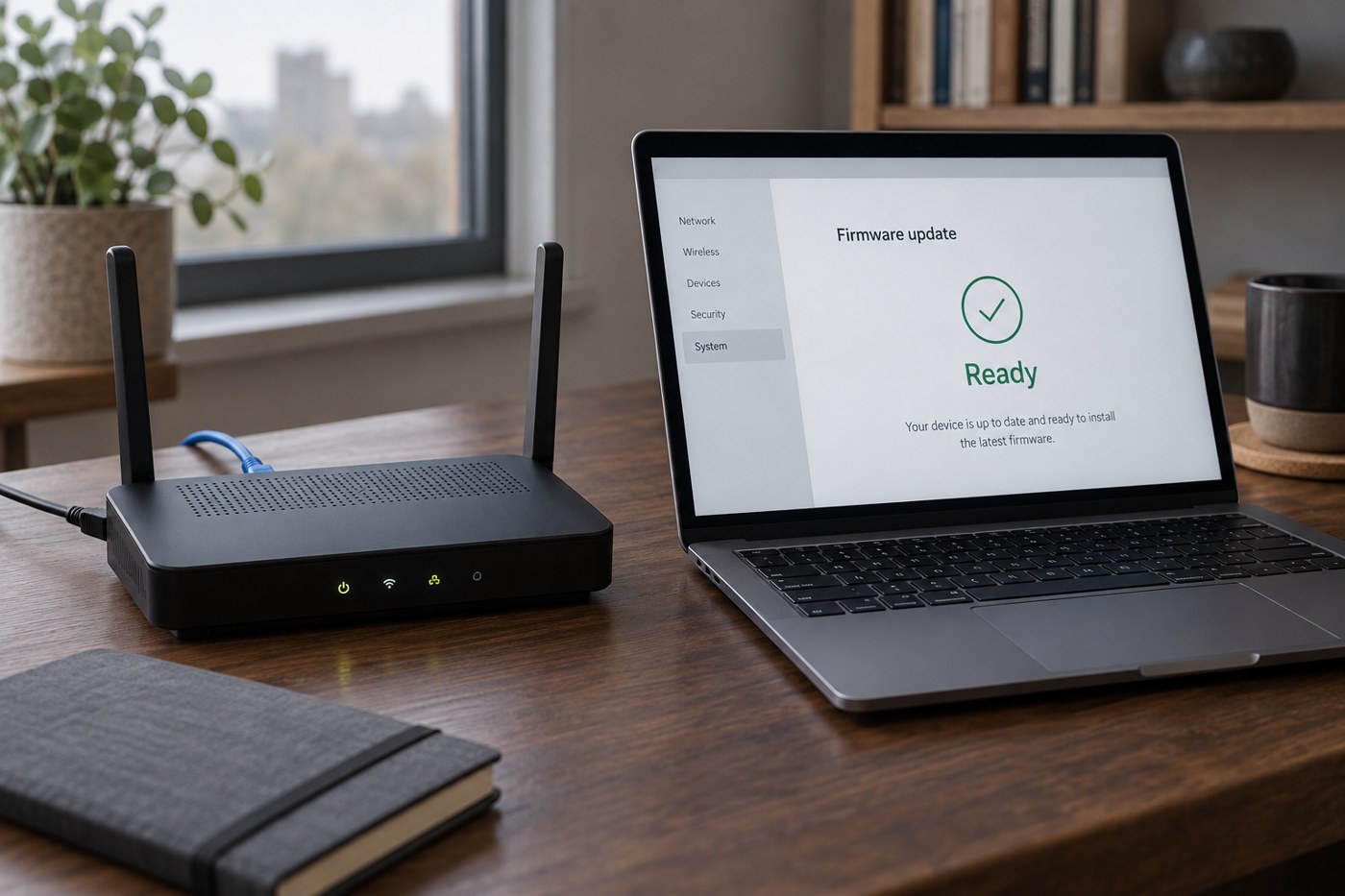
A little preparation makes an update less disruptive and reduces the chance of using a file intended for a different device.
Setup & fixes
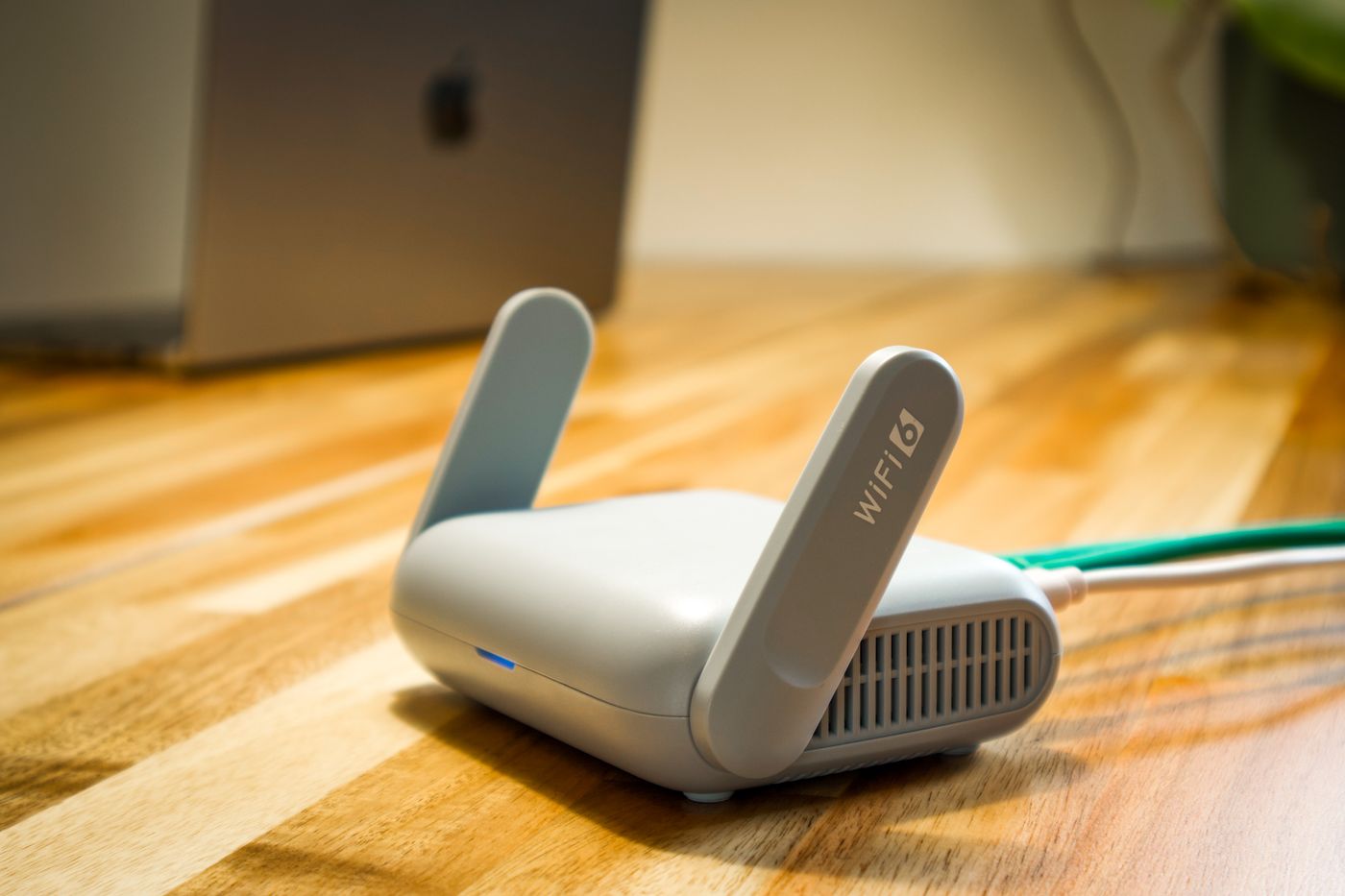
Plan the replacement around your broadband connection and the devices that already depend on it, not just the new Wi-Fi name.
Setup & fixes
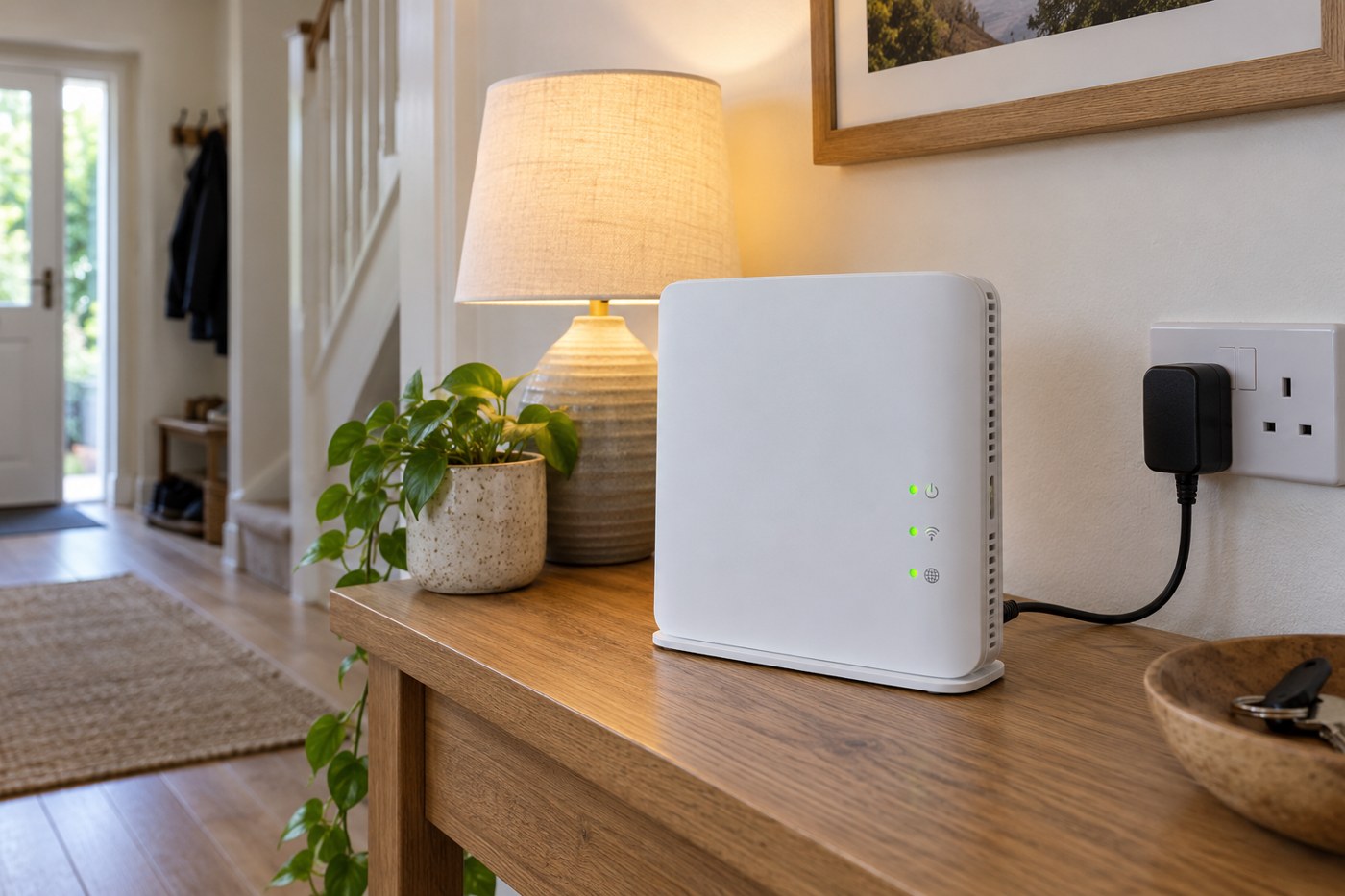
Wait for power and the broadband service to settle, then check the network before restarting every connected device.

Setup & fixes
A useful support message explains the failed task, the equipment and the comparisons you have already made.
Setup & fixes
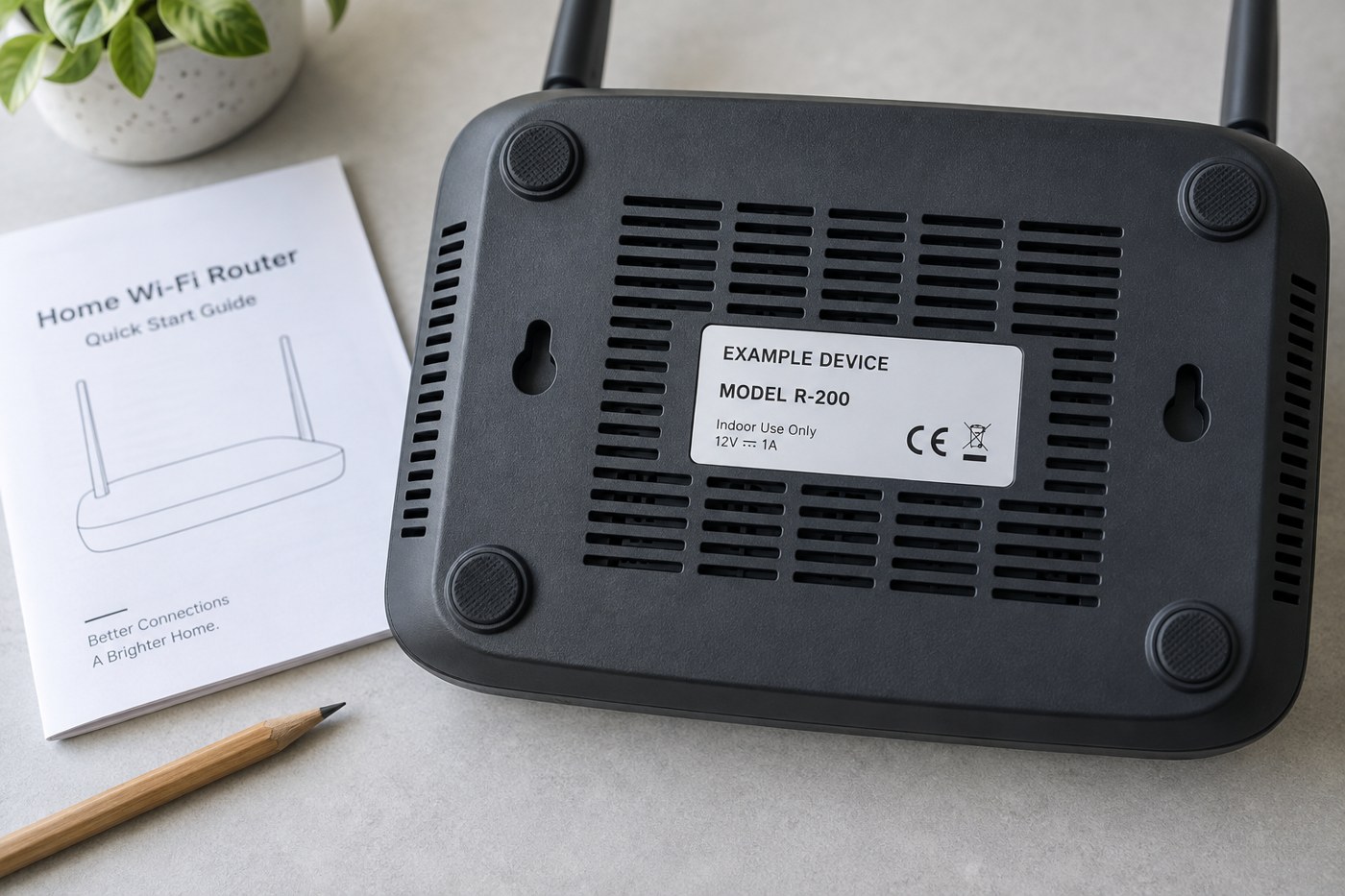
The model name gets you close; the hardware revision and regional version can decide which instructions or download actually apply.
Setup & fixes
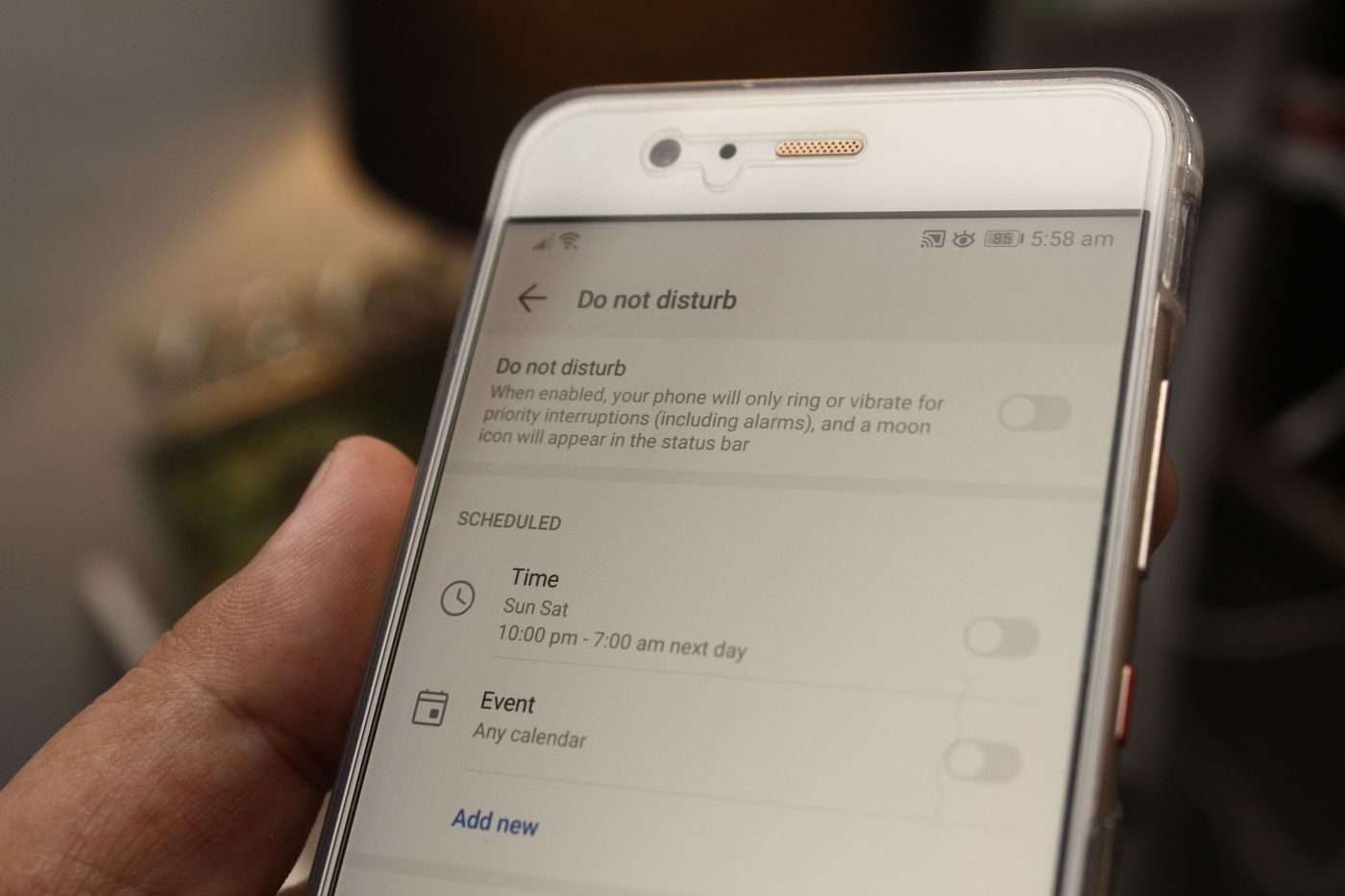
Separate the alerts that need a response from the ones you can check later, rather than silencing an entire device in frustration.
Setup & fixes
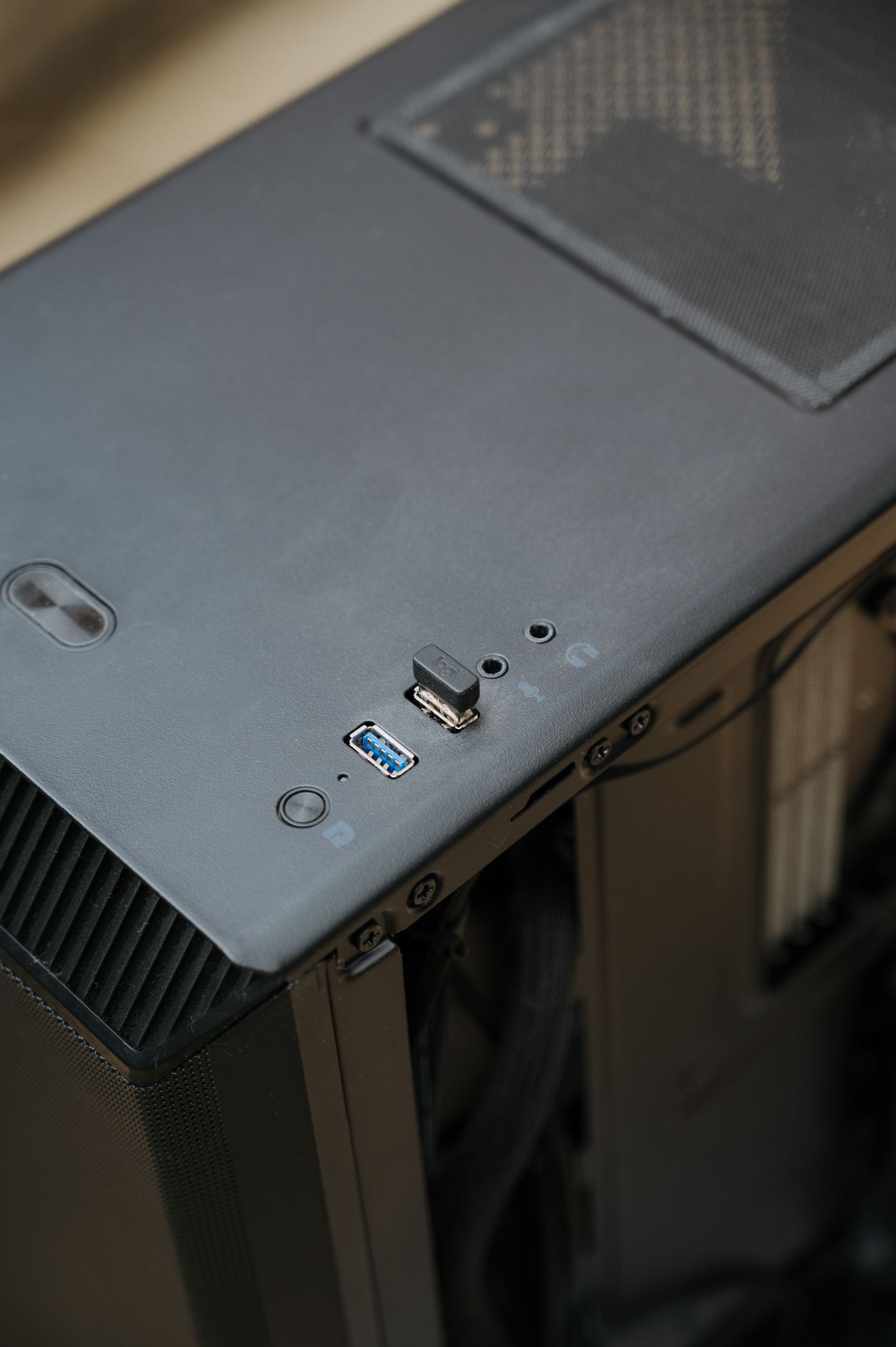
These words describe different levels of intervention. Read the action and its consequences before pressing a button labelled Reset.

Setup & fixes
Match the preparation to the length of the loan and the access the other person needs, including what happens when the device comes back.

Setup & fixes
A few consistent observations can turn “it happens sometimes” into a pattern that you or a support team can investigate.

Buying guides
Choose coverage equipment around the shape of the problem, the connection between rooms and the equipment you already have.
Buying guides
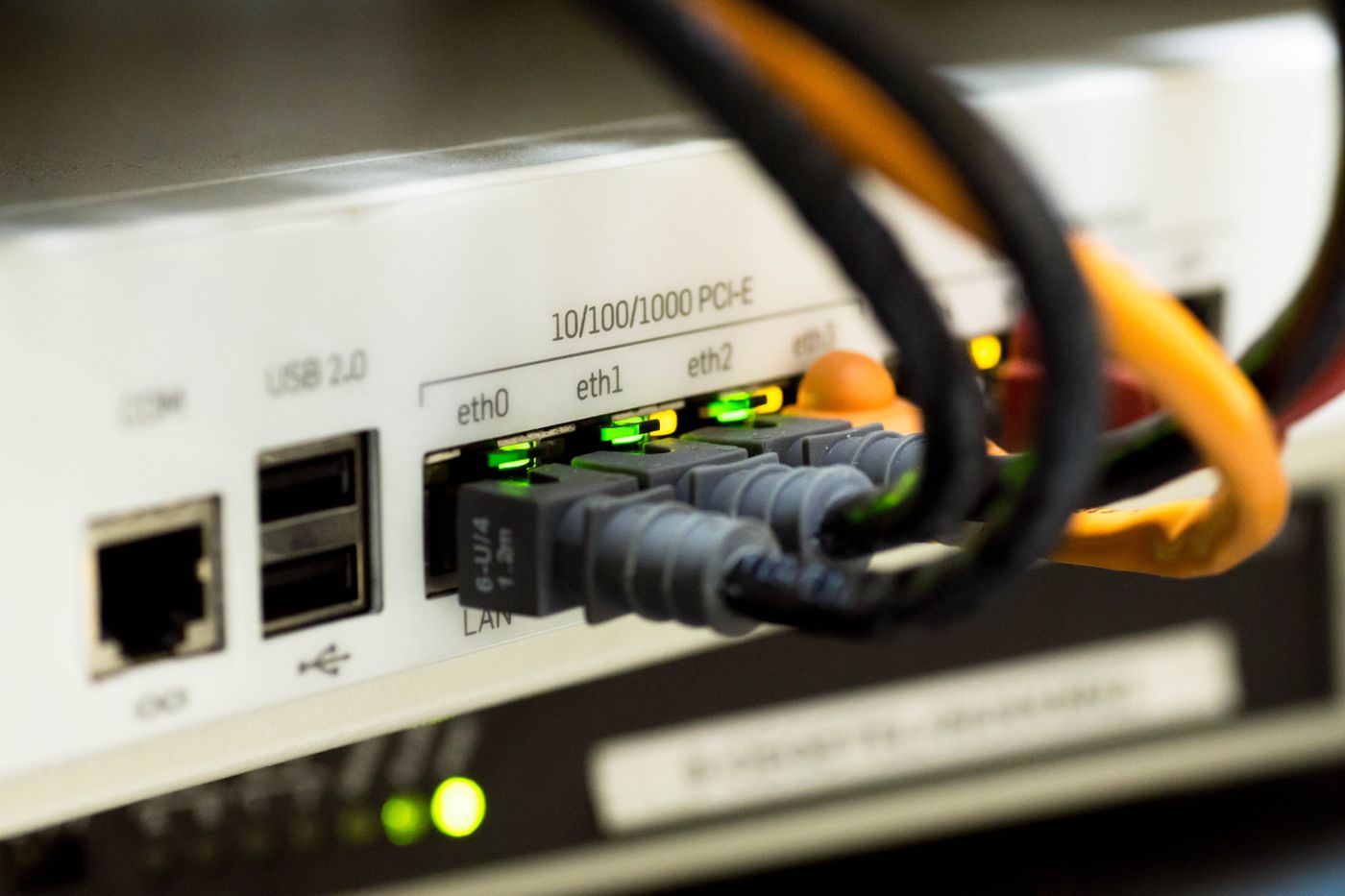
Router boxes advertise large numbers. Read the connection requirements and practical limits before comparing the headline rating.
Buying guides
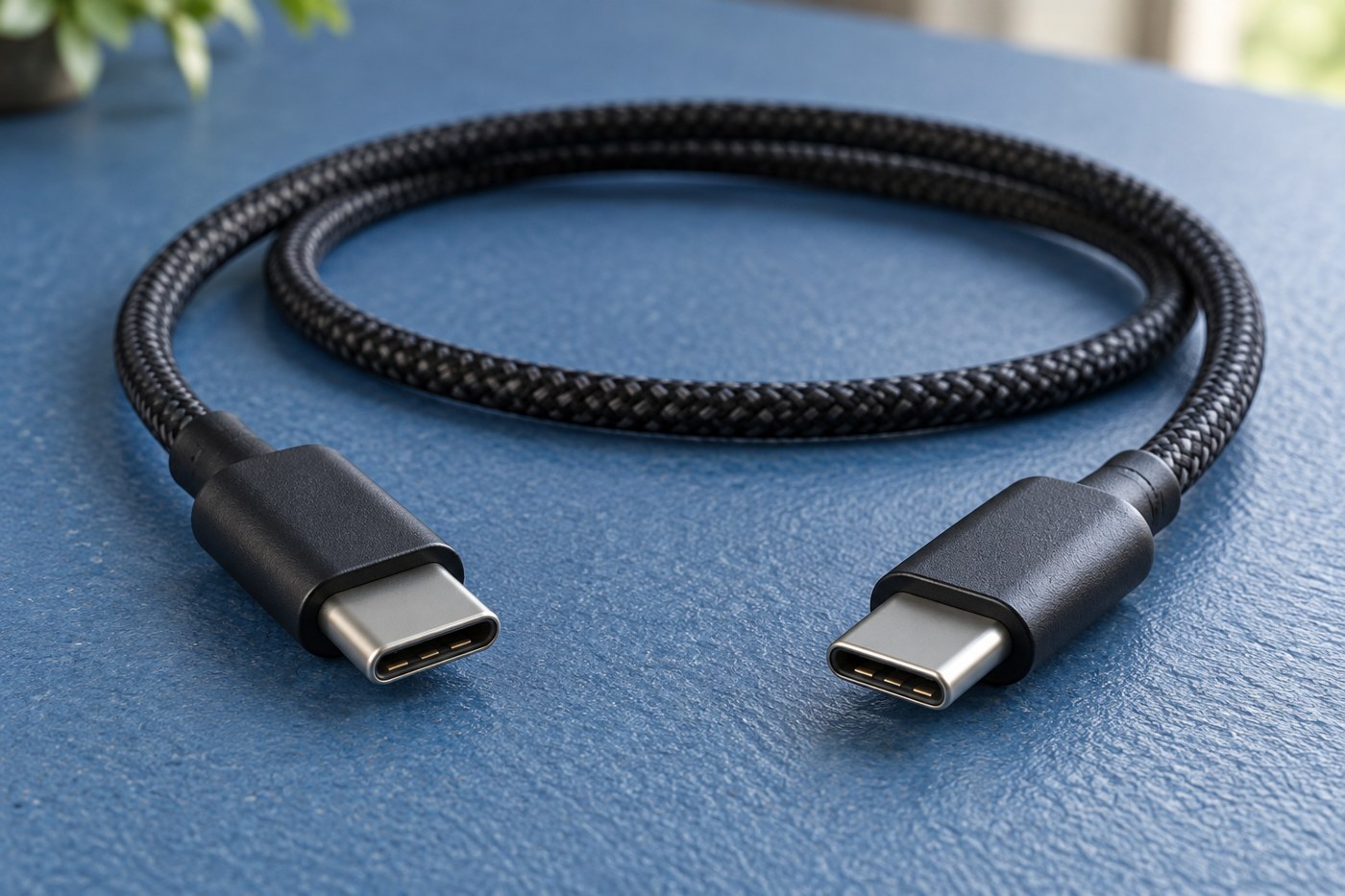
Two USB-C cables can look alike and do different jobs. Match power, data and video requirements separately.
Buying guides
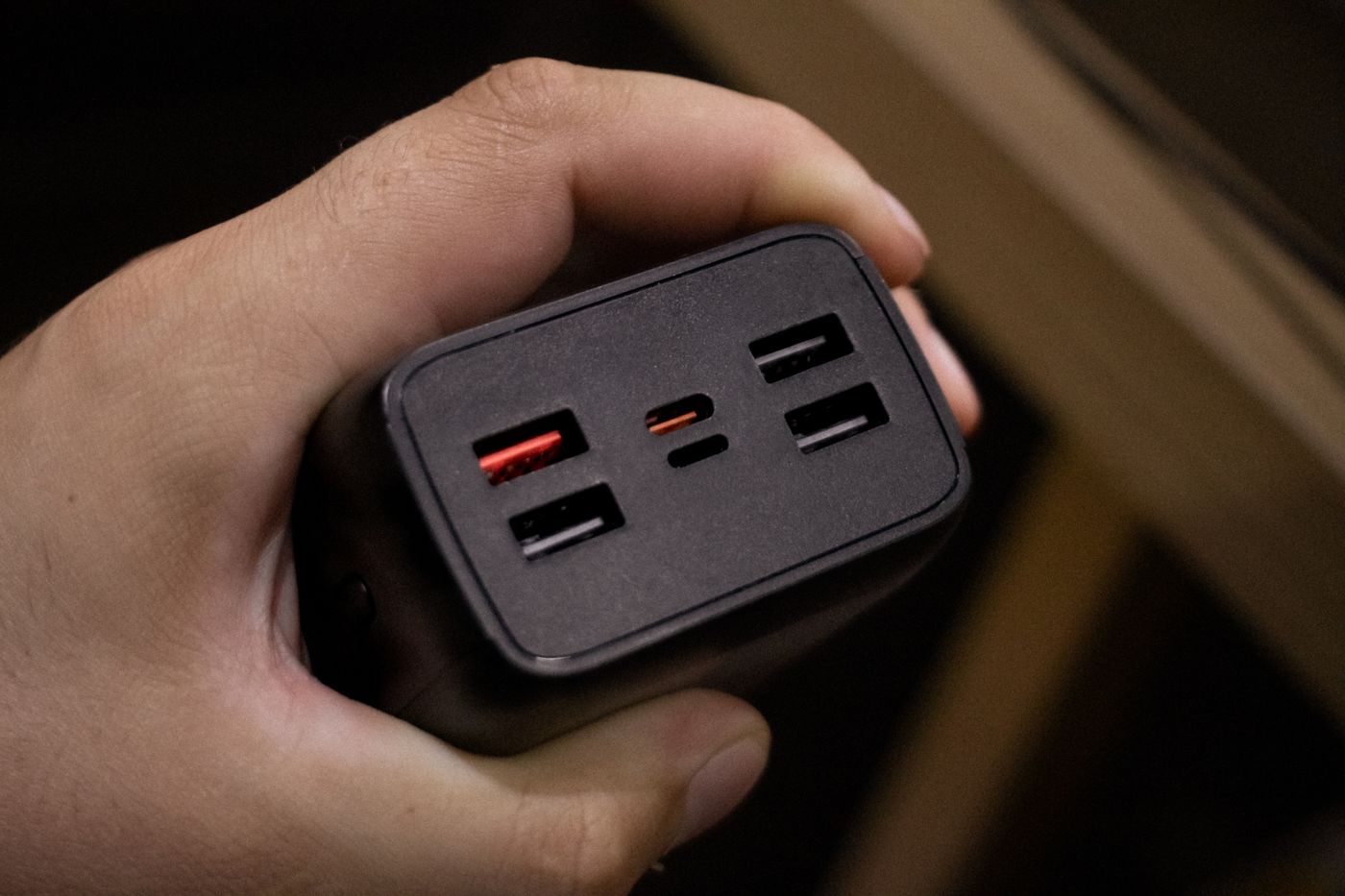
A multi-port charger’s total output is not necessarily the power available from every socket at once.
Buying guides
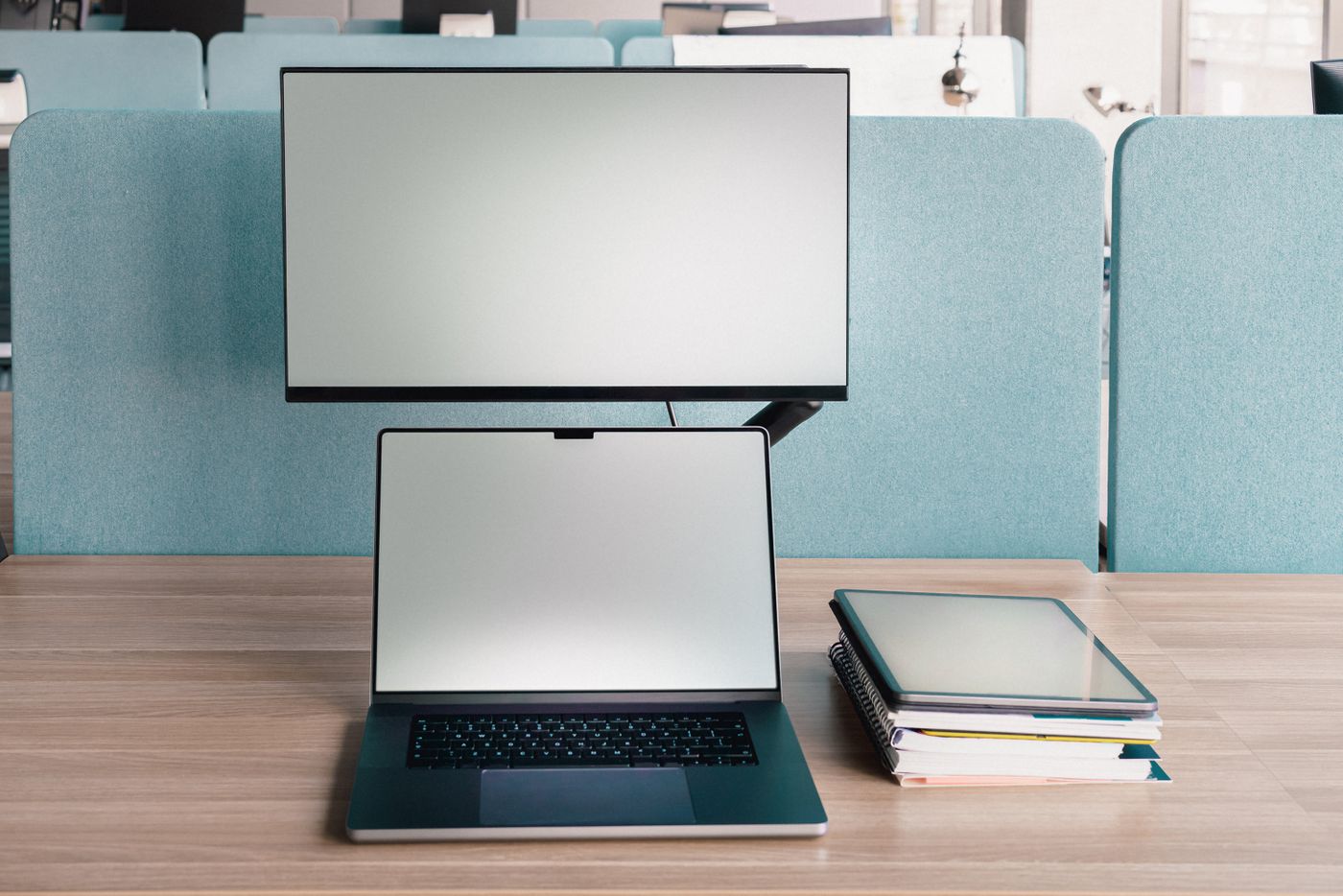
Resolution, screen size and scaling work together. Decide how you want text and windows to look at your desk.

Buying guides
Before buying a webcam, check the light, framing and meeting software that will determine what other people see.

Buying guides
Comfort, microphone behaviour and device switching matter more than a long feature list for a headset used every day.

Buying guides
The purchase price is only one part of a printer’s cost. Match the machine and its supplies to what you actually print.
Buying guides
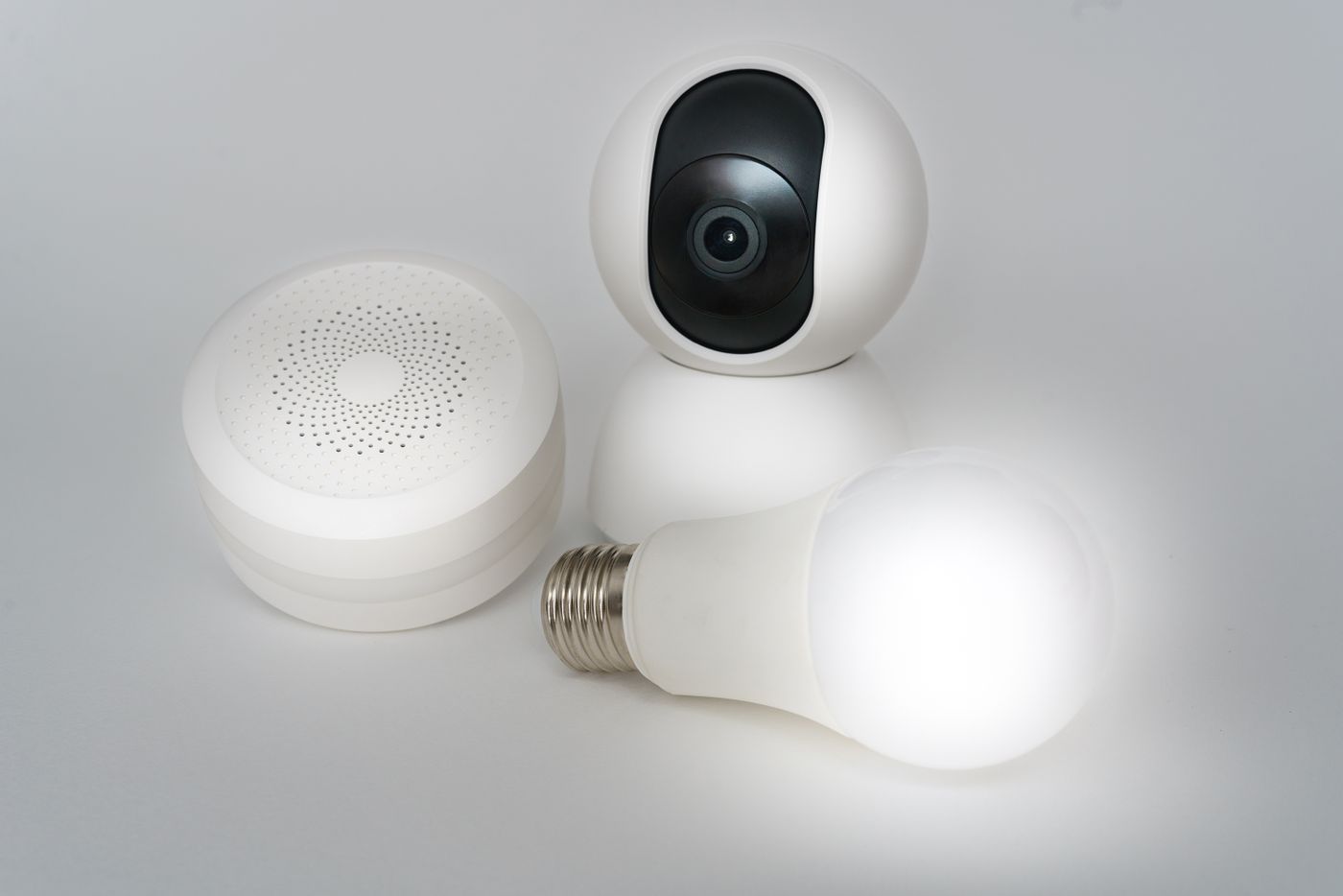
Check the specific control path, required hub and supported functions before adding another smart-home device.

Buying guides
A refurbished device can be useful value when its condition, remaining support and seller’s commitments are clear.

Buying guides
For connected products, compare what you own with what a continuing payment unlocks.

Buying guides
Choose a power bank for the device, charging route and way you travel, rather than capacity alone.

Buying guides
Storage size should reflect the files you keep, the way they grow and the separate copies you need.

Buying guides
A device’s useful life includes the updates and services that keep it working, not just the condition of its hardware.

Buying guides
Use the first few days to test the purchase in your own setup while its packaging and purchase details are still easy to find.