Watch the household, not just the router
A connection that works well for one person may feel different when several people use it at once. Write down the period when problems occur and the activities happening then. Include automatic work such as cloud photo uploads, game updates and computer backups. The device doing the most work may be sitting quietly in another room.
Describe the affected activity precisely. A stream lowering its picture quality, a call breaking up and a download taking longer are different observations. Ask whether the problem affects everyone or only one room. If one laptop struggles even when the house is quiet, household demand may be a distraction from a local device or coverage issue.
Test one overlap
Choose a repeatable example: a work call becomes unstable while a console downloads an update. With the other person's agreement, pause that download and see whether the call improves. Resume it later and compare. You do not need to disconnect the entire household to learn whether a particular transfer is involved.
Uploads deserve attention too. A photo library or backup can be active even when nobody is streaming video. Look at the relevant app's status rather than guessing from a router light. Avoid disabling security updates indefinitely as a convenience; use supported scheduling or bandwidth controls where available.
Move fixed equipment onto a sensible connection
An Ethernet connection for a stationary computer or console can remove a weak wireless hop from its route. It will not create more incoming broadband capacity, but it may improve reliability and reduce one source of uncertainty. Use a safe cable route and confirm the device is actually using the wired connection.
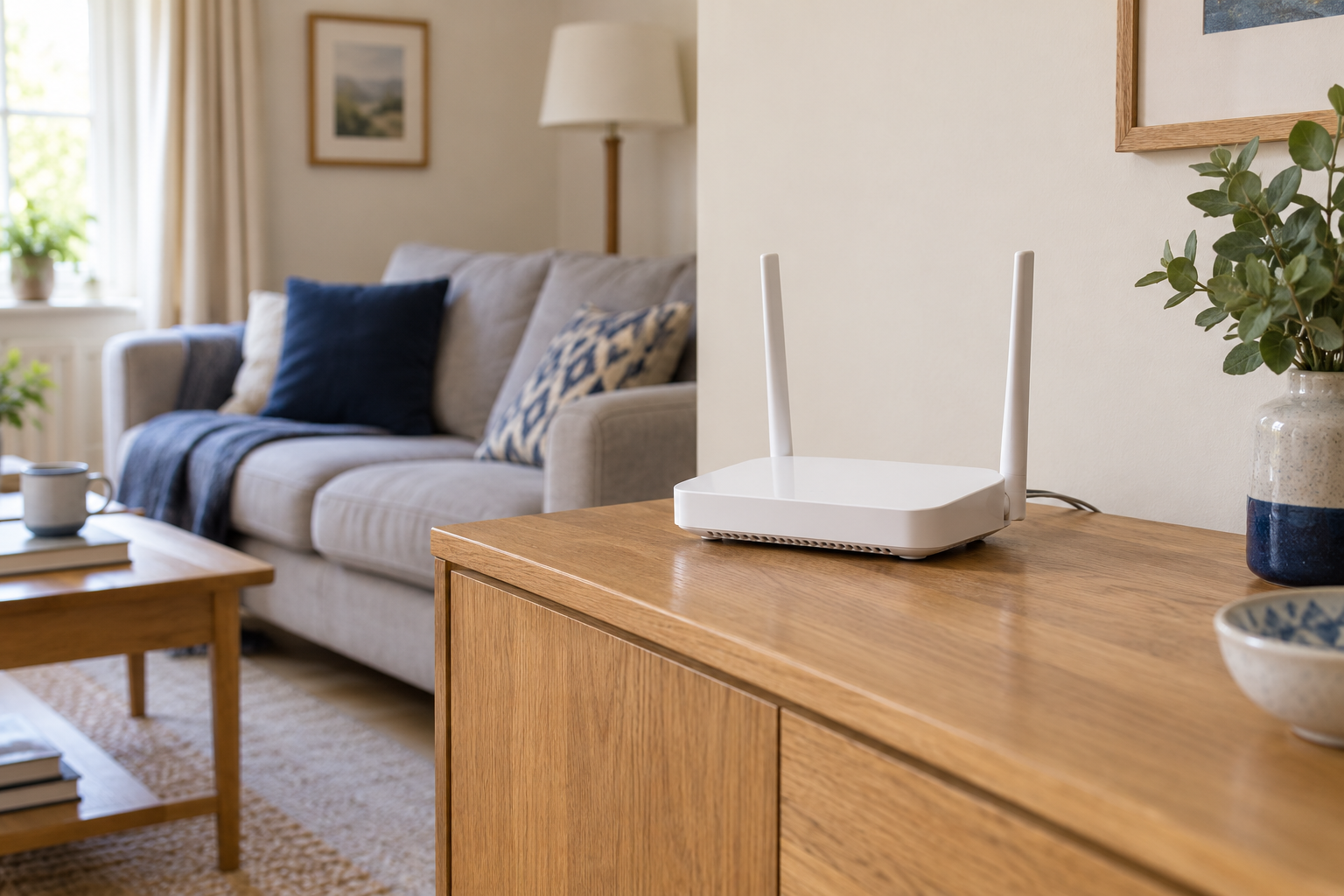
If the issue is confined to distant rooms, inspect router and mesh placement before upgrading the broadband package. Paying for a faster incoming service does not remove a wall or repair a poor satellite link. Compare near-router and usual-seat performance to keep those two problems separate.
Use traffic controls with a clear purpose
Some routers offer device priority or quality-of-service settings. Their names and behaviour vary, and they may require accurate connection-speed information. Read the instructions for the exact model. Start with the task that needs stability rather than marking every device as high priority, which defeats the point of making a distinction.
Keep a record of the original setting and test the whole household after changing it. A setting that improves one call while making someone else's routine work unusable is not a balanced solution. If the feature produces confusing results, restore the previous setup and use simpler scheduling while you investigate.
Agree on the easy changes first
Large non-urgent transfers can often run at a quieter time. A shared calendar note for an important call may be more effective than complicated network rules. The arrangement should be understandable to the people who use it, especially when the person who configured the router is away.
Consider a package change only after you know the incoming connection is the constraint and understand the available service at the address. Compare the household's actual needs, including uploads, rather than choosing by a headline download figure alone. Keep your test notes: they explain why a purchase might help, or why a modest placement change was enough.