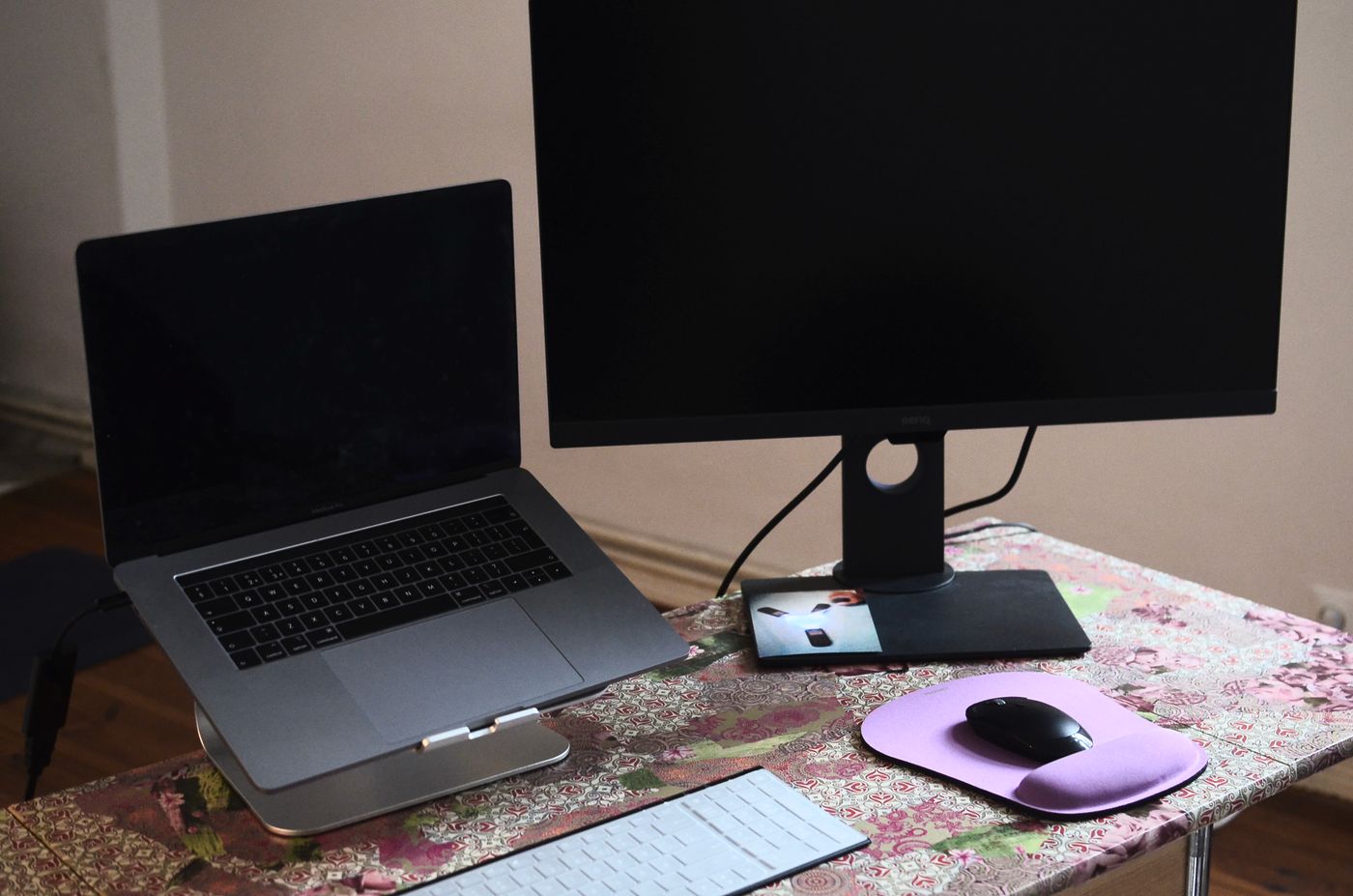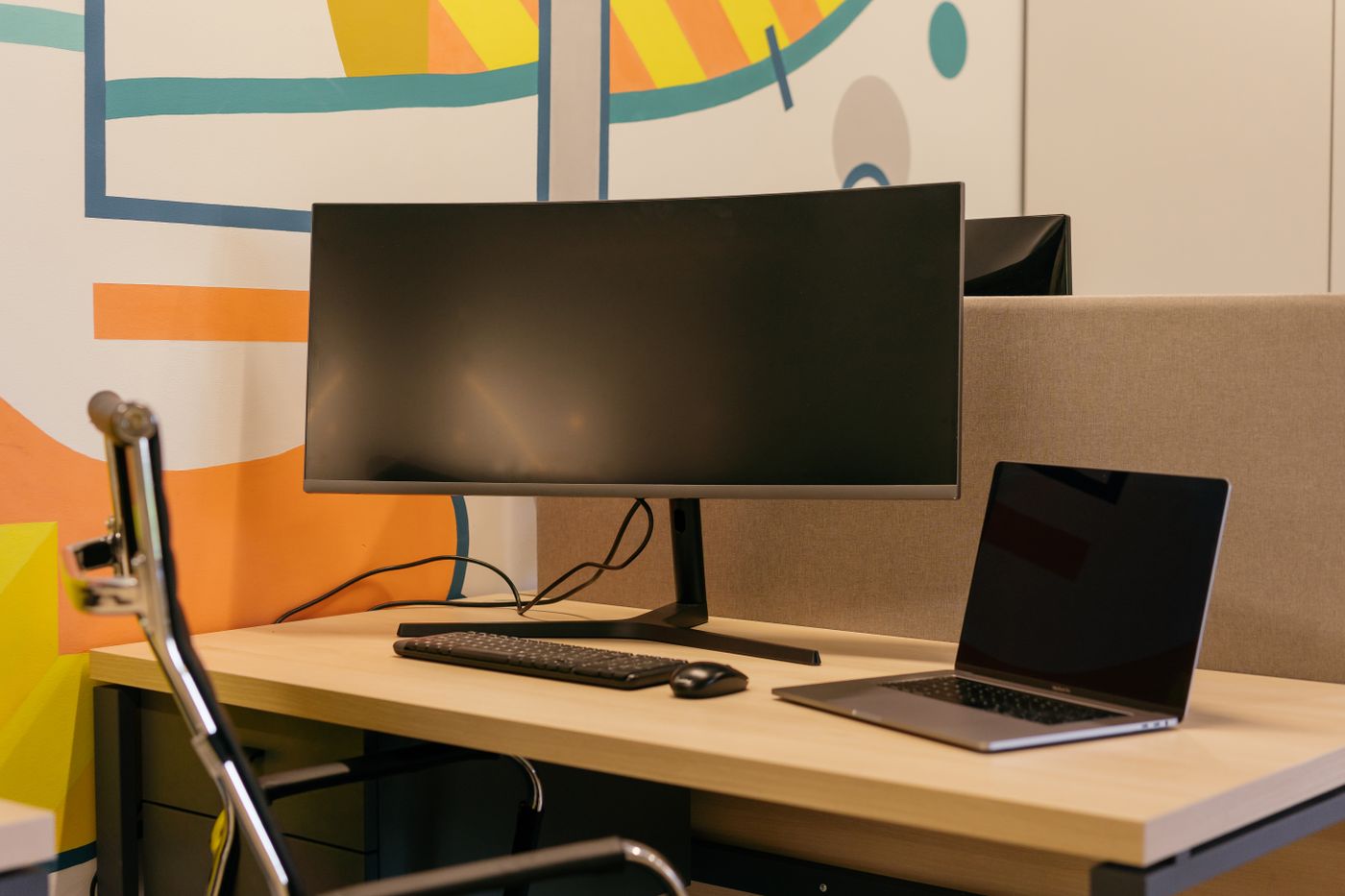
Measure the usable desk area
Clear the desk enough to see what space is genuinely available. Measure width and depth, then mark the area needed for the keyboard, mouse and any paperwork used every day. Do not count the whole desktop as monitor space and leave the working items to fit wherever they can.
Check the monitor's published overall dimensions with its stand attached. The screen diagonal does not describe the width of the base or how far it projects towards you. Two monitors with similar screens can occupy noticeably different footprints.
Mock up the footprint
Use paper or removable markers to outline the proposed base on the desk. Sit normally and place the keyboard and mouse where you would use them. This simple trial reveals whether the monitor will push your hands too close to the front edge or leave nowhere for a notebook.
Allow room behind the screen for the required cables and ventilation. A desk against a wall can make downward-facing or rear-facing ports awkward to reach. Check the connector direction in the product's port diagram, especially if the display will sit inside an alcove.
Consider the full adjustment range. A monitor that fits at its lowest setting may meet a shelf when raised, while a screen that rotates to portrait needs clearance during the movement. Measure the actual space it will move through rather than only its final position.
Include how you will read it
Think about the distance at which you will sit and the size of the text you need. A large screen on a shallow desk can feel different from the same screen on a deeper surface. Display scaling can help make text readable, but it should be part of a supported, comfortable arrangement rather than an excuse to cram in a screen that dominates the space.
For two monitors, arrange the mock-up around the screen you will use most. Leave room to turn or reposition them without colliding with speakers or lamps. Also check whether the desk structure and surface are suitable if you plan to use a monitor arm; follow the arm's weight, mounting and thickness requirements.
Check the everyday details
Look at where the power button, input controls and USB ports sit. A technically fitting monitor can still be inconvenient if those controls are trapped beside a wall. If using a webcam, include its position and cable in the plan.
Keep your measurements with the product shortlist. Compare actual dimensions and adjustment options instead of deciding entirely from a lifestyle photograph. The best fit leaves enough space for the work you do around the screen, not merely enough space for the screen itself.