Write down the jobs you expect from the cable
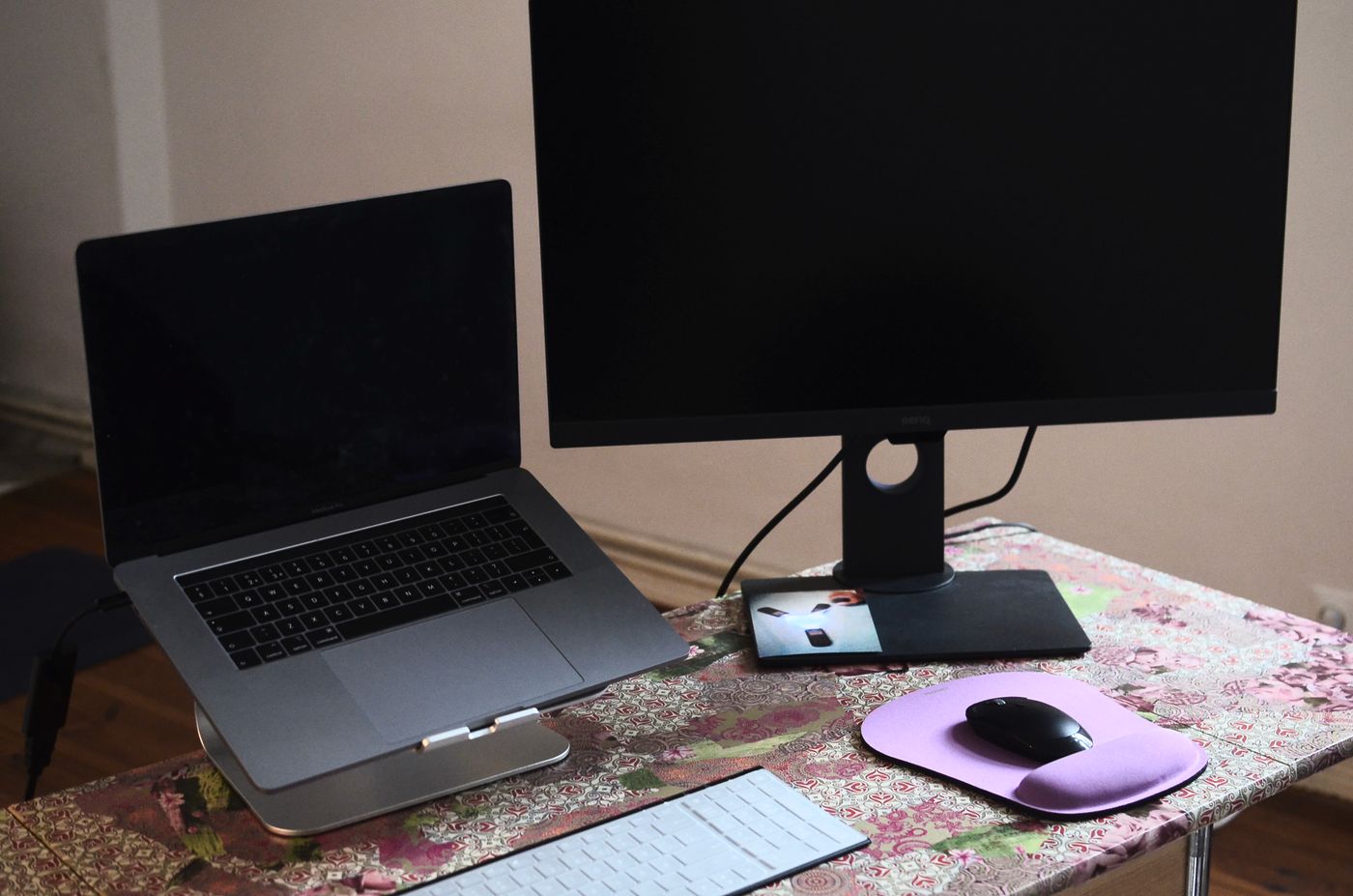
Start with the outcome rather than the connector. Perhaps you want the laptop picture on a larger screen, the laptop battery charging, and a keyboard attached to the monitor. Those are three different jobs. A connection can perform one successfully while another remains unavailable, so a lit charging indicator does not prove that video should also work.
Find the exact laptop and monitor model numbers and open their official specifications or manuals. Similar-looking models can have different ports. If a laptop has several USB-C sockets, check them individually. Record the supported features beside the port you plan to use rather than treating the whole computer as one undifferentiated USB-C device.
Confirm a supported video route
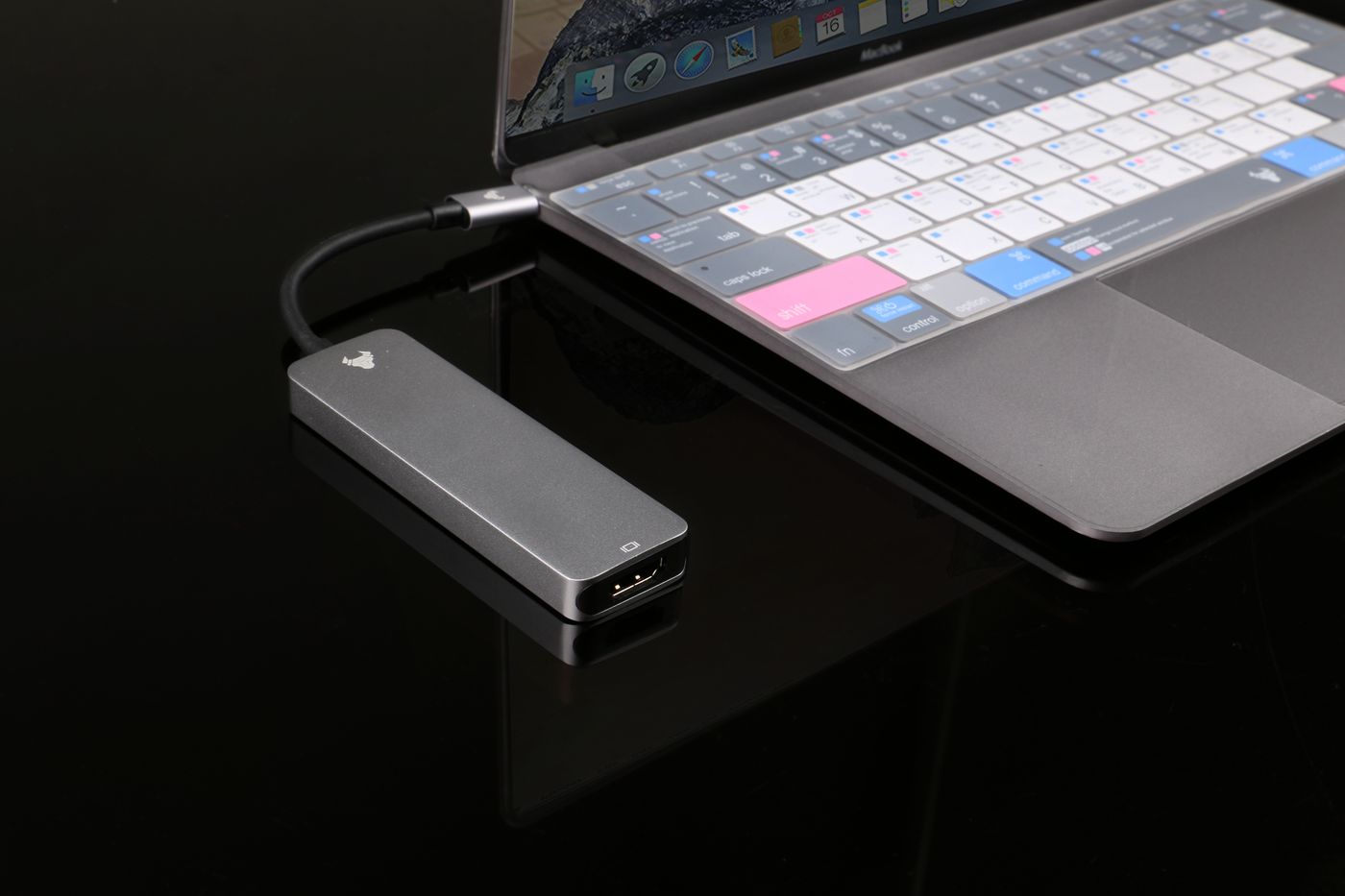
For a conventional USB-C monitor connection, look for the laptop's documented support for display output over that port, such as DisplayPort Alternate Mode or an appropriate Thunderbolt capability. A USB-C port described only for data or charging is not enough evidence. The monitor must also accept video through the particular socket being used.
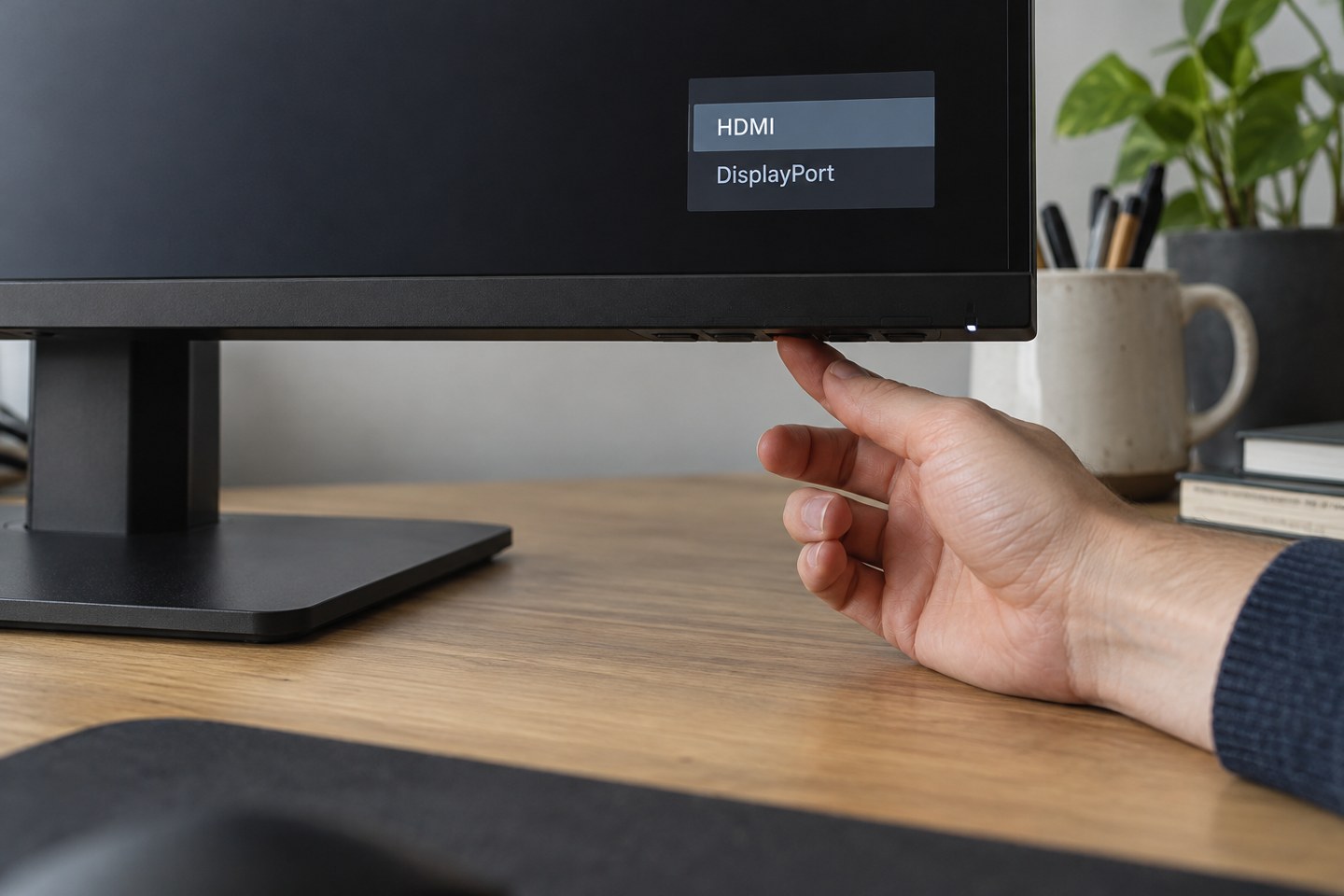
Monitors can have both an upstream connection to the computer and downstream USB connections for accessories. Plugging into a convenient-looking socket on the front or side may not connect the video input at all. Use the port diagram in the manual. Then select the corresponding monitor input, using its own controls if automatic selection does not find the signal.
Do not buy an adapter on the assumption that it can add a feature the computer never supported. Different adapter types work differently, and some require drivers or a separate display technology. If the laptop's USB-C port cannot provide the required video route, a documented HDMI or DisplayPort output may be the simpler option, even if that means keeping a separate charging cable.
Compare the charging capability
Look for the monitor's stated power delivery to the host computer and the laptop manufacturer's charging requirements. A monitor may supply enough power for one laptop but not another. A connector fitting physically does not establish that the arrangement can keep up with your workload.
For example, imagine that the monitor manual lists a particular maximum host charging output while the laptop's original adapter has a higher rating. That is a reason to check the laptop's official compatibility guidance, not an automatic verdict based on the numbers alone. The laptop may charge slowly, show a warning or require its own adapter for normal operation. Do not assume that every device responds in the same way.
Check whether the monitor's charging behaviour changes in standby or when it is switched off. If you expect to leave the laptop connected overnight, that setting matters. Use the documented option rather than changing unfamiliar power settings simply to remove a warning.
Use a cable specified for the whole job
A charging cable can fit both devices without supporting the video and data performance you need. Start with the cable supplied or explicitly recommended for the monitor where available. If replacing it, compare the stated video, data and power capabilities, not just the connector shape or a description such as fast charging.
Keep the first test direct: laptop to monitor, without an extra hub or extension. That reduces the number of uncertain components. Inspect the cable and sockets for damage before connecting them, and do not force a plug that does not seat normally. Avoid inventing an electrical workaround for a loose or damaged connection.
Test each function separately
Once the picture appears, choose the intended display mode in the operating system and check the resolution and refresh rate against the supported combination in the manuals. A connection working at one setting does not guarantee every setting advertised by either device in isolation. If a higher setting fails, return to the known working mode before investigating further.
Next check charging during an ordinary workload, then test a simple accessory connected through the monitor. If video works but the keyboard does not, investigate the monitor's USB upstream arrangement and settings rather than replacing the screen. If charging works but video does not, return to the port and cable video specifications.
Finally, disconnect and reconnect once, and test the laptop waking from sleep. Make a brief note of the working port, cable and input selection. A genuinely useful one-cable desk is one you can reconnect reliably tomorrow, not merely one that produced a picture once.