Trace the connected cable
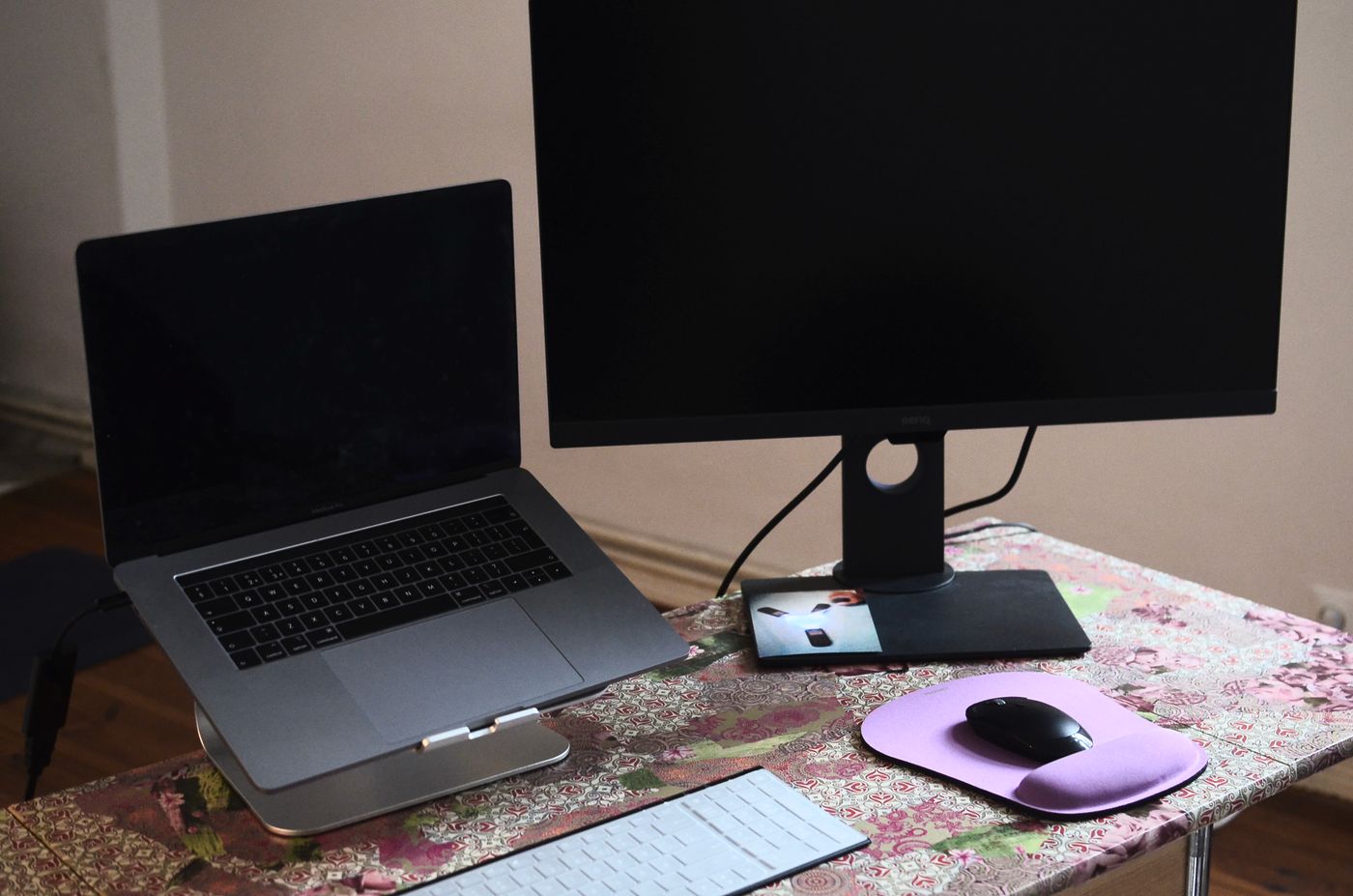
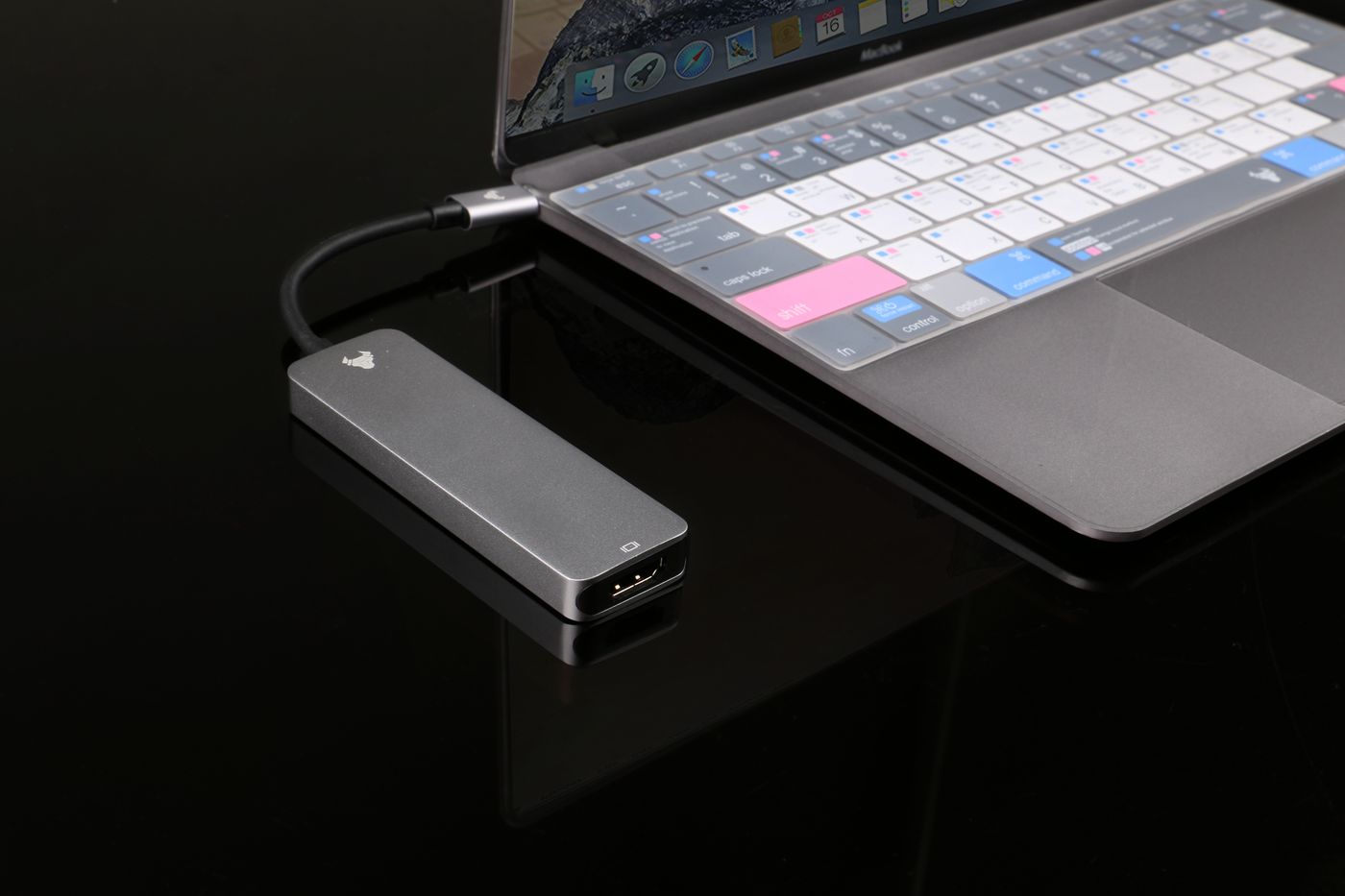
Look at the cable from the computer all the way to the monitor. Read the label beside the monitor socket, such as HDMI 1, HDMI 2, DisplayPort or USB-C. Use the manual's port diagram if the label is hidden or unclear. The input name refers to this connection, not the computer's brand or the kind of document you want to display.
If there are several video cables attached, note which belongs to which computer. For a first test, a single known connection is easier to understand than a dock, console and laptop all waking at once. Do not disconnect somebody else's active equipment merely to simplify your own test.
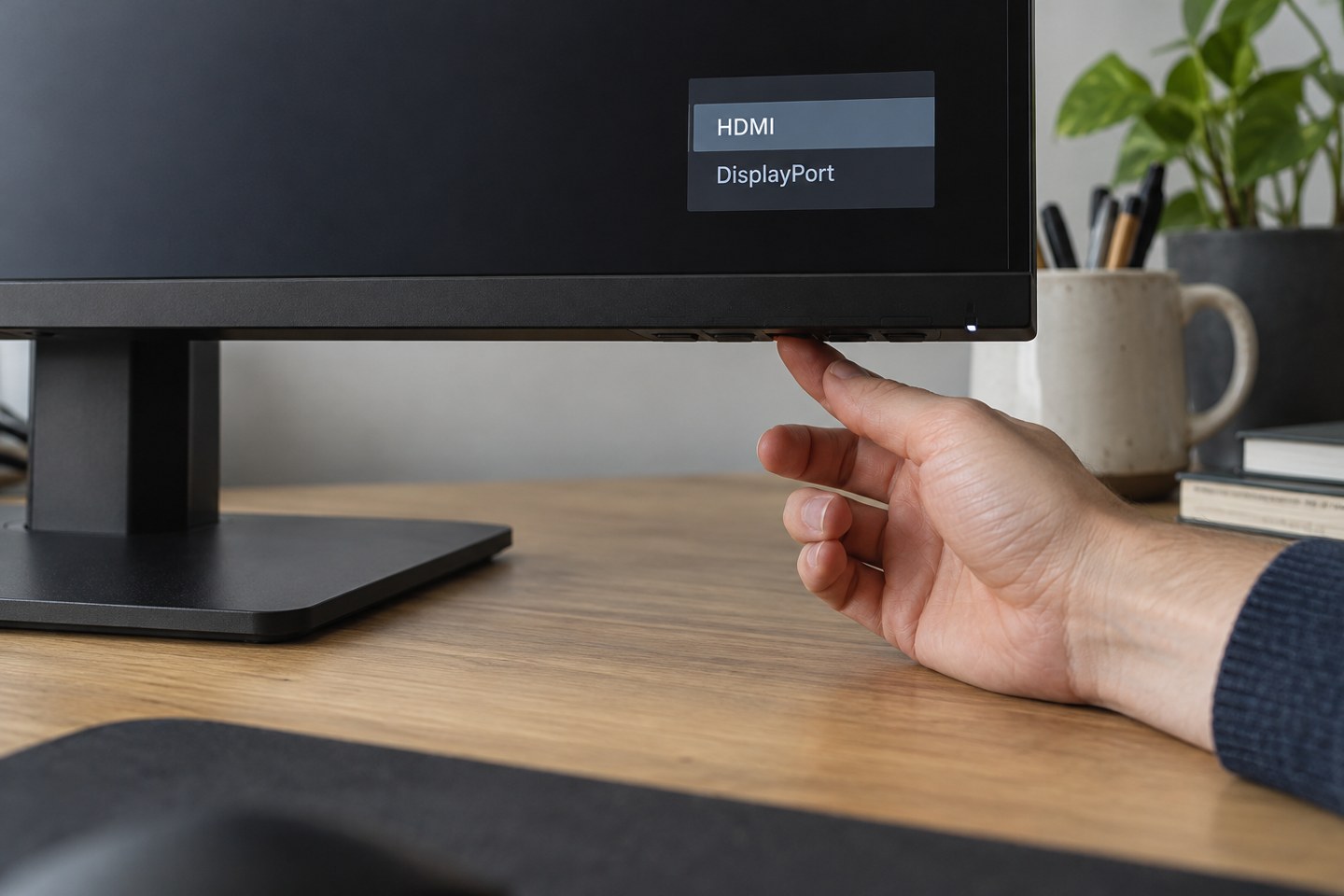
Select the input on the monitor
Use the monitor's buttons or joystick to open its input-source menu and choose the connected socket. The controls differ by model. Dell's S2421HS guide, for example, explicitly calls for selecting the correct input after connecting the display cable. Automatic selection can be convenient, but manual selection removes one uncertainty during diagnosis.
A no-signal message usually means that the selected input has no usable signal at that moment. It does not by itself prove that the panel is broken. Confirm that the computer is awake and that the cable is seated normally at both ends. Never force a connector into an unsuitable socket.
Move to the computer only after that
Once the correct monitor input is selected, check the operating system's display settings. Choose the intended duplicate or extended arrangement and use its detection option if appropriate. If the screen still does not appear, test a direct supported cable route without an unnecessary adapter or dock.
If swapping cables, change one component at a time and keep track of which combination worked. A damaged cable, an unsupported adapter direction or a laptop port without video capability can all resemble an input problem.
For a shared monitor, put a small label on each cable or save a note of the input assignments. The next handover can then be a deliberate input change rather than a fresh round of unplugging everything behind the desk.