Start with the job at each end
Write down the devices and the task before choosing a cable. Charging a phone, transferring a large photo library and connecting a monitor are different requirements. The USB-C connector describes the physical connection; it does not by itself promise a particular data rate, charging capability or video path.
Read the documentation for both devices. For a monitor connection, the computer port and monitor input need compatible video support as well as an appropriate cable. For charging, the device and charger must support a suitable power arrangement. A cable cannot add a function missing from either endpoint.
Read power and data as separate lines
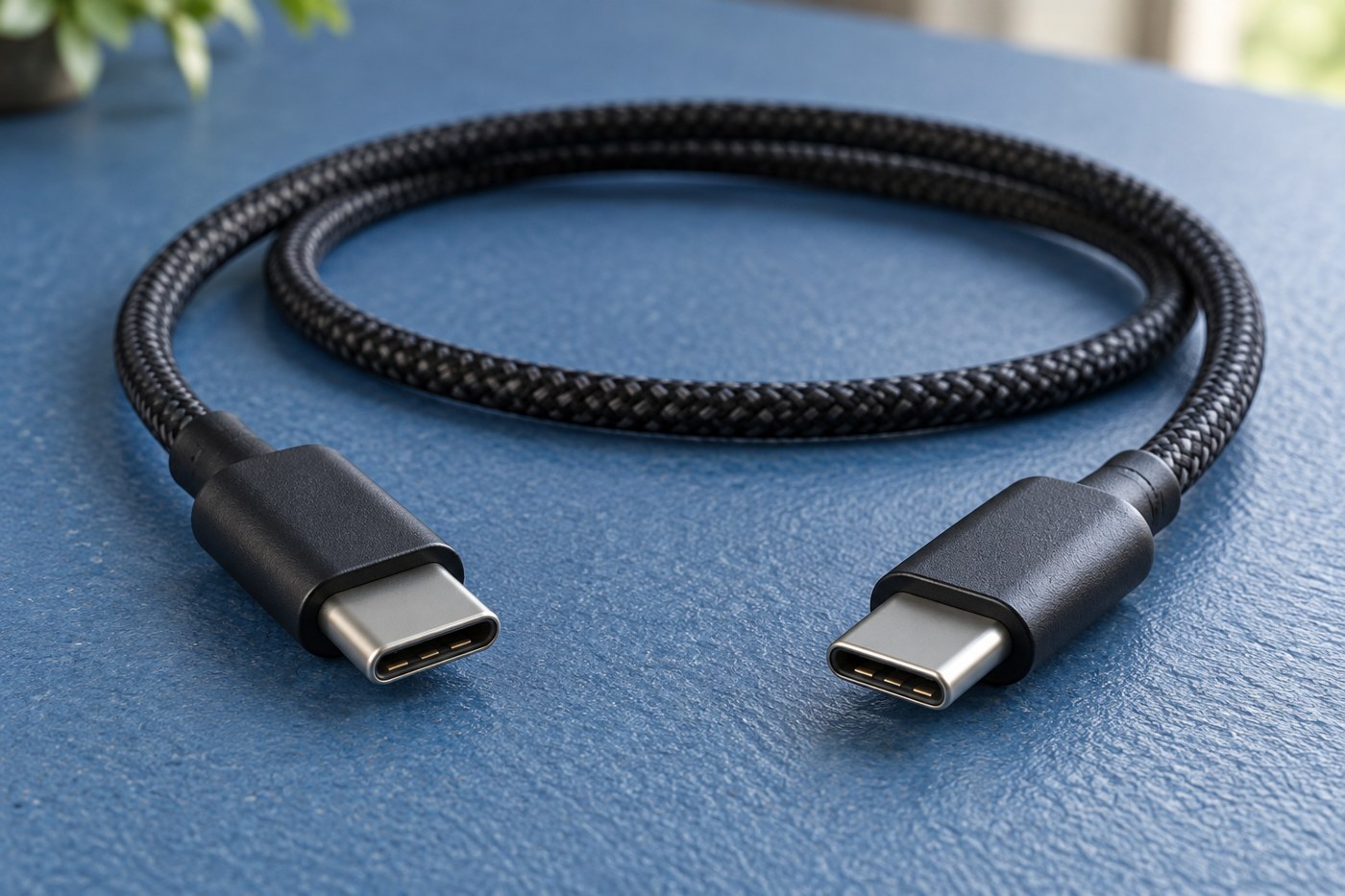
Look for an explicit power rating and an explicit data capability. USB-IF certification markings can help identify supported capabilities, but check the actual product description and model rather than a generic photograph used for several variants. A cable advertised mainly for charging may support only a modest data rate.
For a laptop, compare the cable and charger requirements with the laptop manufacturer's guidance. Do not assume that a high power number also means fast data or monitor support. Conversely, a cable suitable for a display is not automatically the right choice for every high-power charging arrangement.
Check the exact length too. Cable capabilities may differ between lengths in the same range, especially where active electronics or demanding data rates are involved. A longer cable should be selected for its stated specification, not by extending a short cable through an unverified adapter chain.
Buy the route you need
For a desk, measure from the actual port around the monitor stand to the laptop's usual position. Allow relaxed bends and enough movement to reconnect without pulling. An unnecessarily long cable adds clutter, while one that barely reaches encourages strain on the socket.
If the monitor or dock includes a cable recommended for the connection, begin with that. A replacement should state the functions required by the setup. Keep the original available while testing, so you have a known reference if the new cable charges but fails to display a picture.
Make the first test specific
Test one job at a time. Confirm that the monitor appears at the intended resolution, that the laptop reports appropriate charging and that attached accessories work. A single successful function does not prove the others. If a dock is involved, compare a direct connection where the documentation permits it.
For data, try an ordinary file transfer with suitable devices and confirm that the files open afterwards. Do not use a phone's charging icon as a test of data wiring. Label the cable once you know what it is for, particularly if several similar-looking leads live in the same drawer.
Stop using damaged leads
Inspect plugs and insulation before use. Replace a cable with damaged insulation, bent connectors or an unreliable fit rather than securing it at an angle and hoping it holds. Follow the equipment manufacturer's guidance for heat or charging warnings.
Keep the product specification with the purchase record. Months later, knowing that a cable was bought for a monitor rather than for basic phone charging can save a long troubleshooting session. The useful purchase is a clearly specified connection for a known task, not simply the cable with the largest printed number.