Two links, one everyday complaint
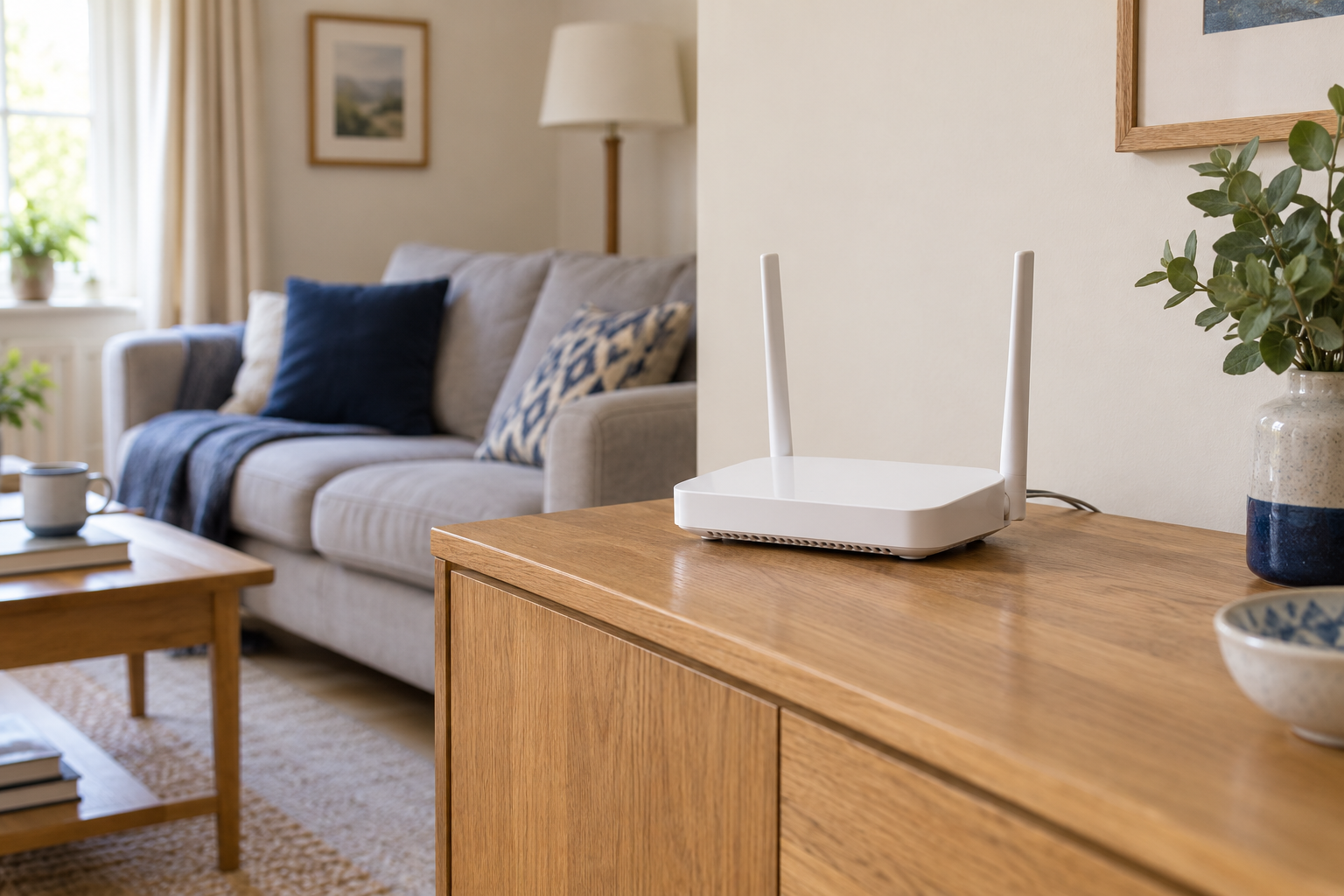
Wi-Fi connects your device to a wireless access point, usually part of the home router. Broadband connects the home to the wider internet. A device can have a strong Wi-Fi connection while the internet service is unavailable, and a fast broadband service can feel poor at the far end of a weak wireless link. The familiar phrase “the internet is down” does not tell you which stage has failed.
Begin by describing the failure. Is the network missing from the list, does joining it fail, or does the device connect but refuse to load pages? Check more than one website or service. One app failing while other sites work suggests a narrower issue than a household-wide outage. Note error messages exactly, without posting account or network details publicly.
Compare without changing the setup
Try another device on the same home network. Turn off mobile data temporarily on a phone if you need to be certain it is testing Wi-Fi, then restore it afterwards. A phone can otherwise hide a wireless problem by using its mobile connection. If only one device fails, start with that device's connection and network settings.
Move the original device closer to the router and repeat the task. Keep the test conditions as similar as possible. A clear improvement points towards wireless coverage or interference, although it does not identify a single cause. If nothing improves, do not assume that distance is irrelevant to every other device; you are collecting evidence for this particular failure.
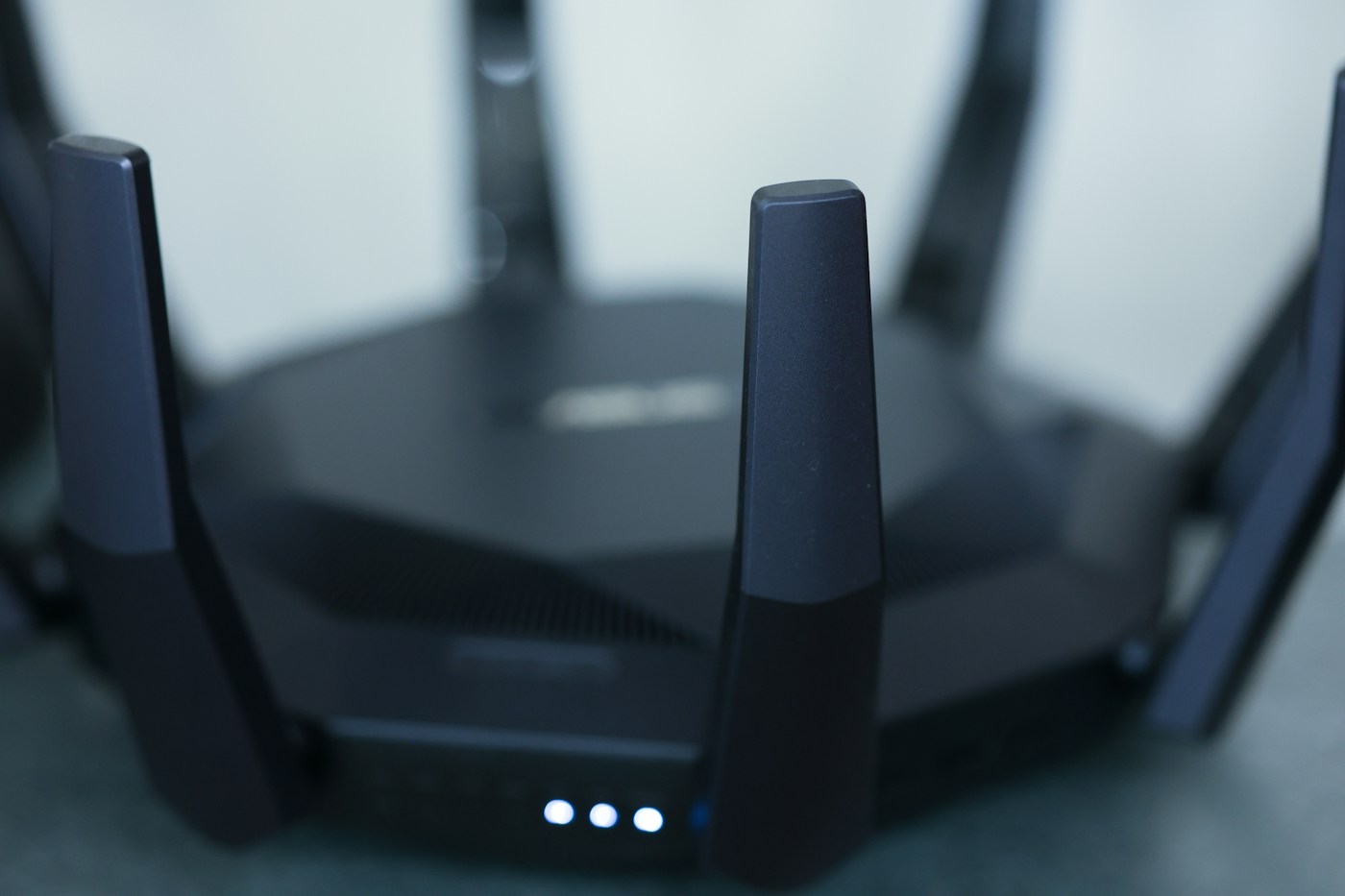
Check the router's service lights against its own manual or the provider's support page. Colour meanings are not universal. A flashing light can be normal activity on one model and an error on another. Photograph the pattern or write it down before restarting anything, because the useful evidence may disappear during a reboot.
Use a cable when it is practical
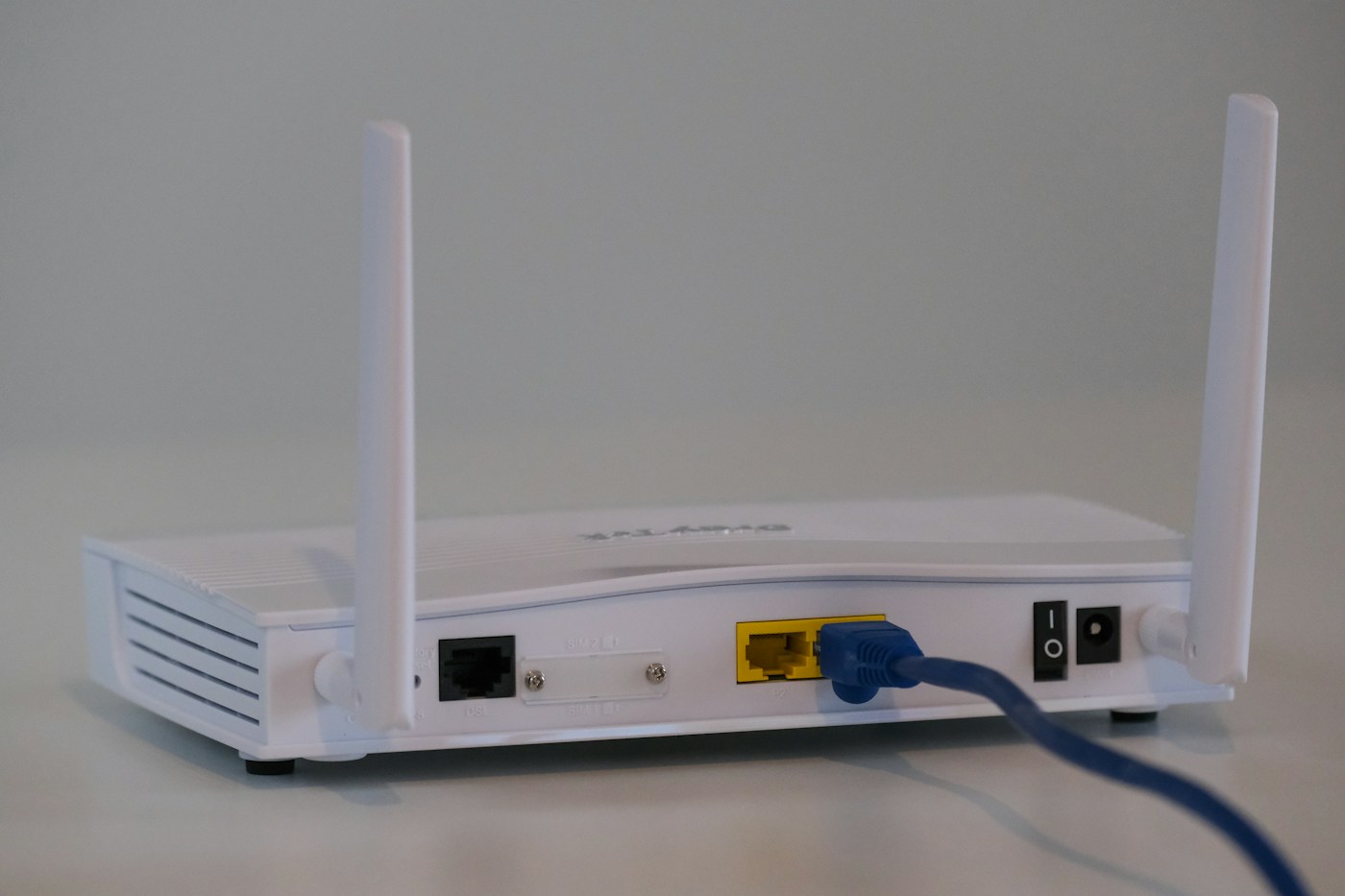
A compatible laptop or computer connected by Ethernet can help separate the wireless section from the rest of the route. Use a known working cable and a normal LAN port, following the router documentation. Confirm that the computer is using Ethernet for the comparison. Do not unplug a provider's incoming cable or optical equipment to create a spare socket.
If the wired connection works well while Wi-Fi remains poor, focus on the wireless setup: placement, the affected device and any mesh links. If wired and wireless devices both struggle, look at service status, router connectivity and household traffic. The cable test is useful, but a slow computer or limited adapter can still affect its result.
Put the time into the picture
Write down whether the problem is constant or appears during particular activities. A large upload can affect other tasks differently from watching a stream. Cloud backups and game downloads are easy to overlook because they may run without an obvious window on screen. Pause one known transfer with the owner's agreement and repeat the original task.
Use the provider's official service-status route, ideally through a separate working connection, if the whole home is affected. Avoid changing login credentials, broadband connection types or advanced settings as exploratory fixes. Those changes can create a second problem and make the original fault harder to diagnose.
Restart only after recording what happened
A normal restart may clear a temporary issue. It is different from a factory reset, which can remove settings and require setup again. Follow the provider's restart instructions and allow the equipment to finish reconnecting. Repeatedly cutting the power before it settles prevents a meaningful test.
If the fault continues, give support a concise account: when it began, which devices fail, whether a wired comparison worked, the light pattern and any recent changes. That evidence helps distinguish an incoming service problem from a local wireless one. Keep any account checks within the provider's official support channel.