Decide which problem the stand should solve
A laptop stand can raise the screen, free a small area beneath it or make the display easier to position beside another monitor. Start with the specific reason you want one. Raising the machine as high as possible is not a goal in itself, especially if it leaves the built-in keyboard awkward to reach.
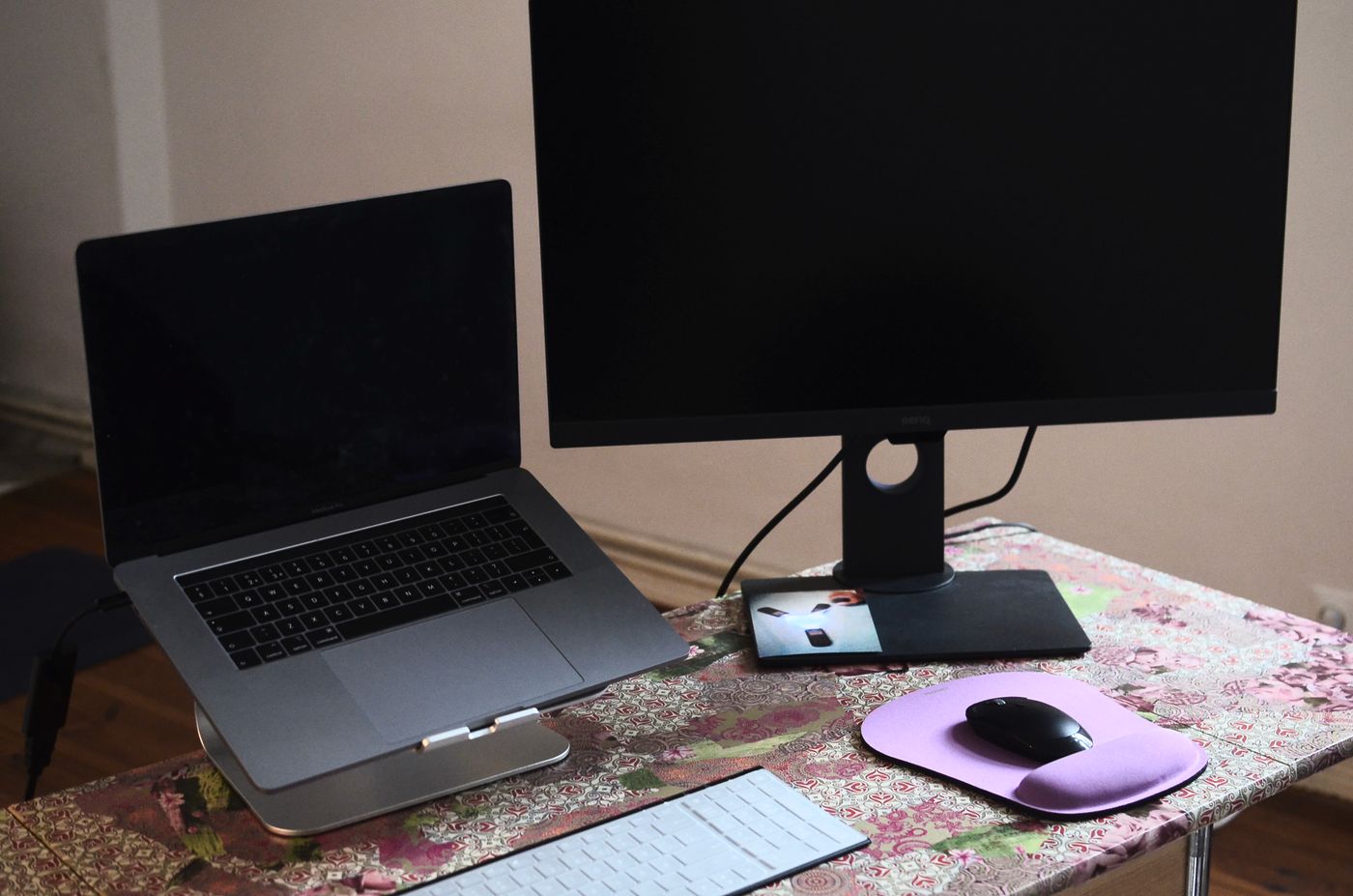
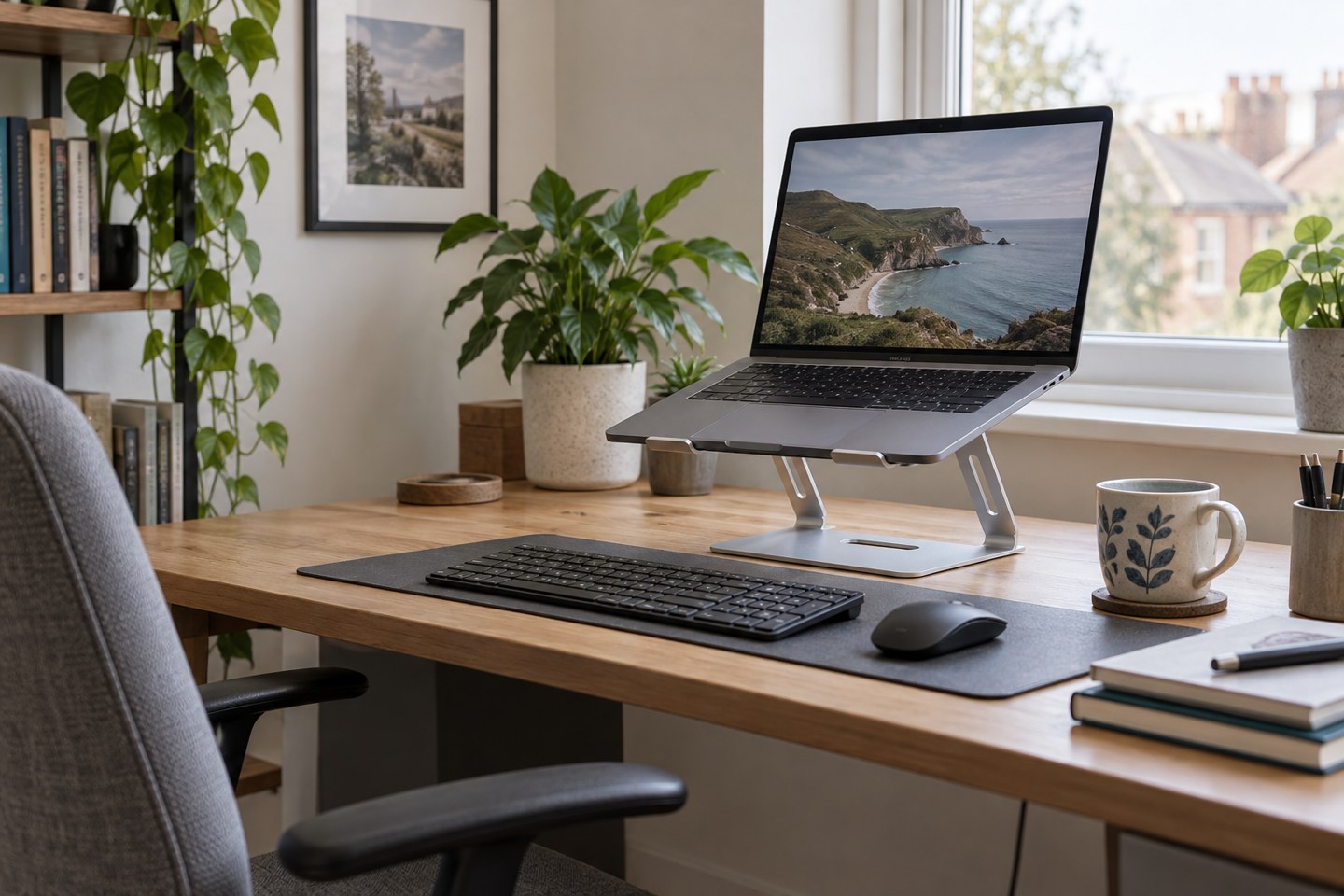
HSE guidance on portable computer use recommends a firm surface and, where possible, a separate full-sized keyboard and mouse. Separating the controls from the screen lets you adjust them independently. Consider those accessories as part of the arrangement rather than discovering afterwards that the stand has moved your hands to an uncomfortable height.
Check the support and airflow
Match the stand to the laptop's dimensions and weight. Check where its supports contact the base, whether the machine sits securely and whether it obstructs any vents or ports. Follow both the stand and laptop instructions. A universal-looking shape does not establish compatibility with every machine.
Open the screen to the angle you normally use and gently test ordinary interaction without forcing the hinge. The laptop should not slide when connecting a cable or adjusting the display. If the stand folds, make sure its supports are fully engaged in the intended position.
Avoid improvised stacks that wobble or cover air intakes. Also consider where the laptop's warm exhaust goes. A stand should not direct heat into a tightly enclosed shelf merely because the screen now sits at an attractive height.
Arrange the whole working area
Place the keyboard and pointing device where you can use them comfortably, then adjust the screen to suit your seated position and eyesight. Consider glare from windows and lights. There is no single stand height that suits every person, chair, desk and task.
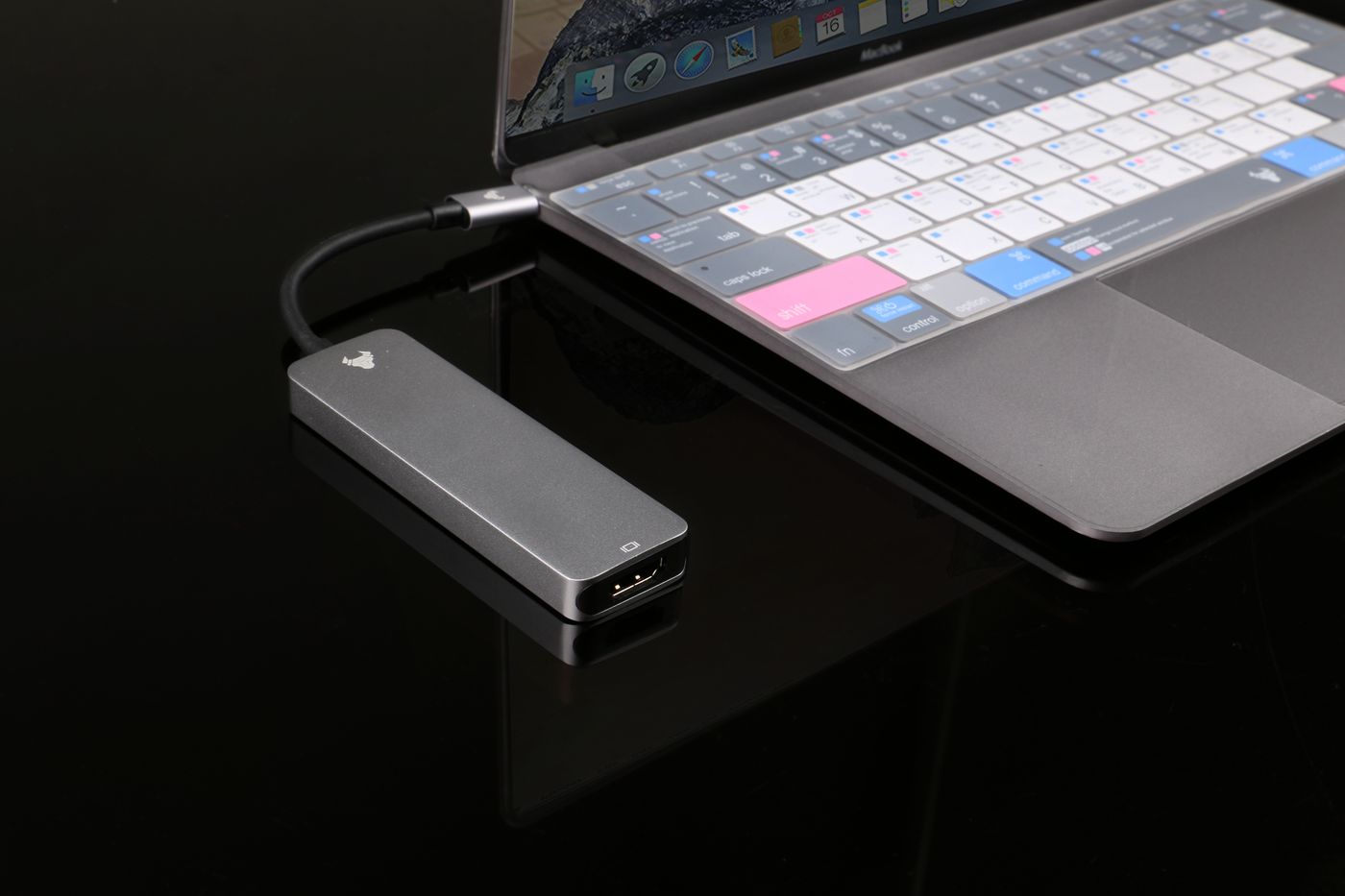
Check cable reach with the laptop raised. The charger and display lead should not pull on their sockets. Leave space to connect the cables you remove daily, and keep the stand clear of the path used when opening a drawer or moving the chair.
Try a normal session
Use the setup for ordinary reading, typing and calls. Notice whether you lean forward to see text or reach around the stand for the mouse. Adjust display scaling, placement or accessory position before deciding that a taller stand is needed.
If the desk is shared, make the settings easy to change and show the next person how the stand adjusts. Take breaks and vary activity as part of the working routine; a stand is one piece of a workstation, not a guarantee of comfort or a treatment for persistent pain. If work-related discomfort continues, seek an appropriate workstation assessment.