Start with the alert that interrupts you
When a notification arrives, identify the app and what triggered it. A shopping promotion, a low-battery warning and a doorbell event can all appear in the same notification area, but they serve very different purposes. Adjusting the actual source is more useful than turning down every sound on the phone.
Keep a short note of the alerts that are repeatedly unhelpful. You may discover that most of the noise comes from one app or a single device's activity settings. That is a smaller problem than managing every notification on the system, and it makes the effect of your changes easier to see.
Use categories when the app provides them
Some apps separate their notifications into types. Android supports category controls where the app provides them, so you may be able to keep essential device notices while disabling offers or routine activity. The available names vary by app and phone; inspect what each switch controls rather than copying a path from a different model.
Also look inside the app itself. A camera may have its own event or activity-zone settings, while the phone controls how resulting messages are presented. Changing the phone's sound does not change what the camera detects. Conversely, reducing an event source may affect recordings or automations as well as notifications, depending on the system.
Choose between quiet and absent
A silent notification can remain available to review without demanding immediate attention. That is useful for information you want to retain but do not need to hear across the room. Hiding a lock-screen preview is another separate choice: it can limit what others see without stopping the alert from arriving.
Reserve an audible interruption for events you actually intend to act on. If you silence a security-related or safety-related notice, first understand what you will no longer receive and whether the equipment has another suitable alert. Do not assume that an app notification is a substitute for the device's intended local warning.
Test your quiet-hours arrangement
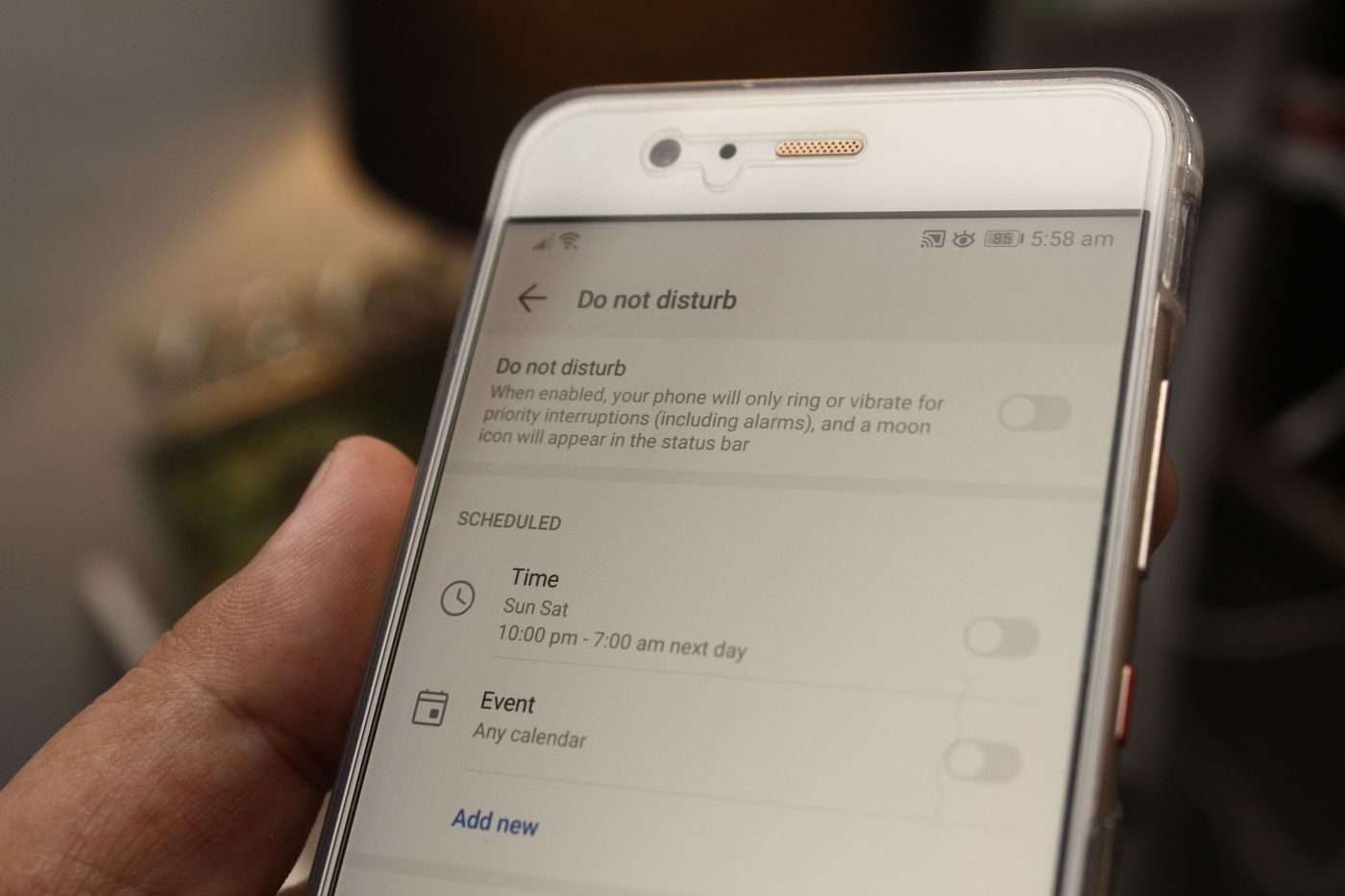
If the phone offers a scheduled focus or do-not-disturb mode, inspect its allowed people and apps. An exception you set months ago may explain why one notification still breaks through. A second device, such as a tablet or watch, can also keep alerting even after the phone is quiet.
Run a harmless test of the messages you want to keep. For example, ask someone to send an ordinary message through an allowed channel, or use a device's documented notification test. Avoid deliberately triggering dangerous conditions to check an alert. Confirm both that the useful message arrives and that it appears in the form you expected.
Review the result after a few days of normal use. If you missed something useful, restore that category rather than undoing every change. A good notification setup leaves you with a manageable set of signals, not a perfectly silent screen that you have to keep opening just in case.