Decide what the audience needs
If you are discussing one document, sharing its window may be enough. If you need to move between several applications, a whole screen may be more convenient. These choices expose different areas, so select deliberately instead of clicking the first thumbnail in the sharing panel.
Microsoft Teams supports different presentation options, including screen and window sharing. The exact choices depend on the application, operating system and version. Use the actual preview and labels shown in your meeting tool rather than assuming another platform's controls behave identically.
Prepare the visible area
Open the document at the intended page and close unrelated windows. Check the browser's visible tabs, bookmarks and account details if it will be shared. Remove private files from the desktop if you plan to share that screen, and review notification settings before the call.
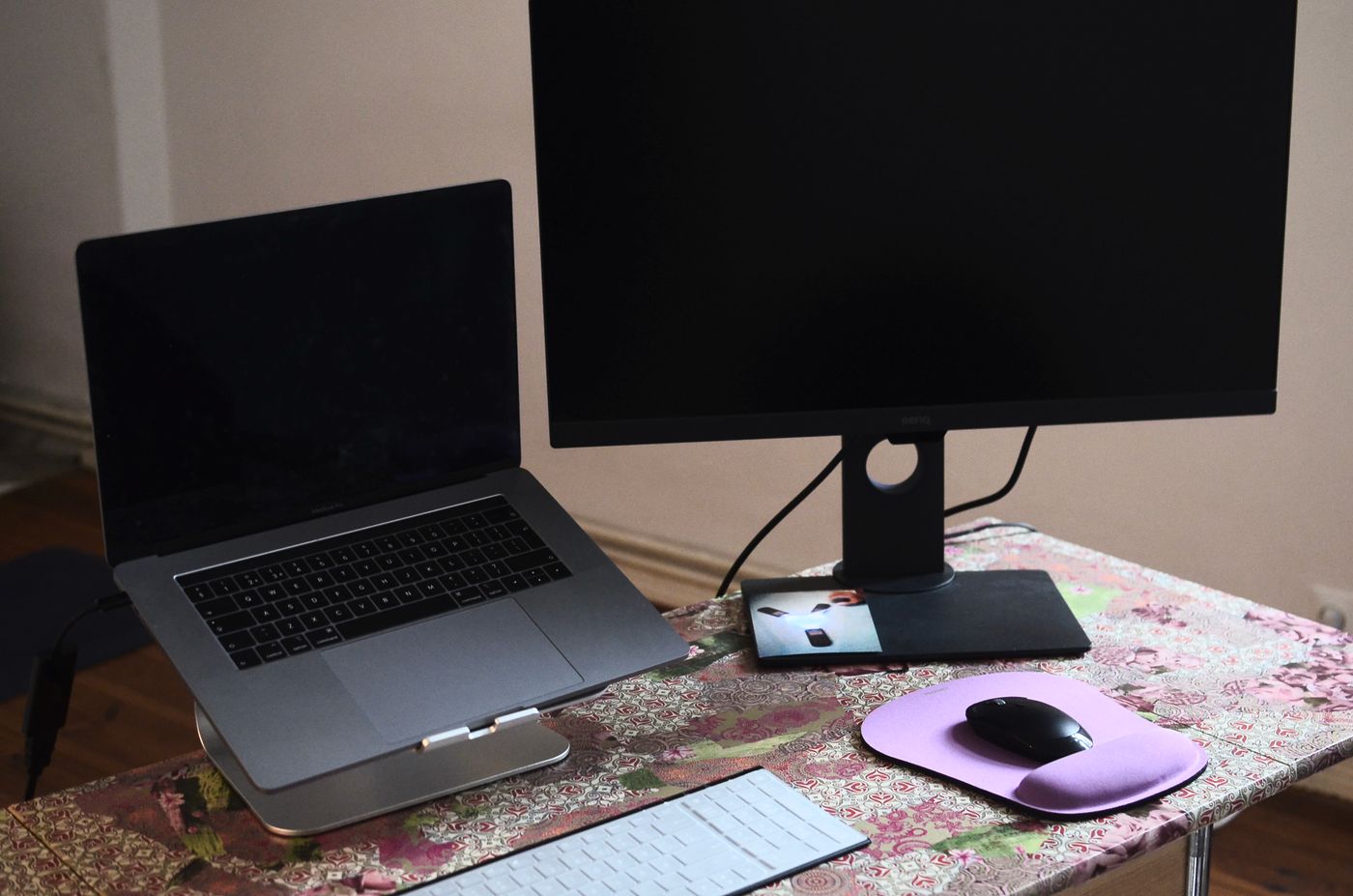
A second monitor can help keep notes separate, but only if you share the intended one. Identify the screens in the sharing preview and use a harmless test window to confirm the choice. Do not rely on remembering that the left-hand monitor was called screen two on a different computer.
Check whether presenter notes, comments or revision markup are visible in the chosen application view. A presentation's editing window and its slideshow are different surfaces. Start the intended mode before sharing and inspect what the participants will receive.
Rehearse the transitions
Try moving between the items you expect to show. Window sharing may not automatically include another window that opens during the demonstration. Whole-screen sharing may reveal more than intended during the same transition. Rehearse the actual sequence so you can choose the appropriate approach.
If the session includes video or audio, check the tool's sound-sharing option and test it with another person in an agreed practice call. Playing sound through your own speakers does not establish that the meeting is receiving it. Keep the volume comfortable and avoid duplicate audio paths.
Know how to stop
Locate the stop-sharing control before beginning, especially if it moves into a small floating toolbar. Practise stopping before opening a private message or searching for another file. Pausing to switch material is better than hurriedly navigating personal folders in front of the audience.
At the end, stop sharing explicitly and confirm the meeting no longer shows your content. Closing one document is not necessarily the same as ending a whole-screen share. A short preparation routine makes sharing less stressful because you know both what is visible and how to bring it to an end.