Find out what the call is using
A laptop, webcam, headset and monitor can all add audio devices to a computer. The call app may not use the one you expect. Open its device settings and check the microphone and speaker selections independently. Microsoft Teams, for example, provides separate choices for these roles.
Say a few ordinary sentences while watching the input indicator, then play the app's test sound or use its supported test-call feature. Some editions and browser versions offer different testing options. The important result is hearing a useful sample of your voice and confirming where incoming sound will play.
Choose for the room
In a shared space, a headset can keep the other side of the conversation from filling the room. Check that it is comfortable for the length of your calls and that the microphone sits according to its instructions. A device that sounds adequate for five minutes may be irritating after an hour if it presses or catches on clothing.
A speakerphone can suit a room where several people need to join. Place it where the intended speakers can be heard and check the manufacturer's coverage guidance. Do not assume a laptop microphone at one end of a long table will capture a quiet person at the other end equally well.
If using speakers and a separate microphone, listen for echo in an actual test. Avoid joining the same meeting with two nearby devices both playing and capturing audio. If a second device is needed for its screen or camera, use the platform's supported arrangement to prevent duplicate audio paths.
Listen to ordinary interruptions
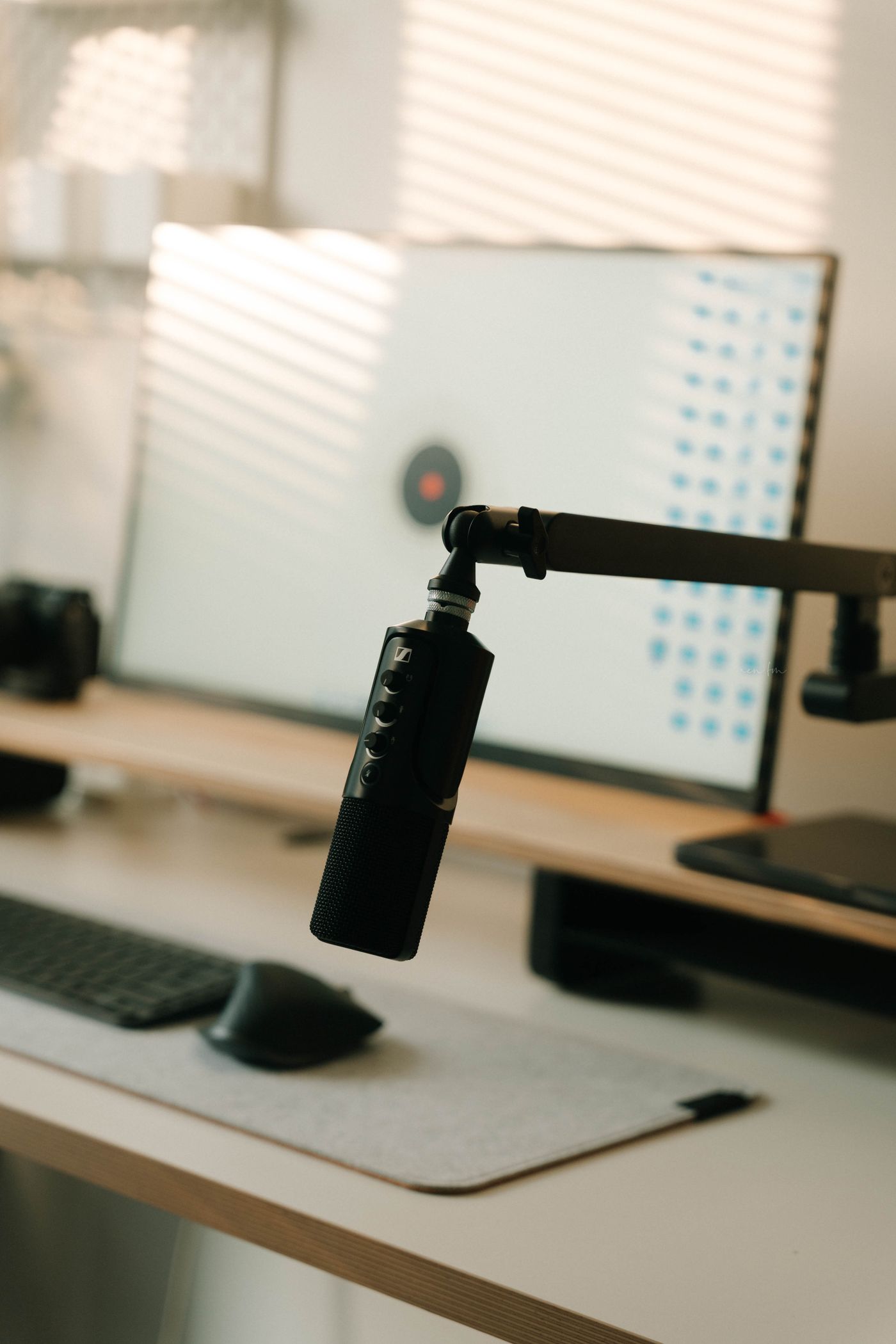
Test while typing a short sentence, moving a paper and speaking at a normal volume. You are checking the conditions of real work, not producing a studio recording. Move the microphone away from avoidable desk vibration and follow its positioning guidance rather than simply increasing input gain.
Try the application's noise-suppression option if available, then compare a spoken sample. Stronger processing is not automatically better for every sound or purpose. A music lesson, for example, has different needs from a routine work call, so choose settings for the actual session.
Make reconnection predictable
For wireless equipment, check charge and confirm it is connected to the intended computer. If it also pairs with a phone, test what happens when that phone receives a call. Behaviour varies by device, and the middle of a meeting is a poor time to discover which connection takes priority.
After unplugging or reconnecting a dock, check the app selections again. Keep a simple backup such as the laptop's own audio available, and learn how to choose it. Knowing a working fallback is more useful than repeatedly reconnecting a troublesome headset while everybody waits.