Find the keyboard's supported switching method
Some keyboards store several Bluetooth pairings or receiver connections and let you choose between them. Others pair with only one device at a time. Read the exact model's instructions before buying a separate switch or repeatedly removing pairings from both computers.
Logitech's Easy-Switch keyboards provide one example of stored connection channels. The number of channels and the pairing gesture belong to the model, so follow its guide rather than holding buttons at random. A short selection press and a longer pairing press can perform different jobs.
Assign channels deliberately
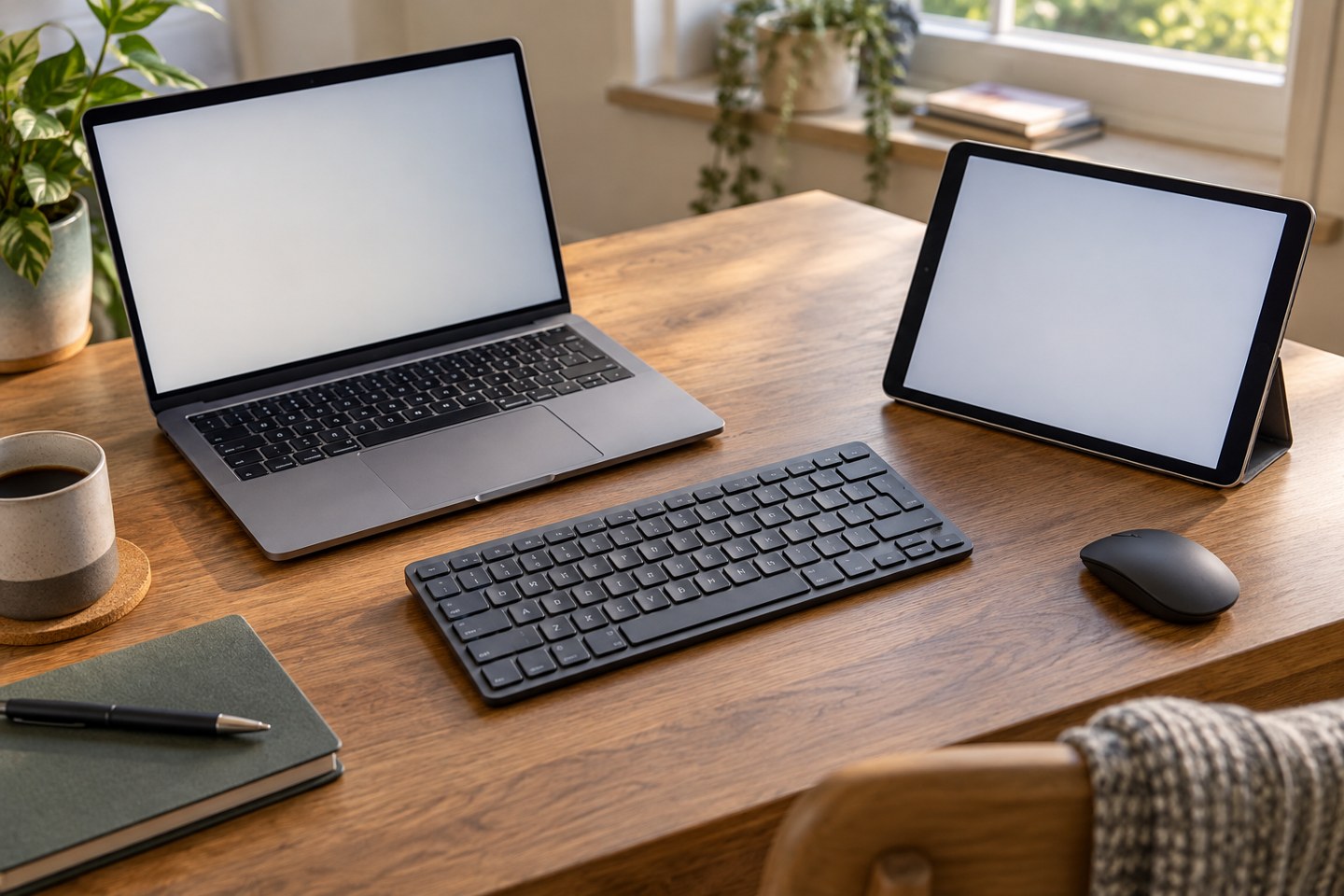
Choose a simple arrangement, such as channel one for the work laptop and channel two for the personal computer. Pair one device completely before adding the second. Give the computers recognisable names in their own settings if several similar names appear during setup.
After pairing, open a harmless blank document on each device. Switch channels and type a short test phrase. Confirm where the characters appear before using the keyboard for messages, passwords or work information. An illuminated key can help, but the actual typing destination is the most useful check.
If using a USB receiver, check its compatibility with the keyboard. Similar-looking receivers from the same brand can belong to different systems. Do not assume a spare receiver will work simply because it fits the computer's port.
Check the differences between computers
Test the modifier keys and a few shortcuts you use daily. Keyboard layouts and operating systems can interpret them differently. Set the correct layout on each computer and consult any documented operating-system mode on the keyboard. A wrongly mapped symbol key is not necessarily a broken switch.
Check wake behaviour as well. Select a device that has been asleep and allow the normal reconnection process to complete. If switching is unreliable, test closer to the computer and simplify the connection path before re-pairing everything.
Keep the boundary clear
A keyboard switching between two devices does not automatically move files, clipboard contents or the mouse between them. Those are separate features or tools with their own requirements. If using software that shares input or clipboard data, review its permissions and your employer's rules before enabling it on a work computer.
Keep a small channel note until the arrangement becomes familiar. If the desk is shared, tell the next person which device will receive input and show them the switch control. When retiring a computer, remove its connection using the supported process so an obsolete pairing does not occupy a useful channel indefinitely.