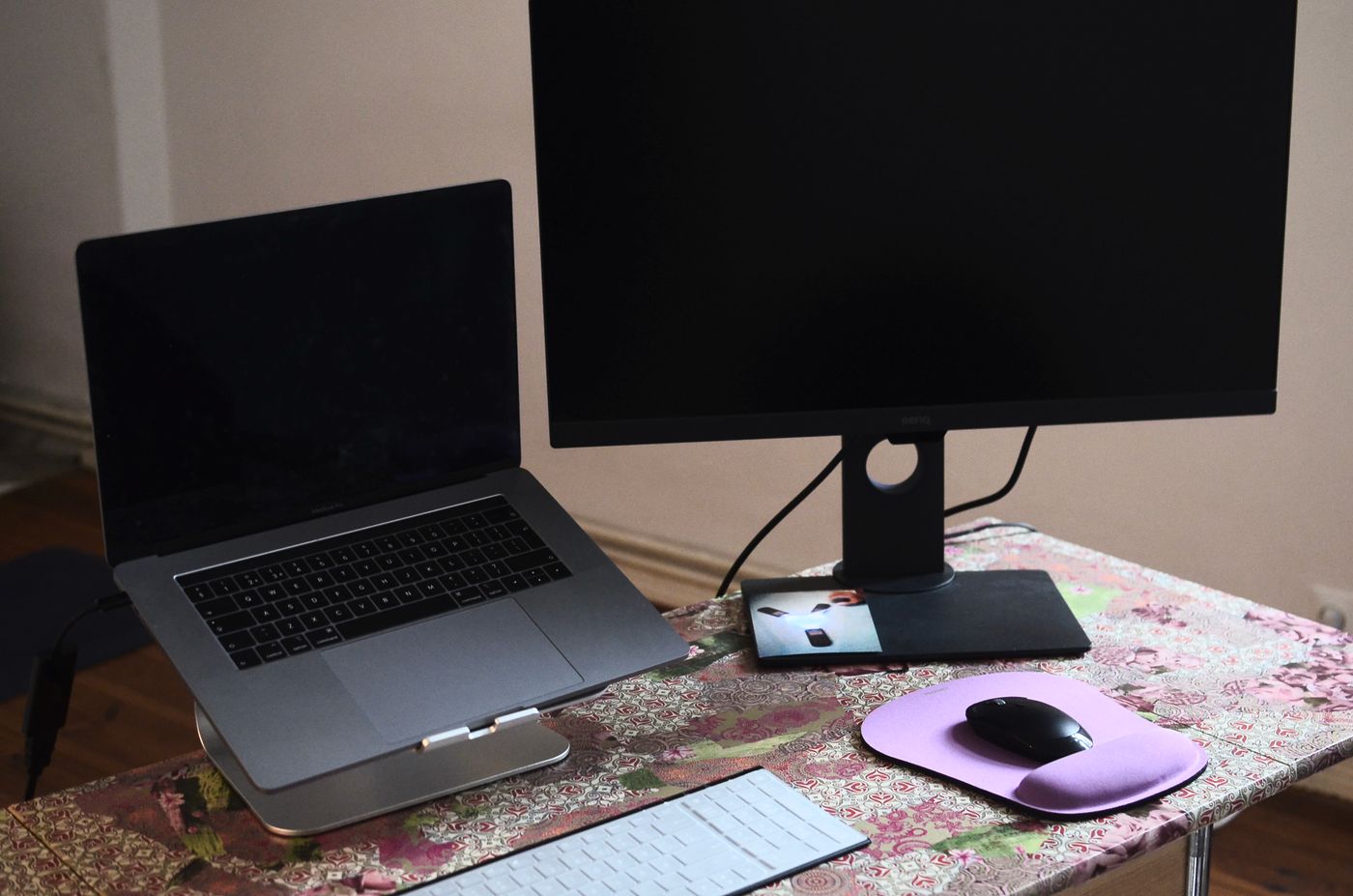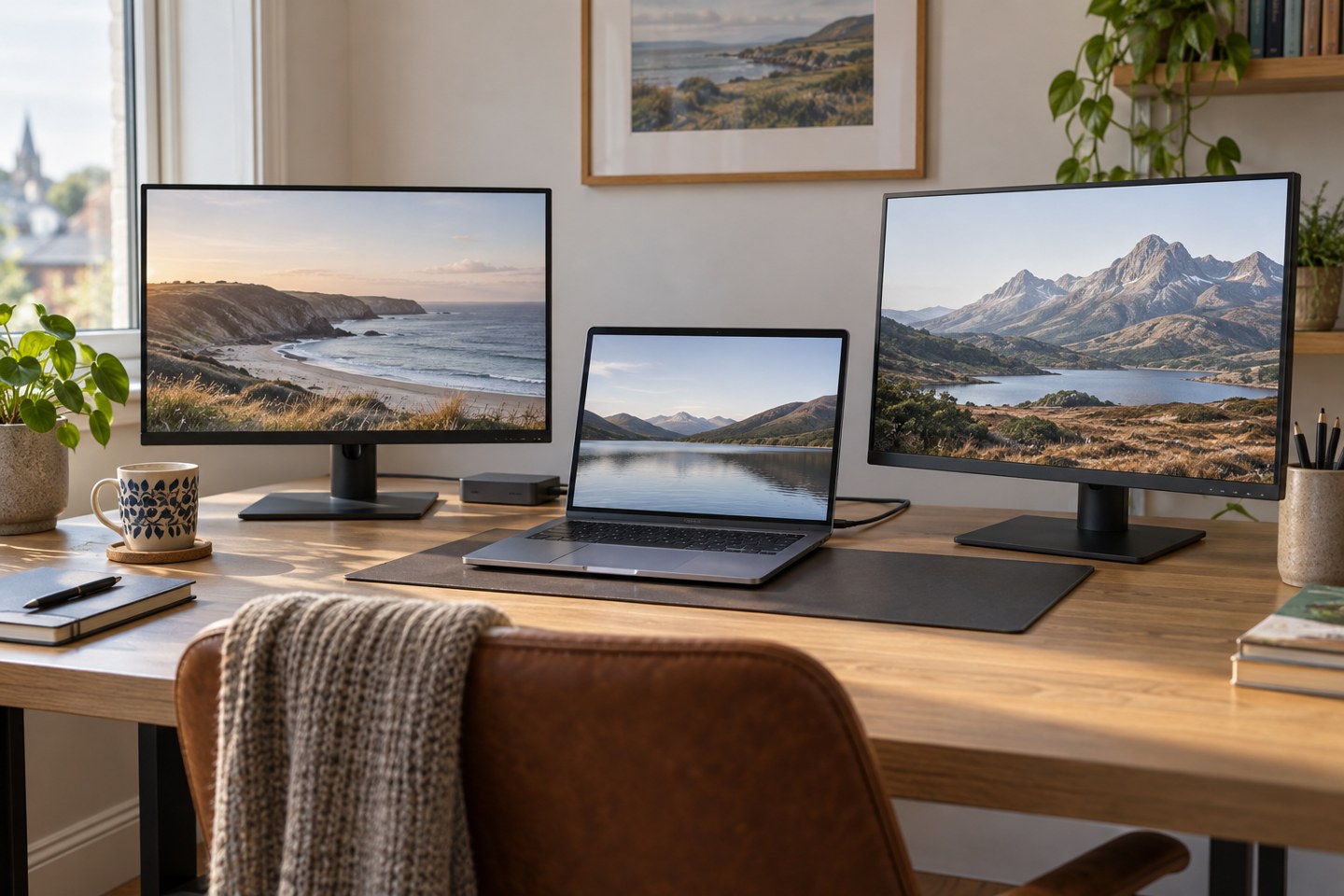
Define what two screens means
Decide whether you want two external monitors in addition to the laptop screen, or two external monitors with the laptop closed. Also decide whether each should show a separate workspace or the same picture. These choices can change the supported arrangement, so write them down before comparing adapters.
Note the intended resolution and refresh rate of both monitors. A laptop supporting two modest displays does not automatically support two more demanding displays through the same route. A product's maximum resolution and maximum screen count may describe different configurations rather than one combination.
Find the exact laptop specification
Use the full model and, where relevant, processor or graphics configuration. Similar model names can cover machines with different display limits. Apple explicitly advises checking the particular Mac model and the resolution and refresh rate of connected displays. Avoid applying a guide for one generation to another just because the cases look alike.
For other laptops, look for the manufacturer's external-display or docking table. Check whether the internal display counts towards the limit and whether a lid-open or lid-closed arrangement changes anything. Follow the manufacturer's power and ventilation guidance if using the machine closed.
List the available video-capable ports individually. A USB-C socket may support data or charging without the display output you need. Conversely, a dedicated HDMI port and a compatible USB-C video output may provide a useful route without requiring every connection to pass through a single dock.
Check the proposed adapter or dock
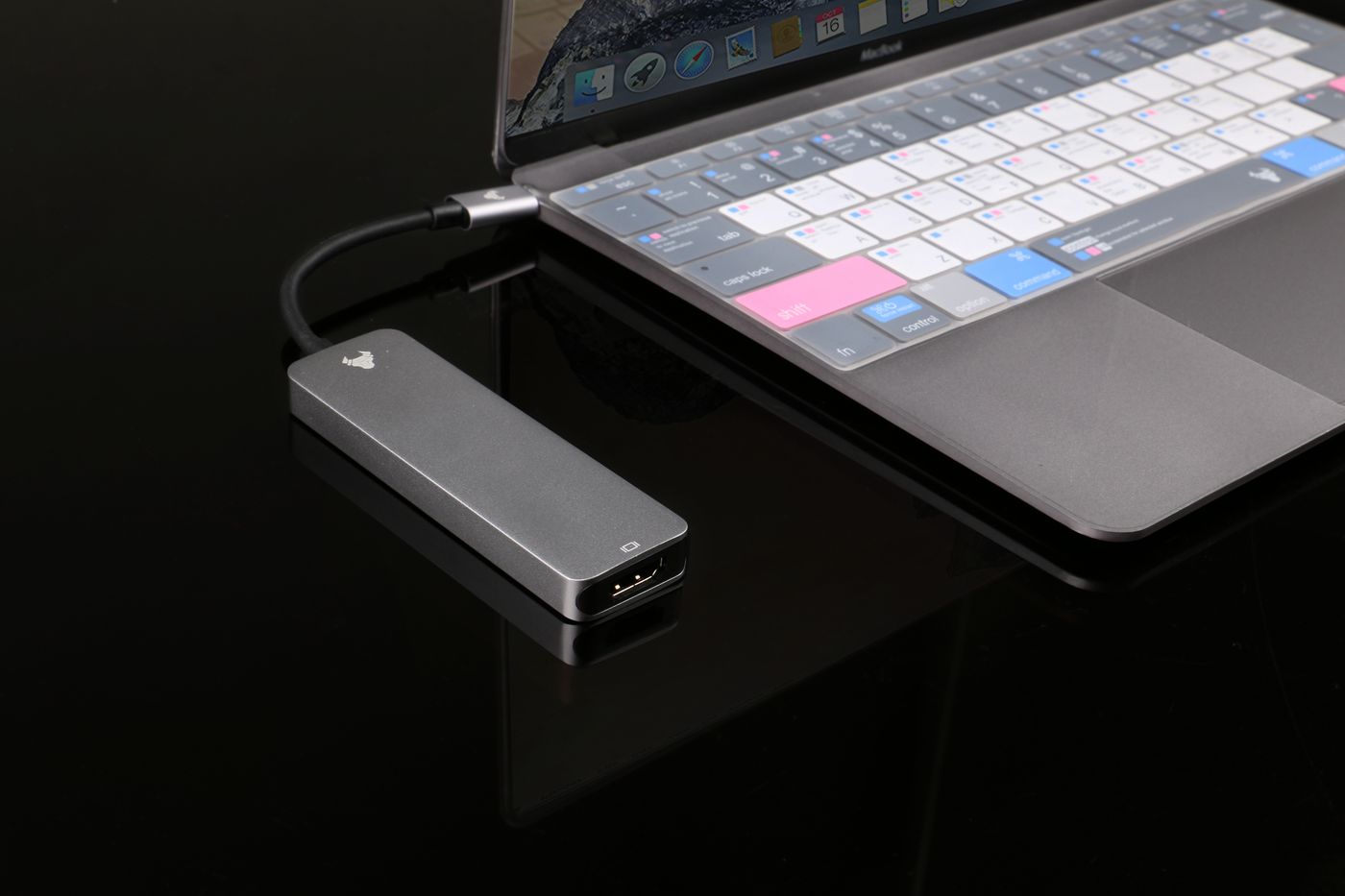
Match the dock's compatibility table to the host interface and operating system. Two HDMI sockets on the dock are not enough evidence of two independent extended screens. Ask specifically about your required arrangement, including both resolutions and refresh rates.
Distinguish a splitter that duplicates one picture from equipment intended to create separate displays. Also distinguish native display output from software-based display solutions. The latter can require drivers and permissions that may be unsuitable for a managed work laptop. Check policy before purchasing rather than trying to circumvent installation restrictions afterwards.
If considering a daisy-chain connection, verify support at every part of the chain: computer, operating system, first monitor, ports and settings. A convenient-looking output socket on one display does not establish that your particular laptop can extend through it as intended.
Test one display at a time
Connect the first screen directly through a supported route and confirm a stable picture at the intended settings. Repeat with the second screen independently. These tests establish that both monitors and cables work before you introduce the combined arrangement.
Then attach both and open the operating system's display settings. Identify the screens and arrange their on-screen positions to match the desk. Choose extended mode if separate workspaces are required. Move a window between them to check that the pointer crosses the expected edge.
If the combined setup fails, reduce to a documented supported mode and compare the result with the compatibility table. Do not keep raising settings in the hope that a missing screen will appear. Record whether the failure follows a particular cable, port or monitor.
Check the daily workflow
Open the applications you actually use. A second screen can be physically present but poorly arranged for reading or sharing. Adjust scaling through the supported settings so text is comfortable, then check whether frequently used windows open where you expect.
Try a sleep-and-wake cycle, reconnect the laptop and test a normal video call if that is part of your work. Choose the microphone and speaker deliberately; a newly attached monitor can add another audio destination.
Keep the successful connection diagram and the exact cable types in your desk notes. If a later laptop replacement is planned, repeat the compatibility checks instead of assuming the old dock preserves the old display limits. A dependable two-monitor setup starts with the host's capabilities and then builds a supported route to the screens.
Ask a precise compatibility question
If a manufacturer needs to confirm the arrangement, send a small complete specification: laptop model and operating system, dock model, both monitor models, intended resolution and refresh rate, and whether the laptop screen stays active. Ask whether the two external screens will extend independently under those conditions. This avoids a reassuring answer about a simpler setup than the one you mean.
For example, a retailer may confirm that a dock drives two displays while you actually intend to keep the laptop display active as a third workspace. Unless that detail is included, neither side has tested the same assumption. Keep the written answer with the product documentation and use the agreed combination during the return-period test, before rearranging the whole desk around it.