Check capability before condition
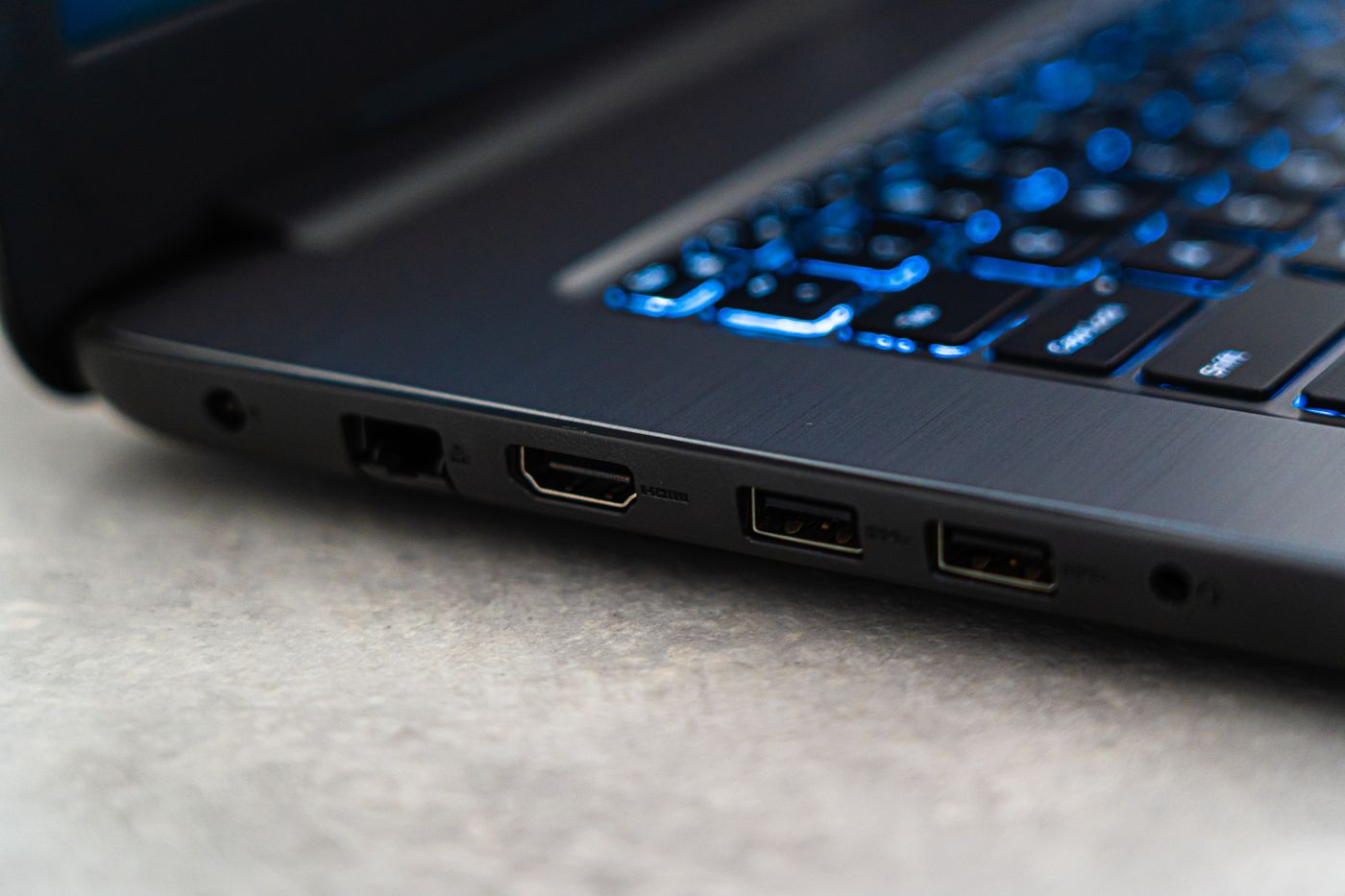
A connector fitting neatly into a socket does not settle what the connection can do. USB-C is a particularly common source of confusion: a port or cable may support charging and data while lacking the display capability required by a monitor. Microsoft also distinguishes charging, display and device-function warnings. Treat those messages as clues, rather than assuming every connection failure is a broken cable.
Write down the job you need: charge the laptop, copy files from a drive, or carry video to a screen. Check the device manual and cable specification for that job. A cable that successfully charges a phone has not thereby passed a high-speed data or monitor test. Likewise, a working USB socket elsewhere on the computer may offer different features.
Make the path shorter
If possible, remove the intermediate hub, extension or adapter. Connect the accessory directly using a suitable cable and a supported port. Keep the device powered as its instructions require. This comparison tells you whether the longer chain is involved without immediately blaming whichever part looks cheapest.
For a display, also select the correct input on the monitor. A perfectly good cable cannot make the screen show an input it is not listening to. With storage, close files and safely eject the drive before disconnecting it. Avoid repeated unplugging while a transfer is in progress simply to see whether the warning changes.
Swap in a controlled order
Try a known working cable of the required type while keeping the same port and accessory. If the result changes consistently, the original cable becomes the leading suspect. Next, where specifications allow, test the same cable and accessory on another port. A result that follows one socket deserves different attention from a result that follows the cable.
Record which combinations you actually tested. “Both cables fail through the dock, both work directly” is a clear finding. “Tried lots of cables” leaves open whether the replacements were suitable, whether the port changed as well, or whether the accessory had enough power during each attempt.
Inspect accessible connectors with the equipment disconnected. Look for a bent plug, damaged insulation or a socket that moves unexpectedly. Do not force a plug, scrape contacts with a metal object or keep using a connection that becomes unusually hot. Follow the manufacturer's cleaning advice if visible debris prevents a proper fit.
Know when the test has reached its limit
Two failed cables do not conclusively prove a bad port. The accessory, software, power supply or requested feature may still be responsible. If a device works on another compatible computer, include that result when seeking help, along with the exact models and any warning text.
Once a cable has shown a repeatable fault, separate it from the reliable ones rather than returning it to the same drawer. A small label on a specialised display or high-power cable can also prevent future confusion. It records what the cable is for, which is often more useful than its colour or length.