Find out where the originals are
A phone's photo library may show both locally stored images and items whose full-resolution originals are in a cloud service. That changes the transfer process. Before connecting a cable, check the library's storage settings and the service's instructions. A small preview visible on the phone is not proof that the complete original is available for export from it.
Apple notes that, when using iCloud Photos, original full-resolution files need to be downloaded to the iPhone or iPad before importing them to a PC through the described route. Other services offer their own download or export methods. Choose a documented method for your setup instead of assuming every visible thumbnail will transfer in the same way.
Make the destination ready
Check that the computer or external storage has enough free space for the intended collection, including videos. Create a clearly named destination folder and decide whether this is a one-off copy or part of an ongoing system. Avoid scattering the same batch across Desktop, Downloads and several partly filled folders.
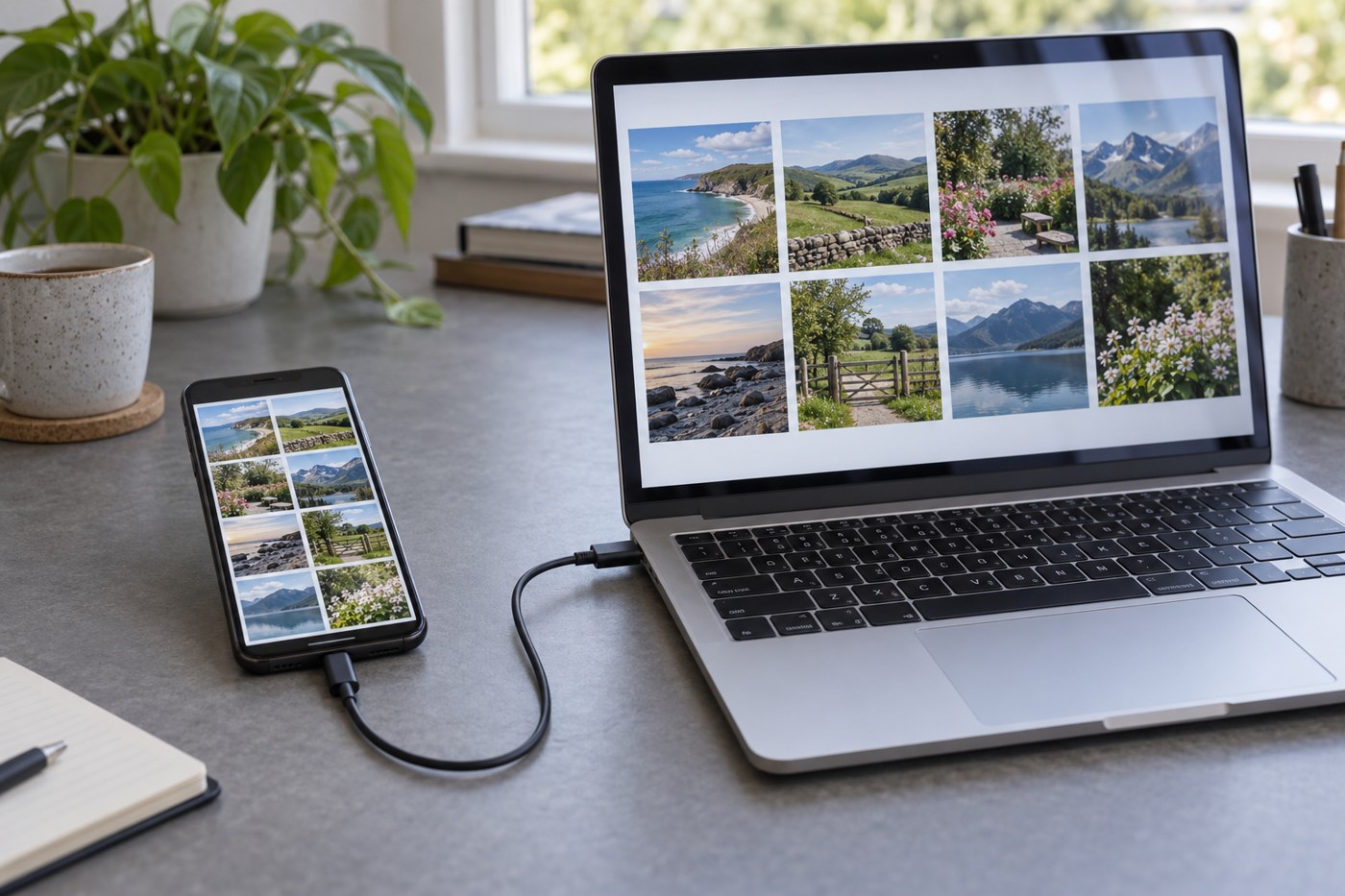
If using a cable, select one that supports data transfer and connect the phone in the way its instructions describe. You may need to unlock the phone and approve the computer. Keep the device steady and allow the transfer to finish before unplugging it. An interruption is a reason to check the result, not to assume that every selected item arrived.
Start with a small sample containing different kinds of files: a recent photograph, an older one, a video and any special format you regularly use. Live or motion photographs, edited images and albums may not be represented identically by every export method. Decide whether you need original files, edited versions or both before transferring the whole library.
Verify a sample in the destination
Open the copied photographs on the destination device, not through a shortcut that still points to the phone or cloud library. Enlarge a few, play videos through and check that the dates or filenames are sufficient for your intended organisation. A folder containing many files can still be missing the particular items that matter most.
Compare the batch with the source using the transfer tool's report and a sensible item count, while remembering that one photo-library item may create more than one exported file. Treat a mismatch as something to understand rather than automatically as a failure. Keep the originals in place while investigating.
For a large collection, transfer in manageable batches with clear date ranges or folder names. That makes it easier to identify an incomplete section and prevents the temptation to begin the whole job again after one uncertain message. Keep a brief note of the last verified batch.
Know what deletion will do
Cloud synchronisation is not simply an extra folder of untouched copies. Apple explains that deleting an item while using iCloud Photos removes it from other devices signed into that synchronised library as well. Similar services have their own behaviour. Read the rules for the service you use before clearing the phone to make space.
If the aim is only to reduce local storage, investigate the service's supported storage-management options rather than deleting the library manually. If the aim is an independent archive, confirm that the exported files can be opened without relying on the synchronised collection and keep another copy separately.
Finish with a repeatable routine
Once the first transfer is verified, decide how often new photographs will be copied and where they will go. Label folders consistently, but avoid reorganising everything during the initial transfer. Copying, checking and sorting are separate tasks, and combining all three makes mistakes harder to spot.
Do not erase the source immediately after seeing a success message. Give yourself time to check important events and keep a separate backup of the destination. A little overlap between old and new storage is useful: it turns a missing file into a correction you can make rather than a photograph you have to recover.