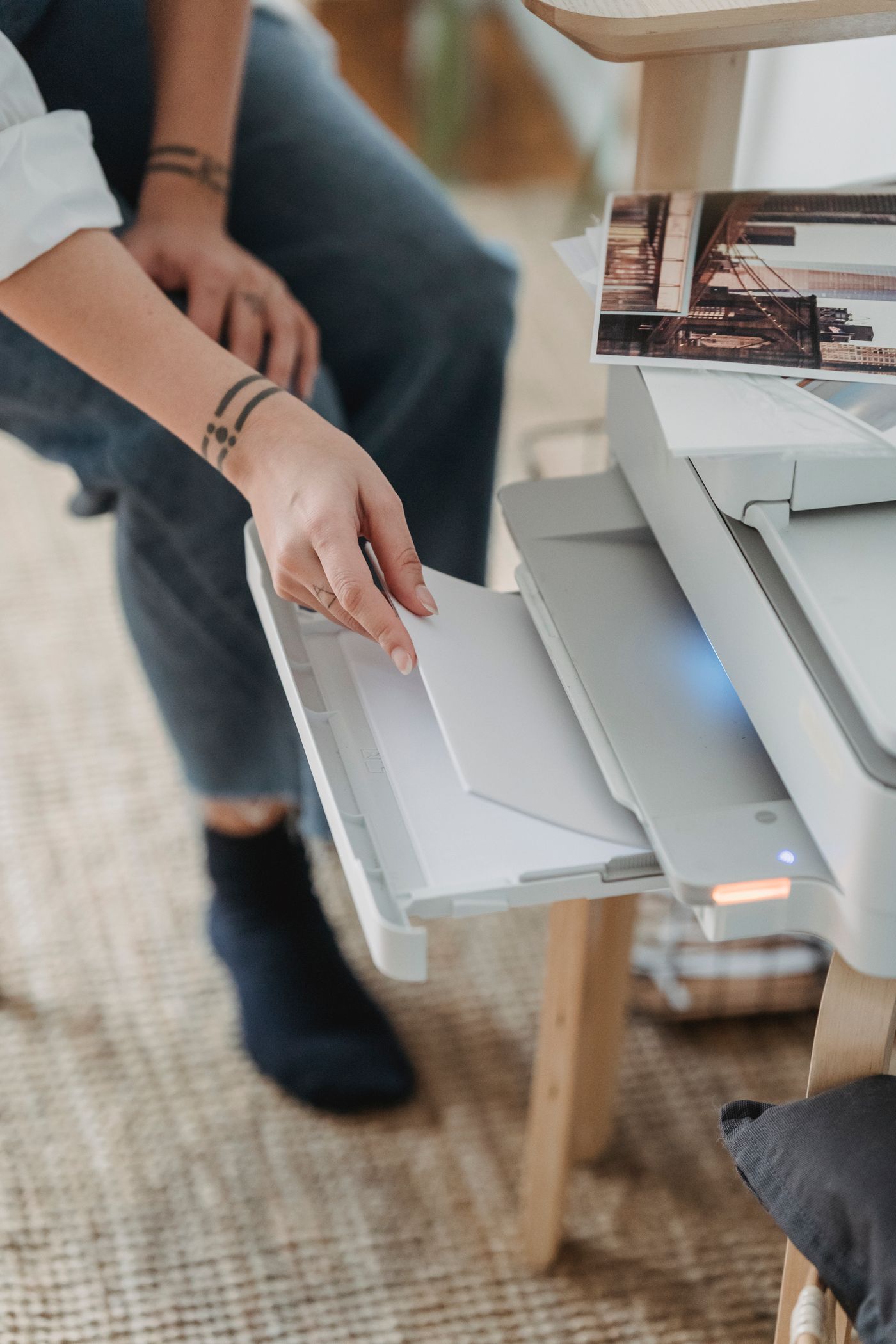
Look at the printer before the computer
Check whether the printer is awake and whether its own display reports a paper jam, empty tray, open cover or another fault. An error on the machine may explain why a job has not emerged even though the computer's message is vague. Resolve the specific warning using the printer's instructions rather than repeatedly pressing Print.
If the display is dark, wake the printer normally. Check its power connection without pulling other household plugs at random. For a USB printer, inspect the cable at both ends. For a network printer, confirm that it is connected to the intended network rather than assuming the connection survived a router change.
Choose the intended printer entry
Open the print dialogue and read the destination carefully. A similarly named old installation, a previous printer or a print-to-PDF option can all be selected by mistake. When several entries refer to one machine, identify the working connection before deleting anything. Keep one clearly named everyday entry once the problem is understood.
Look at the queue for a paused job or an error at the front. A large earlier document may be blocking the simple page you sent afterwards. Cancel only the job you no longer need, especially on a shared computer. Sending ten more copies creates a surprise pile of paper when the original problem clears.
Try one controlled recovery
Microsoft's offline-printer guidance includes checking the connection and using the Windows troubleshooting tools. Follow the steps for your current Windows version rather than relying on a remembered menu path. For other systems, use the relevant manufacturer or operating-system instructions.
A normal printer restart can be worthwhile after checking the obvious causes. Give it time to finish starting, then send one short test page. Avoid a factory reset at this stage: it can erase the very network setup you are trying to check and create a second problem.
If one computer prints but another does not, concentrate on the failing computer's selected printer and setup. If every device fails, investigate the printer and shared connection first. This comparison is often more informative than reinstalling software on every laptop in the house.
Keep the result useful
Write down what restored printing: waking the device, correcting the network, selecting the right entry or clearing one failed job. If the fault returns, note when it happens, such as after sleep or after the router restarts. A repeating pattern gives support a better lead than a general report that the printer is unreliable.