Listen before changing anything
Note whether the sound is a steady fan, a vibration, an occasional click or noise from the speakers. Check when it begins: immediately at startup, during a video call, while a drive is active or only when the desk moves. A short description of the pattern is more useful than deciding that the laptop is generally loud.
If there is a burning smell, sparking, visible damage or another sign of electrical trouble, stop using the affected equipment and seek appropriate support. Ordinary noise diagnosis should not be used to justify continued use of something that appears unsafe.
Isolate the source
Mute the speakers to see whether the sound disappears. Close an ordinary demanding application after saving work and observe whether a fan settles. Safely eject external storage before disconnecting it. Change one device at a time so you know which action affected the noise.
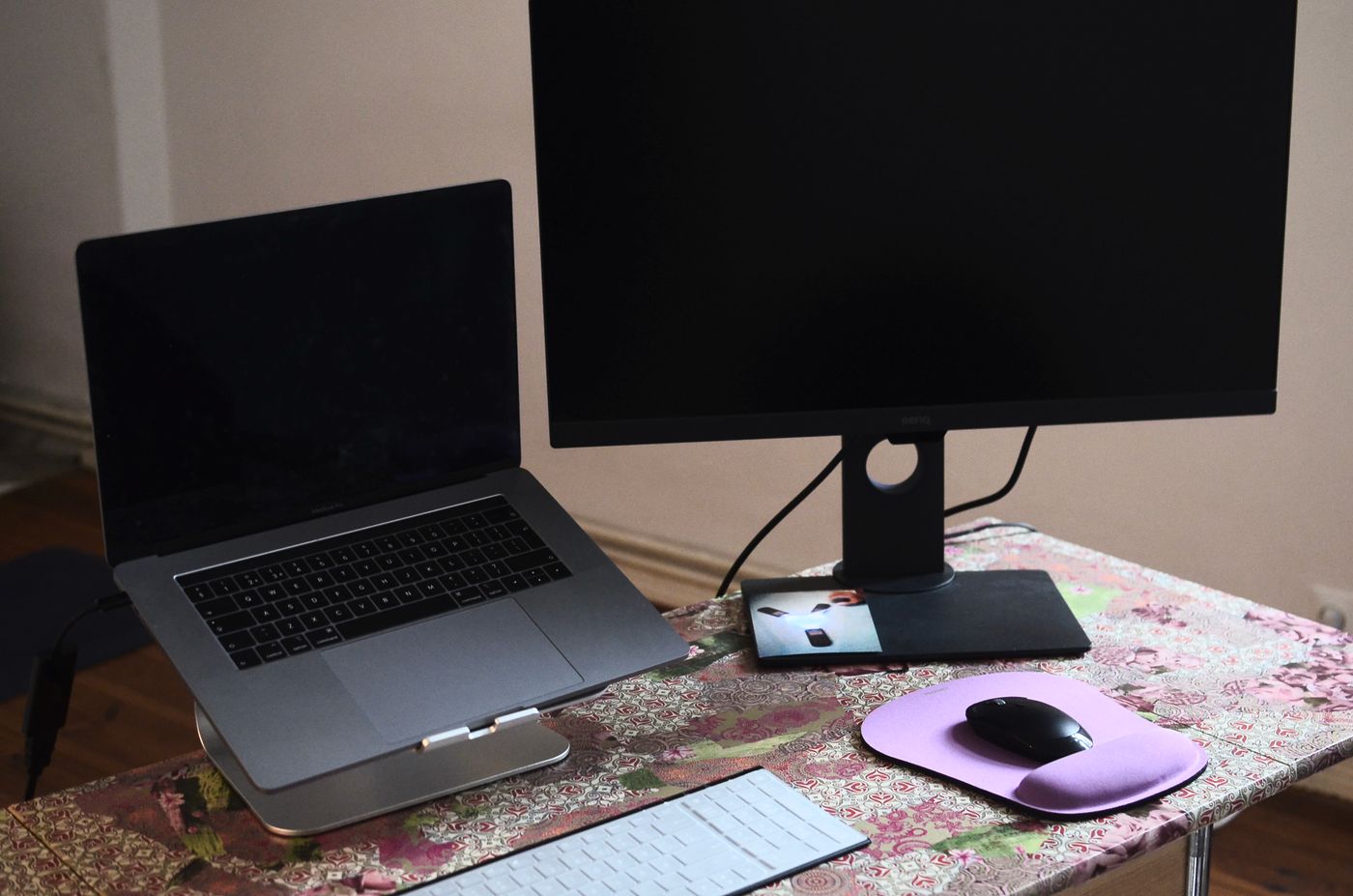
Check whether a cable or loose object is vibrating against the desk. Move an ordinary desk item clear of the suspected contact point without touching moving parts or opening equipment. A monitor stand or hollow shelf can make a small vibration more noticeable than it is on a different surface.
Check airflow and workload
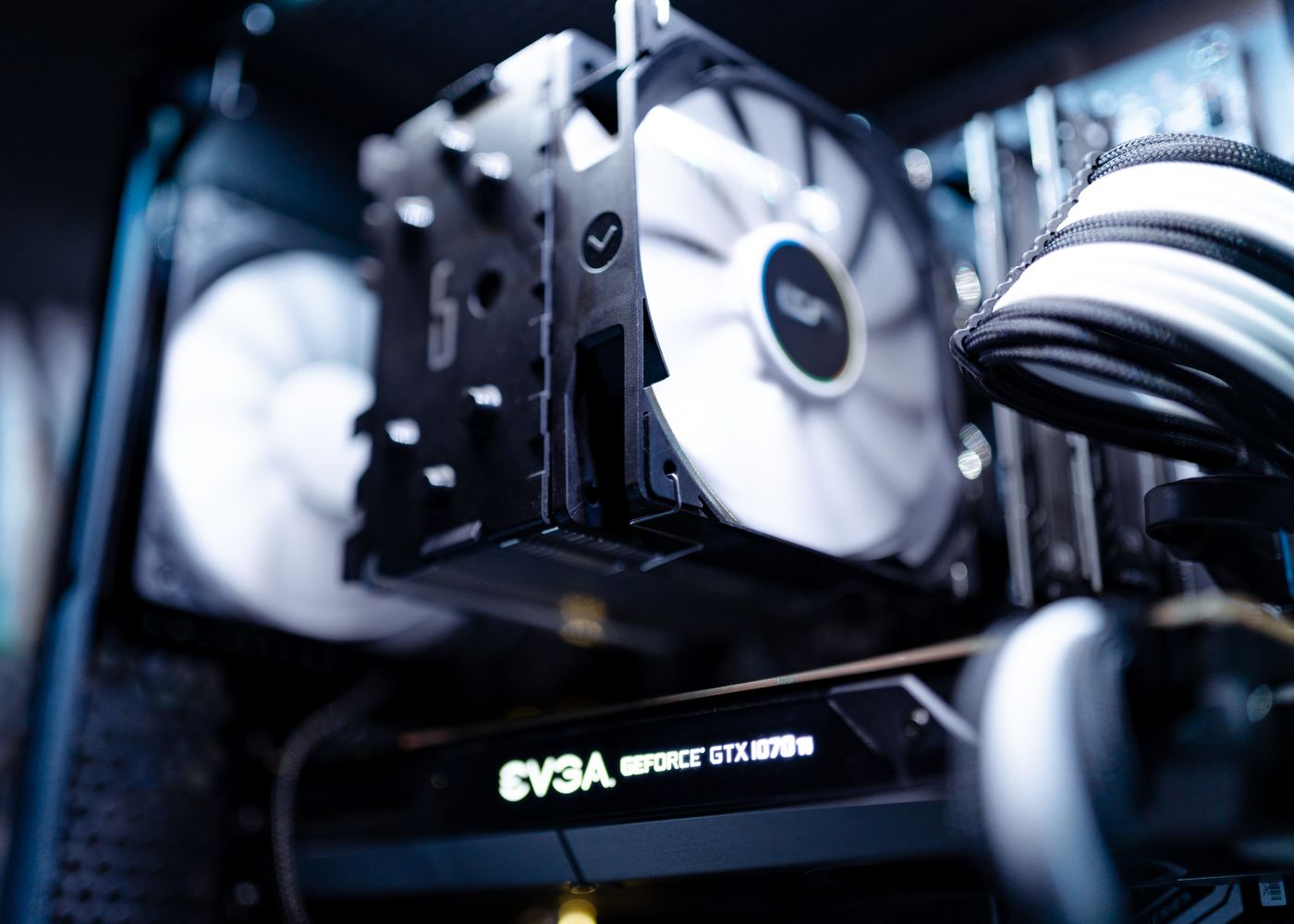
Dell explains that fan speed can rise with temperature and workload, while blocked ventilation can worsen heat problems. Keep the laptop on a suitable firm surface and follow its clearance guidance. Do not cover an intake with papers or put the machine on soft fabric to damp the sound.
Look at the operating system's supported activity tools if the fan runs hard during apparently light use. An update, video task or background application may explain the workload. Do not disable security software or cooling controls merely to make the machine quieter.
If the fan makes a new grinding or rattling sound, or the computer repeatedly shuts down, consult the manufacturer's diagnostics and support. Avoid poking objects through a vent or attempting internal repairs without appropriate knowledge and instructions.
Compare a normal session
After correcting an obvious obstruction or vibration, repeat the ordinary task that produced the noise. Keep the room conditions similar so the comparison means something. Record whether the sound changed and whether performance remained normal.
If requesting help, provide the model, sound description, workload and any diagnostic result. A brief recording can be useful if it does not include private conversation. Buying a cooling pad before identifying the source may leave you with another fan on the desk while the original rattle remains unexplained.