Identify the equipment precisely
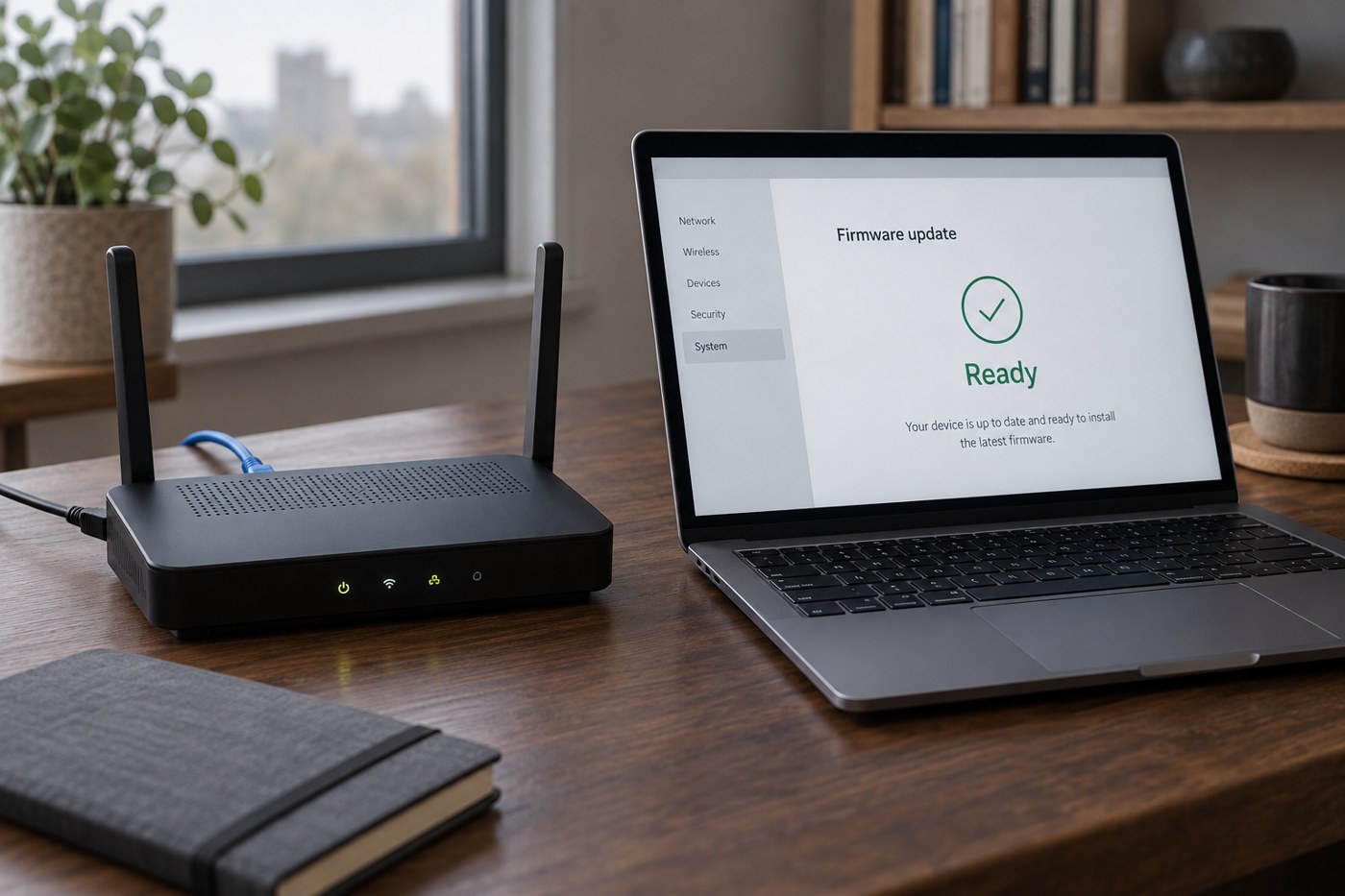
Firmware runs inside equipment such as routers, printers and smart-home devices. Updating it is not necessarily the same as updating the companion app on your phone. Start by checking the device's model, current firmware and, where relevant, hardware revision. A familiar product name on the box may cover more than one version.
Use the manufacturer's official support page or the device's supported update function. For an ISP-supplied router, check the provider's guidance before attempting to install a retail firmware file. Provider-specific features and management can make an apparently similar model a poor match.
Read the release information
Look for what changes, whether settings will be retained and any prerequisites. An update may address security, reliability or compatibility without making the interface look different. Conversely, a new interface does not establish that every older setting has survived unchanged.
If a manual download is required, match the exact model, hardware revision and region specified by the manufacturer. TP-Link explicitly distinguishes these details in its update guidance. Do not substitute a file for a nearby model number or choose a region simply because it has a newer-looking release. If the documentation is unclear, resolve that before uploading anything.
Choose a workable time
Allow for the equipment being unavailable during installation and restart. A router update can interrupt a call, a television stream or remote access to other devices. Let anyone sharing the connection know, and avoid beginning immediately before a task that depends on it.
Keep the recommended power source connected. For equipment updated through a computer or phone, follow the instructions about connection type and whether that companion device must remain nearby. Do not assume that a progress screen can be closed or that the update will continue after the app loses its connection.
Save settings using the supported backup option if one is available, and note a few essentials in readable form. A configuration backup can contain sensitive network information, so store it accordingly. It is not automatically interchangeable between models or firmware versions; check compatibility before restoring it.
Let the process finish
Once installation begins, follow the displayed instructions and avoid interrupting power. A temporary loss of connection or a restarting status light may be expected. Use the manufacturer's stated process to distinguish normal waiting from failure rather than repeatedly unplugging the device.
After it returns, verify the installed version and test the functions you actually depend on. For a router, that might include ordinary browsing, a wired device and a printer on the local network. For a smart device, try both its physical control and the intended app command.
Keep the old version number and a note of anything that changed. If a problem appears, use the official recovery or support route rather than guessing at a downgrade. Firmware updates are useful maintenance, but a failed attempt is not an invitation to try unrelated files until one is accepted.