Find the exact equipment name
Look for the model on the device or in the provider's app, then open its official support guidance. A green, amber or flashing light does not mean the same thing on every router. Separate the router from any modem or fibre termination equipment so you consult the instructions for the box you are actually observing.
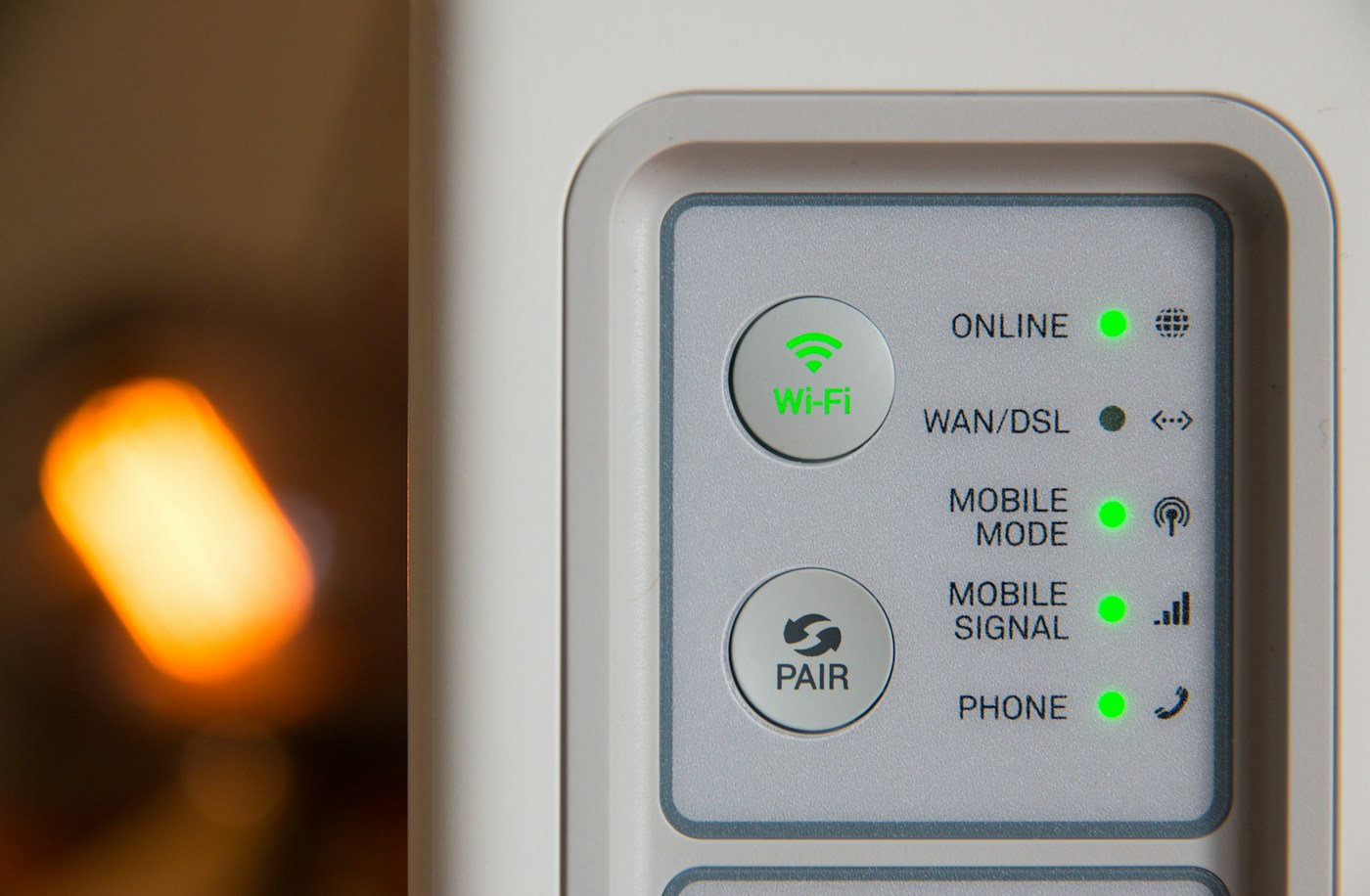
Record the light's label, colour and whether it is steady or flashing. Note when the pattern began and whether the device is starting up or updating. A short video can help you describe a sequence, but avoid sharing labels that expose network credentials or other sensitive details.
Compare the clue with real behaviour
Try more than one device and service. If a status light looks unusual but ordinary connections work, check whether it is reporting something narrow, such as a particular port or wireless function. If every device has lost internet access, check the provider's service status as well as the local equipment.
Do not press a recessed button simply because it sits next to the light. Reset and pairing controls can have consequences unrelated to the fault. Follow the documented action for the actual light pattern, including any instruction to wait while the equipment finishes starting.
Keep evidence before a restart
If the official guidance recommends restarting, tell anyone using the connection and follow the model's procedure. Allow enough time for the full sequence to finish. Repeatedly removing power can prevent the equipment from reaching a stable state and erase the pattern you needed to report.
If the same indication returns, give support the model, timing, exact pattern and the results of your device checks. Mention recent cable moves or power interruptions. Those details are more useful than describing the router as “red” without identifying which light is red.
Treat the lights as one part of the diagnosis. They can tell you where to look, but the combination of documented meaning and observed connection behaviour is what makes the next step sensible.