Start with what you want to show
Showing a holiday photograph is a different job from watching a subscription film or demonstrating a phone app. For a photograph, a compatible sharing or mirroring feature may be enough. For a film, the service's supported television app or casting method is often the more predictable route. Begin with the content and the available receiver rather than a cable or adapter found in a drawer.
Write down the television model and any connected streaming device. A television may support one wireless method without supporting another, and an HDMI streaming device can add its own capabilities. The brand name on the screen does not tell you which method your phone will find.
Understand the two common behaviours
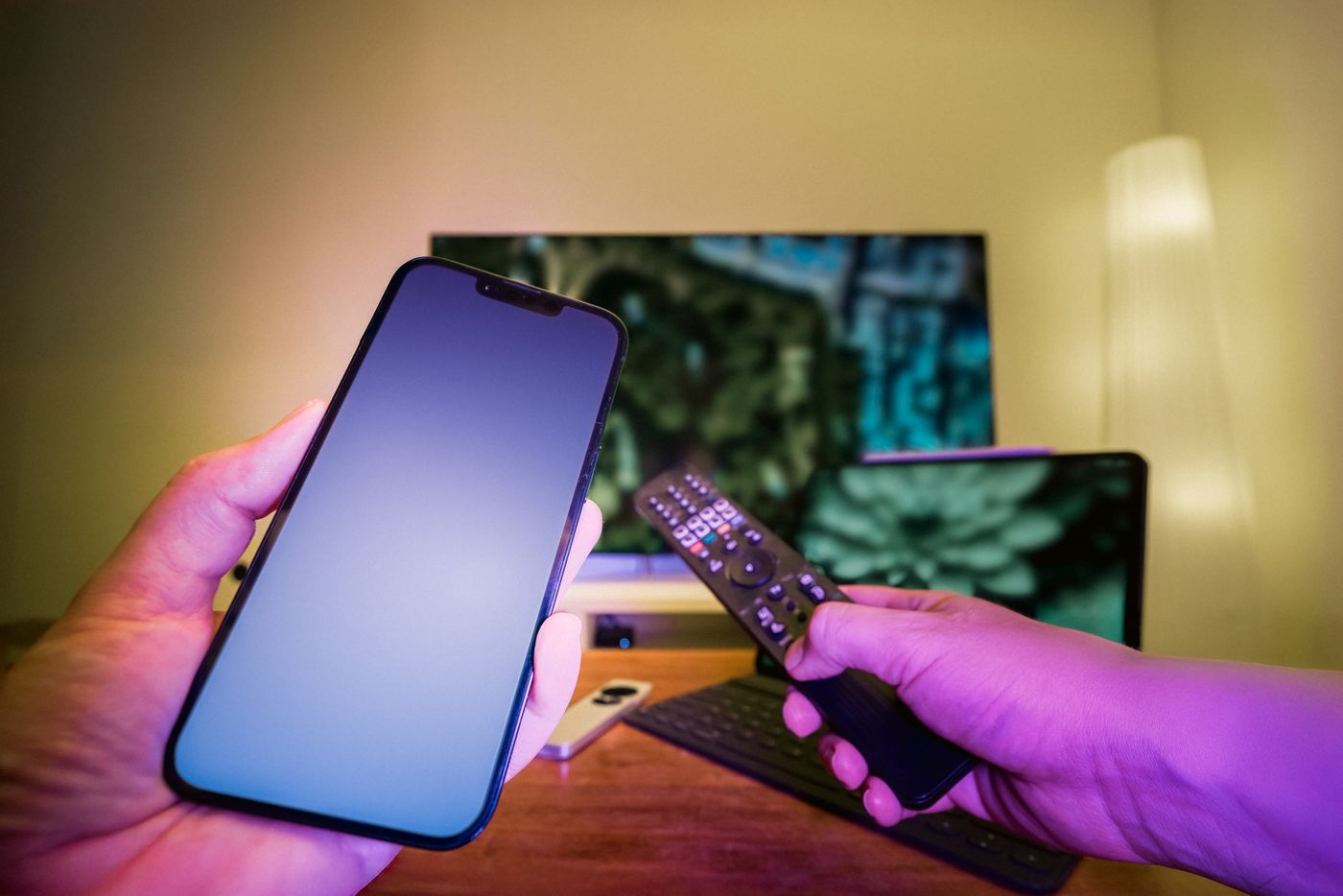
With app-based casting, you select a receiver from a supported app and control playback through that app. Google describes this process for Google Cast-enabled services. The receiver handles the playback arrangement supported by that service; your phone usually acts as a controller rather than simply sending a picture of every movement on its screen.
Screen mirroring reproduces the sender's display. That makes it useful for showing an app, a presentation or something that lacks its own Cast control. It also means that notifications, switching between apps and changing orientation may be visible to everyone watching. Turn off interruptions before sharing something personal, and close unrelated material first.
Do not use these descriptions as a promise that every film service will work in either mode. Content restrictions, app support and device compatibility can affect what appears. A black picture during protected playback may not be a weak Wi-Fi signal. Consult the service's supported viewing methods instead of trying progressively more obscure mirroring apps.
Check the connection without changing everything
For Google Cast, the sender and receiver need to be on the same Wi-Fi network as described in Google's guidance. Guest-network isolation can prevent discovery even when both devices have internet access. Check the names and the receiver's setup before reinstalling apps. Other sharing technologies have their own requirements, so apply the instructions for the feature actually in use.
Start with a small, ordinary item that you know the chosen method supports. If a local photograph appears but a particular streaming app fails, that narrows the issue. If no receiver appears at all, concentrate on discovery, compatibility and the network. If the receiver appears but playback stutters, investigate connection quality and the content source.
Keep the phone close enough to operate comfortably, but remember that a receiver hidden behind a television may have a different wireless experience from the phone in your hand. Moving the phone does not necessarily improve the receiver's link.
Make the session easy to end
Learn where the stop-casting or stop-mirroring control lives before leaving the room. Switching the television to another input may hide the picture without ending the session. Disconnect deliberately, then check that the sender is back to normal use.
For regular viewing, save a short household note: which app to open, which receiver name to choose and which television input is needed. Avoid calling every method casting in that note. Naming the actual feature makes it much easier for someone else to repeat the setup, and makes a later problem easier to describe.